
Market Value File Preparation and Upload Instructions
Purpose
This document outlines the process of generating, receiving, manipulating, and uploading Fund Market Values into Slate.
Process
- Email Reminder: Email reminder sent on 1st of the month to DAR and Budget & Planning out of Slate
- Generate Market Value Files: Budget & Planning generates the market value files and provides them to DAR staff
- Manipulating File for Slate: DAR or IT Staff edit the file so Slate can process
- Uploading File to Slate: DAR or IT Staff upload manipulated file to the Slate Source Format
- Check For Unlinked Funds: Check unmatched rows in file to determine if fund should exist for uploading.
- Verify Data Load: Check data is appearing in Research under funds
Email Reminder
- On the first of every month, a reminder is sent to [ ADD HOW ITS SENT]
- Mailing is located here [ADD LINK]
Generating Market Value Files
- Files are generated from the Budget & Planning Department.
- They generate the file by [Get Instructions From Tasha]
Manipulating File for Slate
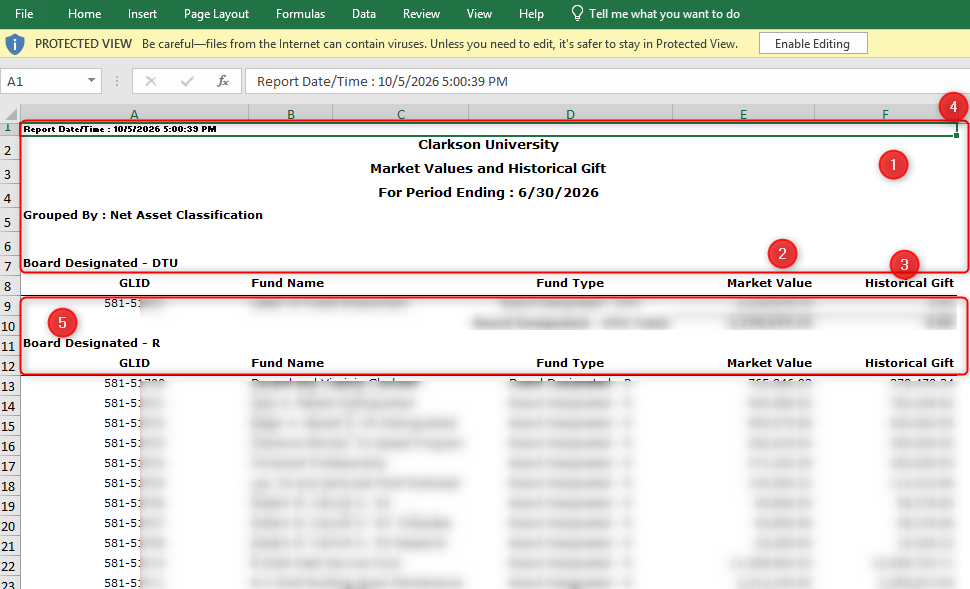
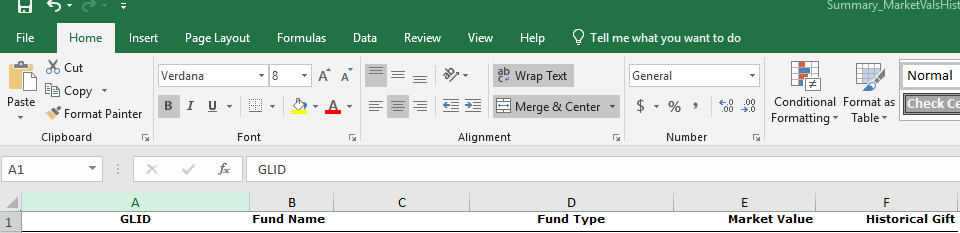
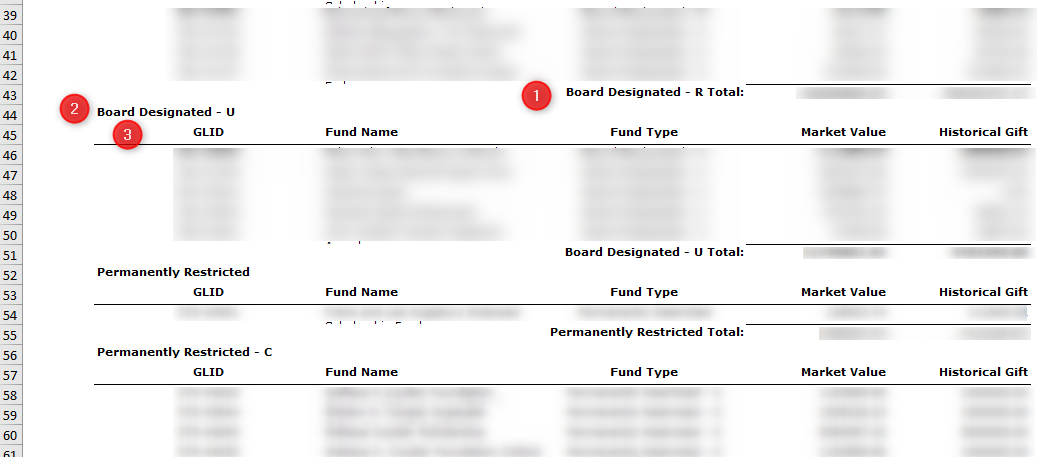
- Open the file in Excel. It will look something like this. Items indicated in red are the items that need to get manipulated. This is so Slate can read the rows directly, and the data matches the expected inputs in Slate.
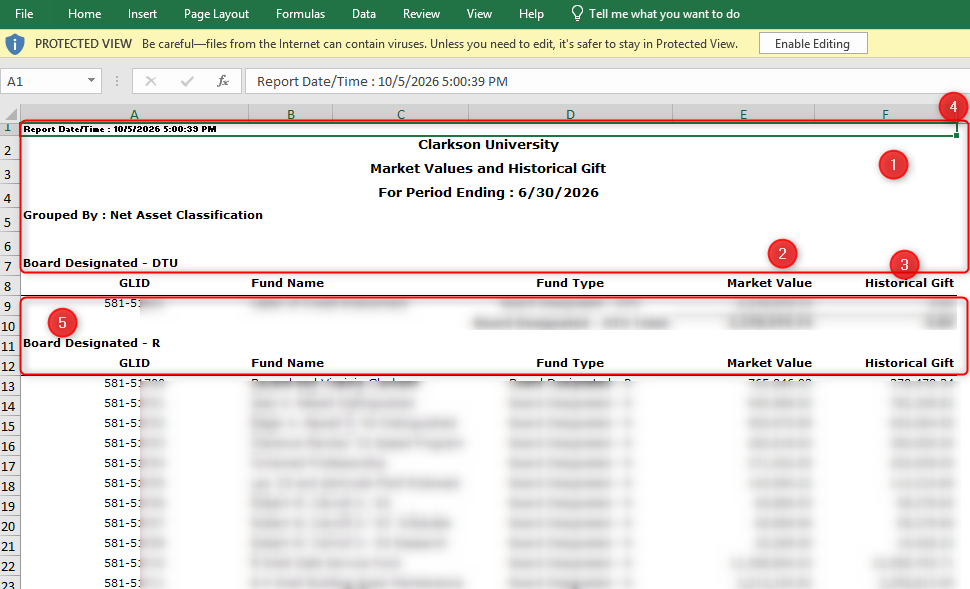
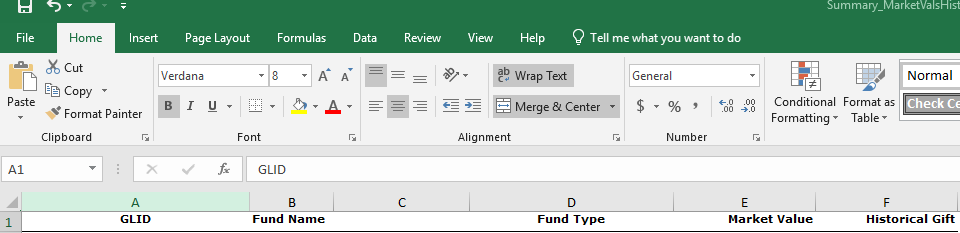
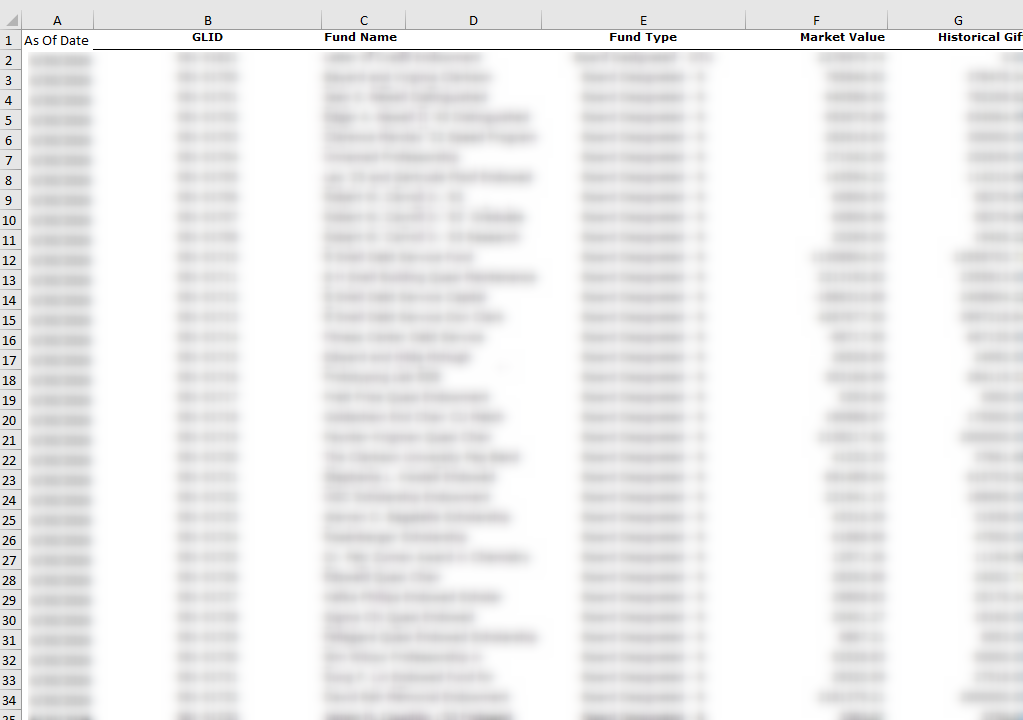
- Make note of the "For Period Ending" date in the header, as we will need that for step 4. We need to remove all the header rows up until the column headers. There should be no rows above column headers. The file should have the column headers in Row 1 after you delete the headers from the file.
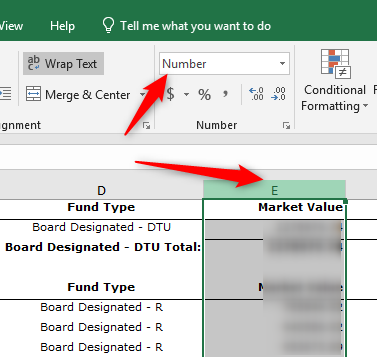
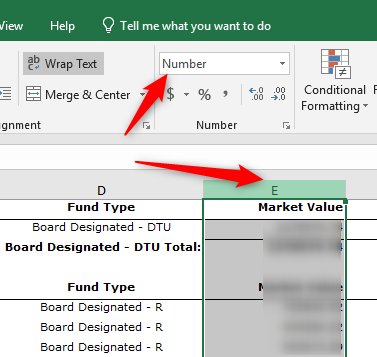
- Click Column E so it highlights the whole column, and change the format to "Number".
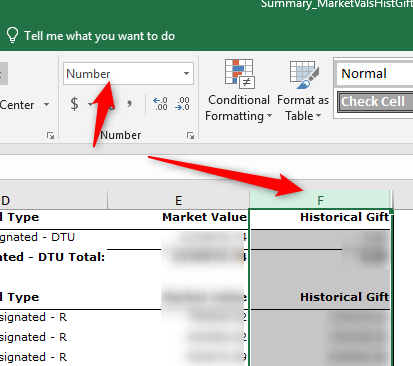
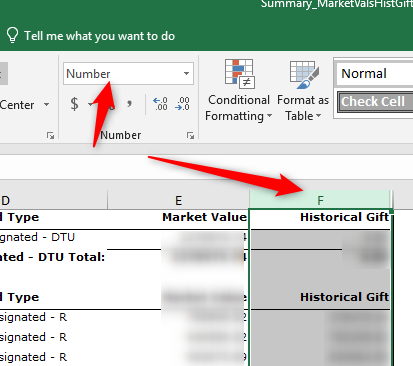
- Click Column F so it highlights the whole column, and change the format to "Number"
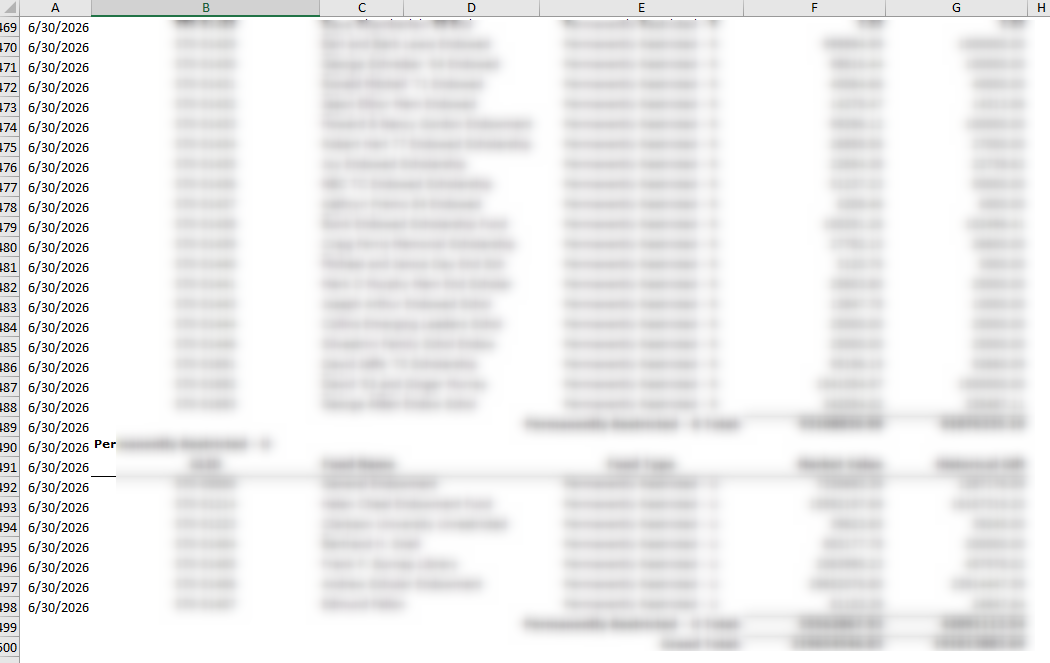
- Click Column A so it highlights the whole column, right click and choose "Insert". Add "As Of Date" as the column header. Spelling and letter case need to match, so ensure the column is exactly "As Of Date". Add the "For Period Ending" Date into the column and copy it down to the last row of data in the file.

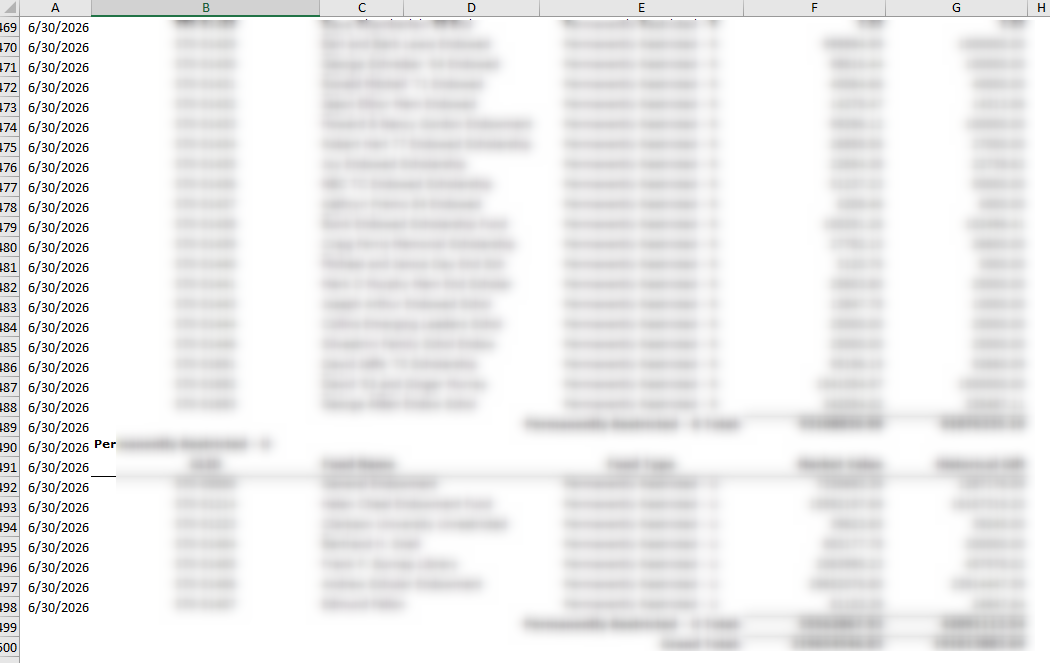
- The file has multiple groupings and sets of headers. We need to scroll through the file and remove any additional headers/column labels in the file. Delete any row that is a Category Total, Category Heading, and additional Column Headers. Repeat for any groupings that exist in the file.
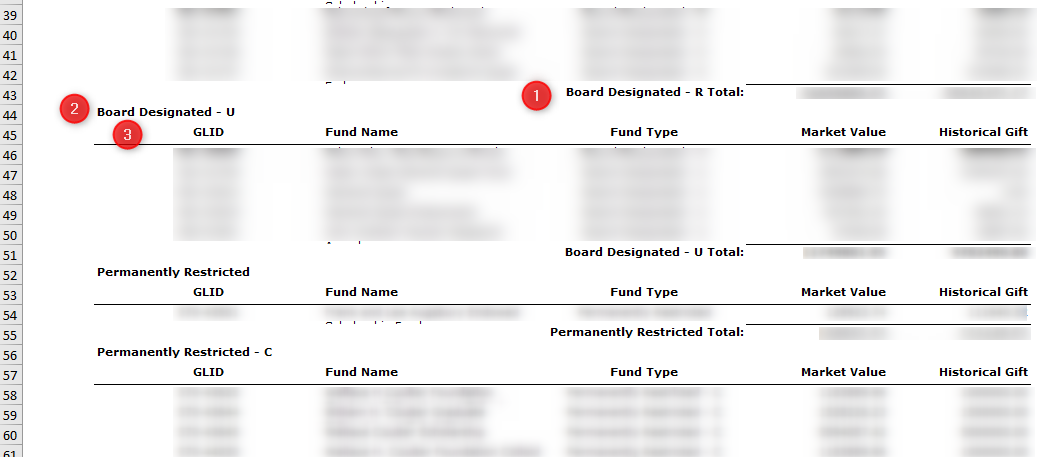
When you are complete, you should have no breaks between fund rows, and no summation/total rows.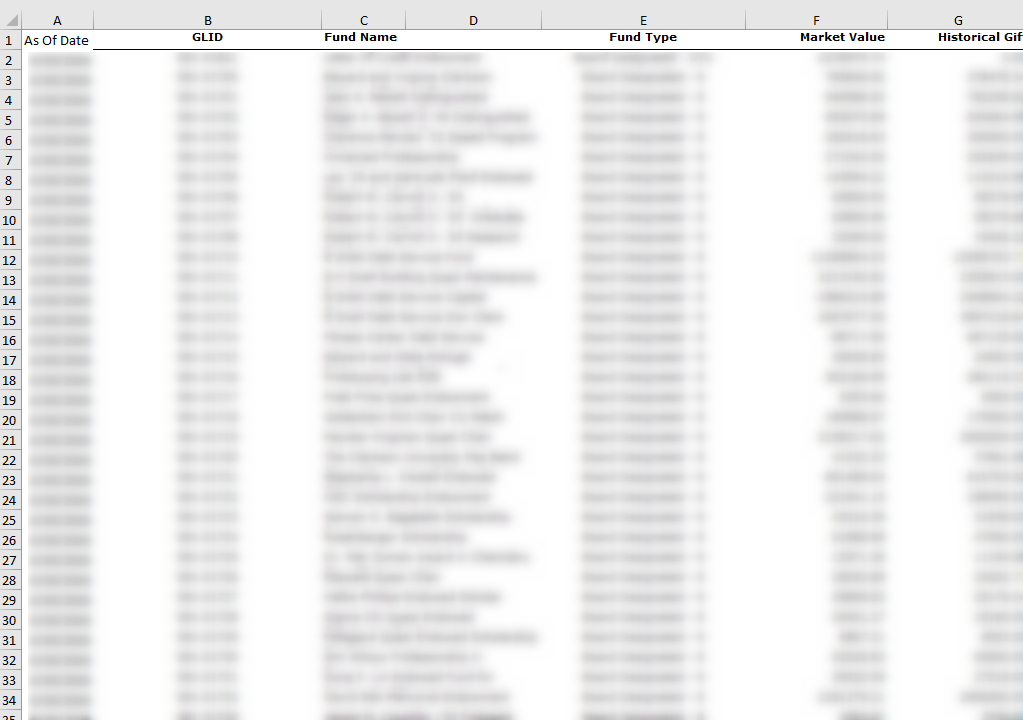
- Make note of the "For Period Ending" date in the header, as we will need that for step 4. We need to remove all the header rows up until the column headers. There should be no rows above column headers. The file should have the column headers in Row 1 after you delete the headers from the file.

Uploading File to Slate
- On the first of every month, a reminder is sent to [ ADD HOW ITS SENT]
- Mailing is located here [ADD LINK]
Check for Unlinked Funds
- On the first of every month, a reminder is sent to [ ADD HOW ITS SENT]
- Mailing is located here [ADD LINK]
Verify Data Load
- On the first of every month, a reminder is sent to [ ADD HOW ITS SENT]
- Mailing is located here [ADD LINK]