Student Teams Create & Share Media to a Discussion Forum Via the Echo Tool
Overview
You will create and narrate your presentation slides in Google Slides. Once the presentation is complete, you will export it into an MP4 video, and finally upload the file to your Clarkson Echo360 account, where you will share it with the class for commenting. Follow the steps below:
Steps for Part 1
1. Create the Presentation
-
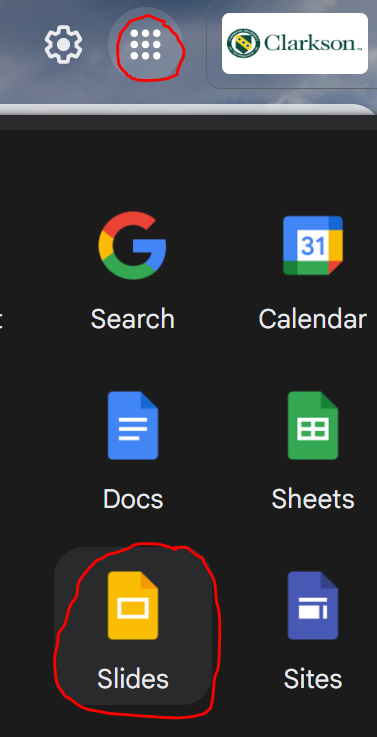
Team/Group Leader log into your Clarkson Gmail account and open the Slides app:
-
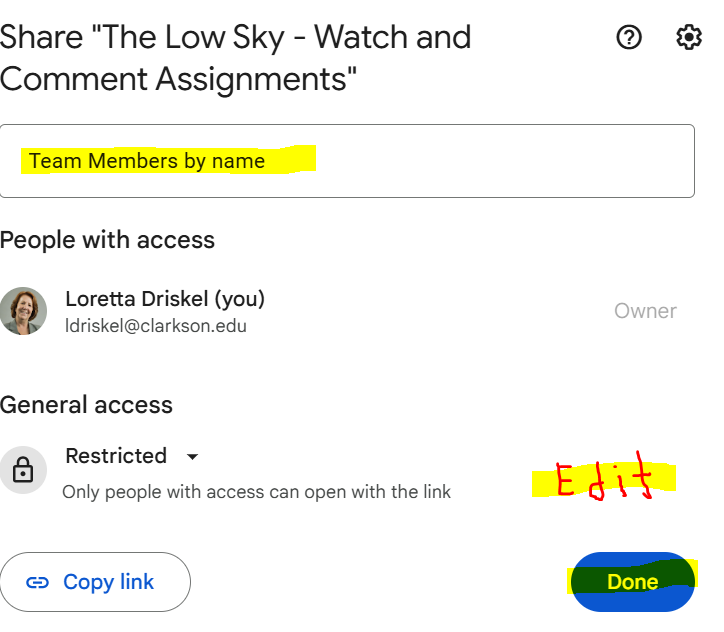
Team leaders create the first slide in the presentation and share the presentation with the team giving each team member editing rights. When prompted, send the message that notifies them of their access. Now you all can edit the presentation as decided by the team.
-
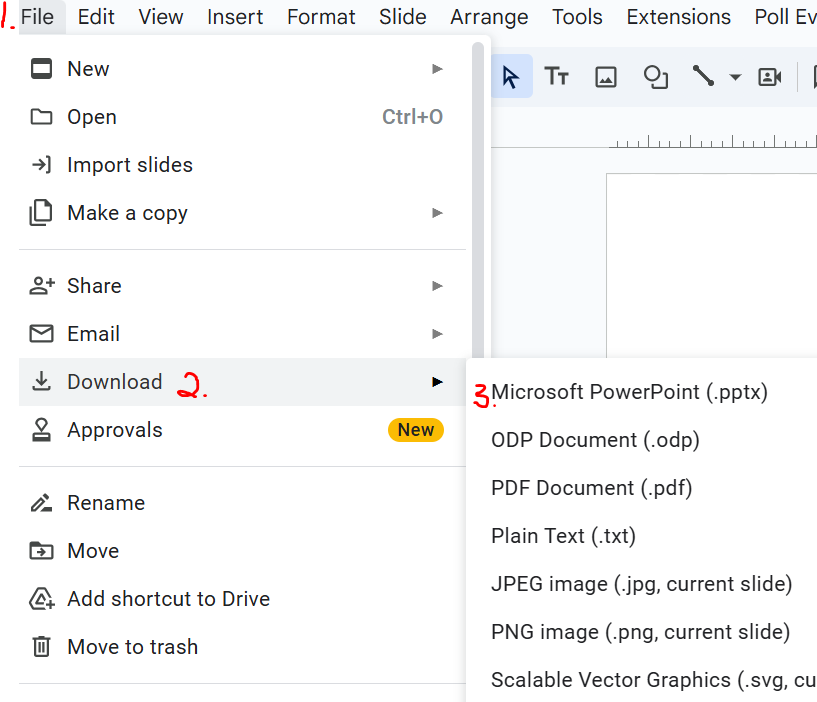
Team leaders download the presentation as a PowerPoint
-
Click on File
-
Scroll down to Download
-
Click on Microsoft PowerPoint
-
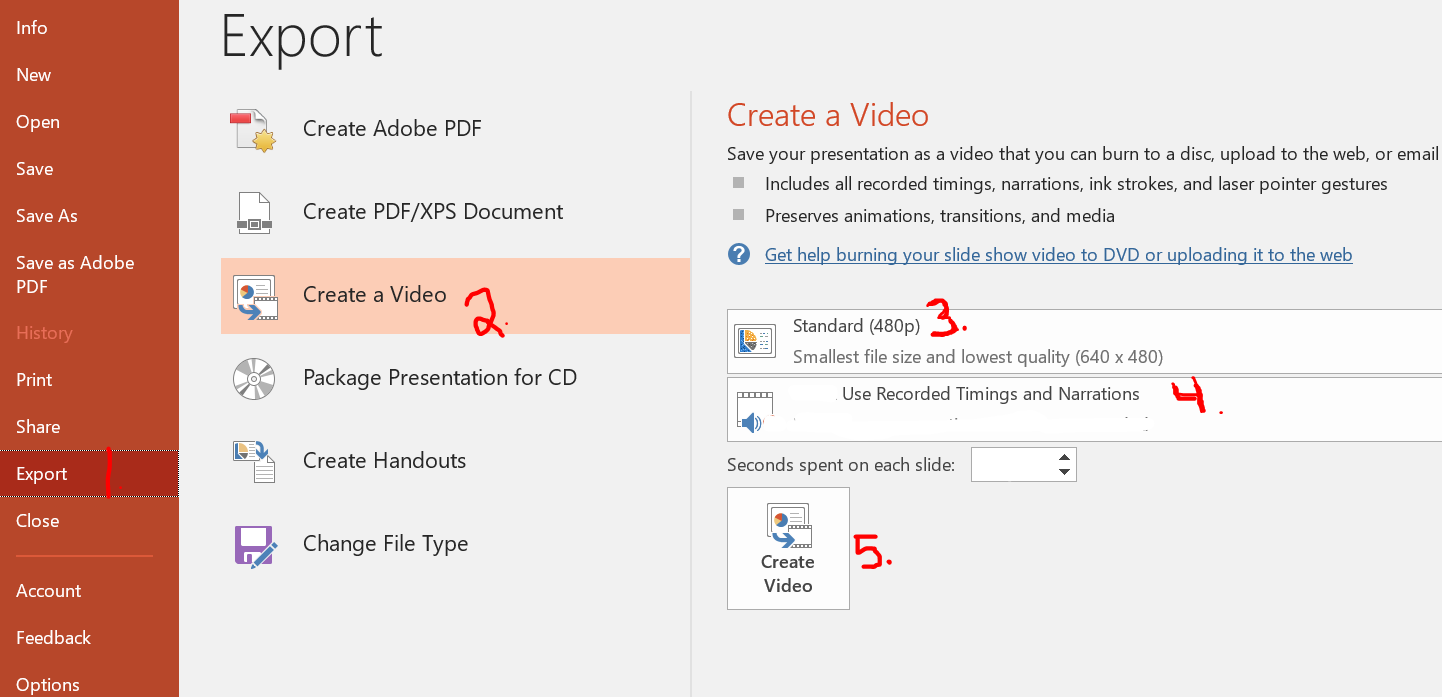
Team leaders open the presentation in PowerPoint and follow the 5 steps on the screenshot to export the presentation as a video:
-
Click File-Export
-
Create a Video
-
Choose Standard size
-
Use recorded timings and narration.
-
Create Video
-
Give your video a chance to process, the time will vary depending on the size of the presentation. The MP4 file will be located on your computer.
Steps for Part 2
-
Sharing with the Class
Now that you have the MP4 file video of your presentation, you will upload it to your Echo 360 account to share it with your classmates for comments and questions!
-
Team leaders upload the video to your Echo360 account library so you can share the video with your classmates:
Steps
-
Locate your presentation forum in Moodle and click on the Add discussion topic button.
-
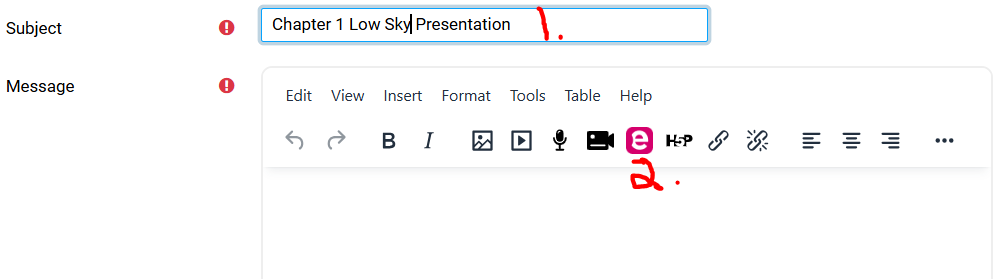
Enter the title of your group’s presentation in the Subject line of the forum
-
Click on the e tool which is connected to your Echo360 account library.
-
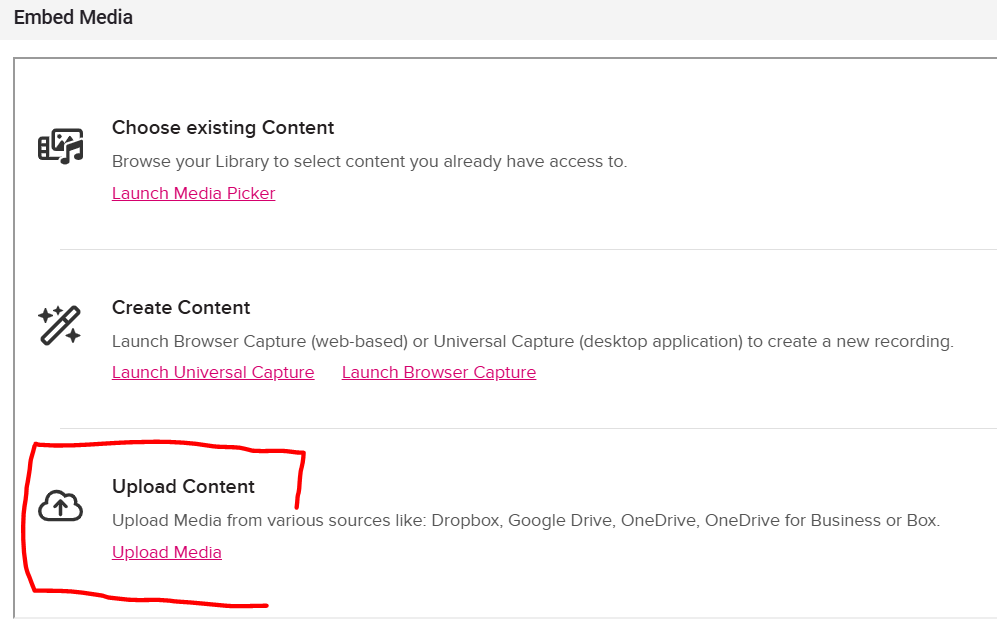
In the Embed Media window, click Upload Media in the Upload Content area:



-
Browse your computer or drag and drop the MP4 presentation file to Upload.
-
Once uploaded, you receive this message. Click the Close button
-
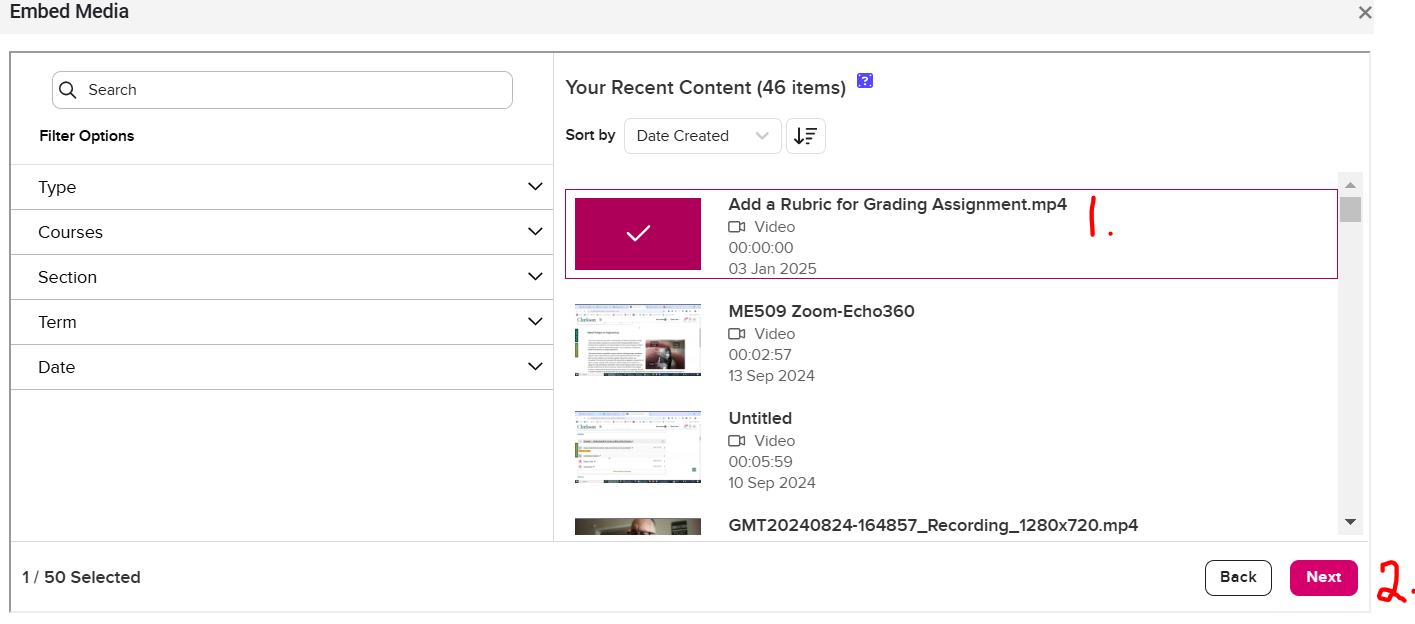
This time, in the Embed Media window, click Choose existing Content and click on the Launch Media Picker to view the videos in your Echo 360 library.

-
Choose the presentation video and click Next

-
Click the Embed button
-
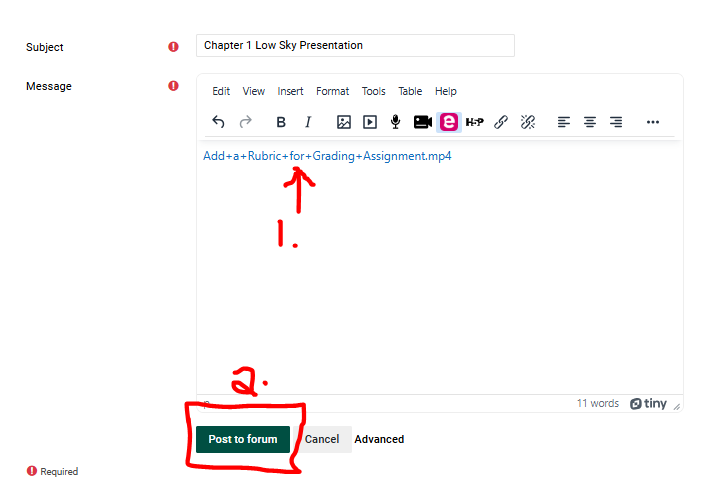
Note the .mp4 presentation file has been added. Click the Post to Forum button
Your presentation video is ready for comments & questions!
Part 3 Class Interaction
Comments & Questions
-
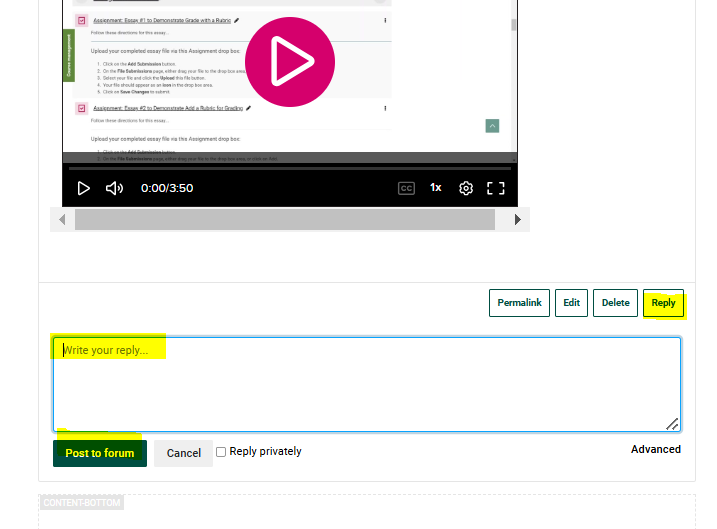
Post questions, comments or replies by clicking the Reply button.
Engage in a lively conversation!