
Quiz: Grading by Question
When instructors are interested in grading all answers to a specific question (such as an essay question) in a quiz, they may opt to do the following:
Steps
- From your course page, click
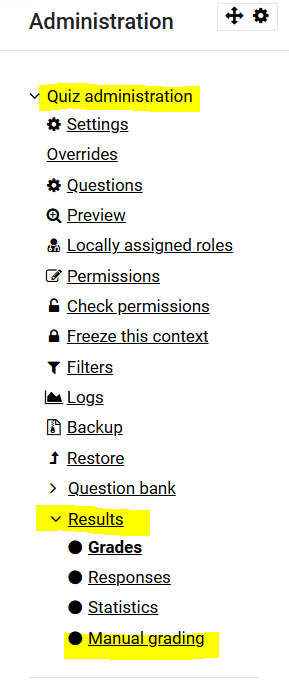
intoon the Quiz and choosequizResultsactivity,from the top navigation bar for the Quiz.
Change Grades to Manual Grading on the rightdrop indown themenu.
ChooseNote Manualthe Grading,number which then brings to a view that show whichof questions are left to be graded.graded and choose grade all. 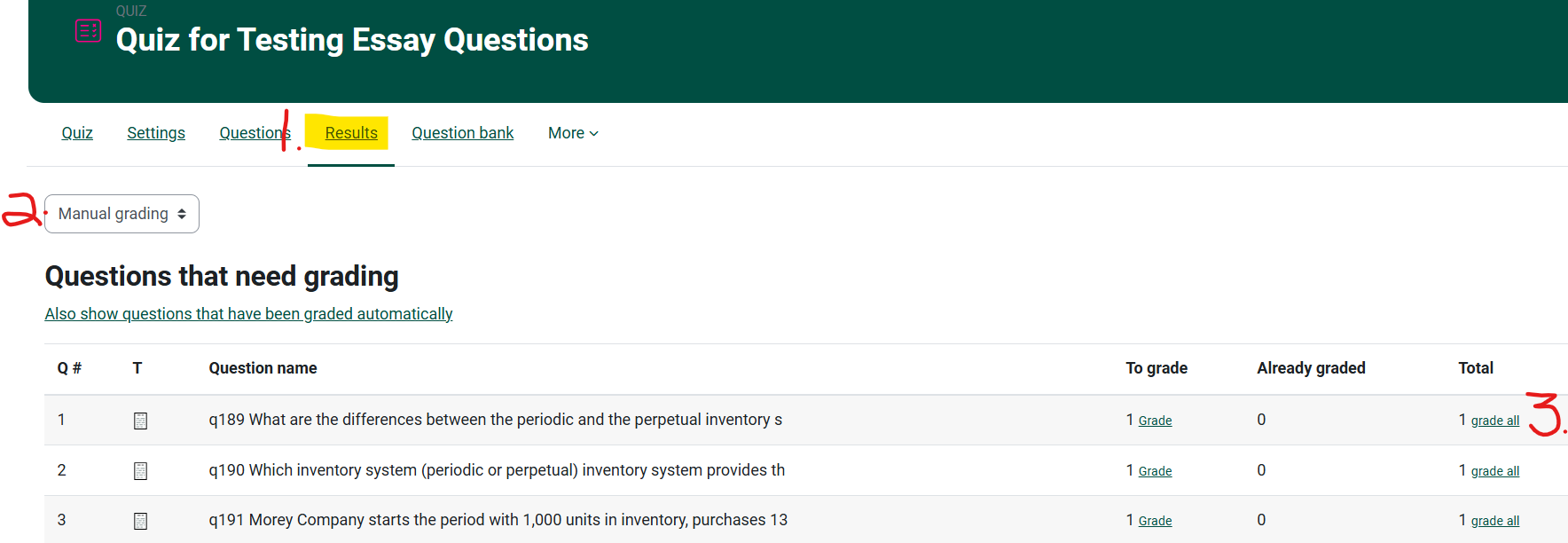
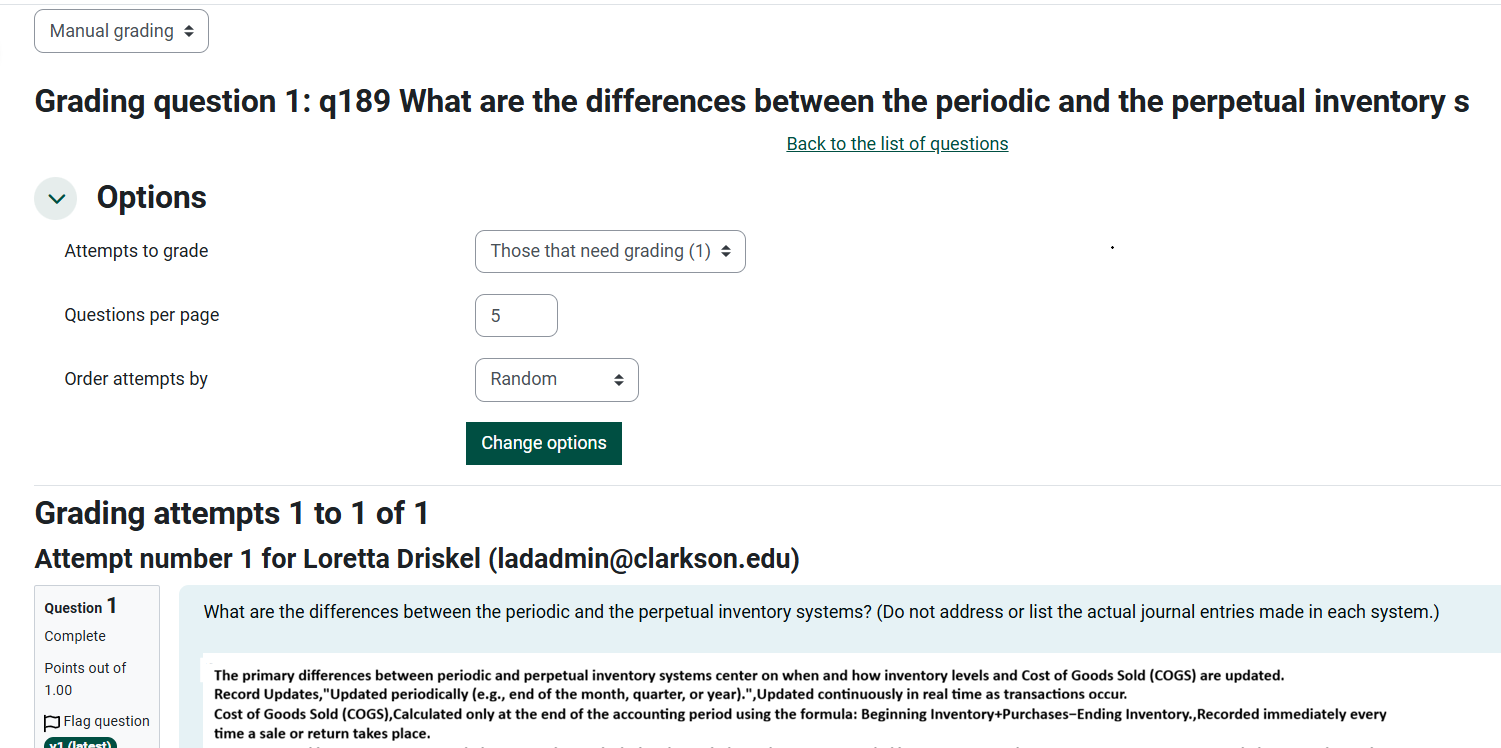
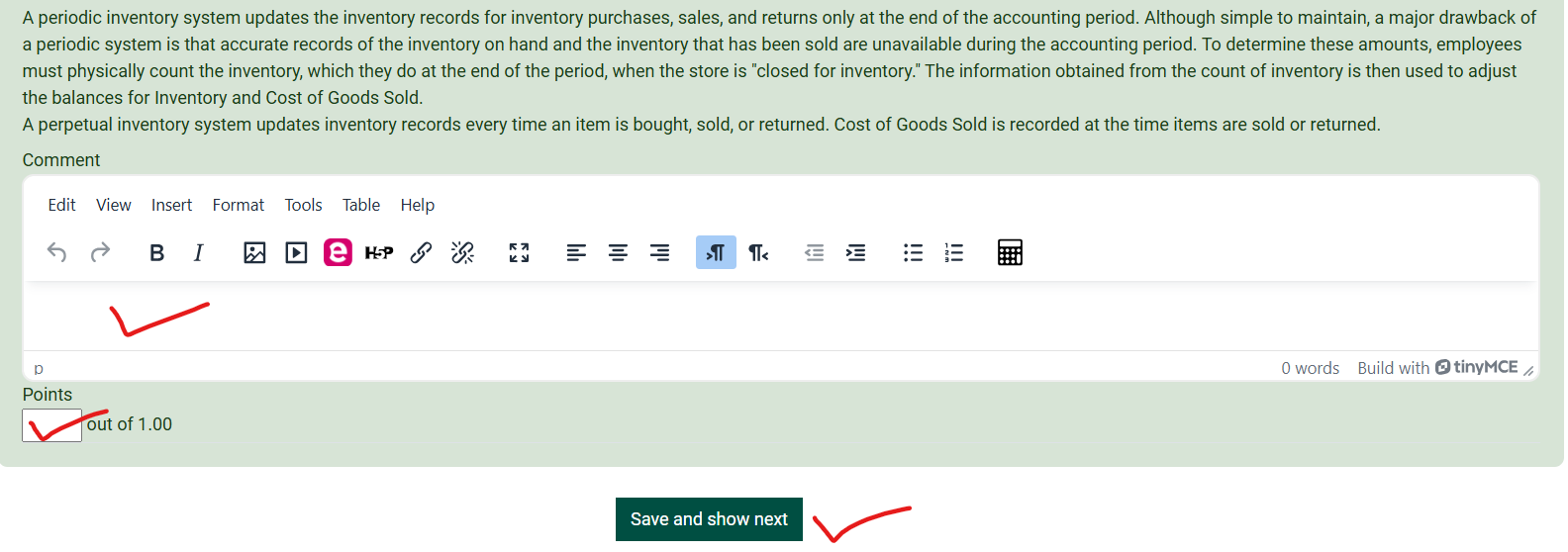
3. You can click on each question and view the student responses & grade/feedback to each of those responses.
See the Moodle Docs for Quiz Manual Grading.
Seek Further Assistance
For additional assistance please contact, Clarkson OIT Help Desk;
Online: Get Help
Email: helpdesk@clarkson.edu
Call: 315-268-HELP (x4357)