
Quiz: Hide Grades
Or other Review Options during a quiz.
Summary
Instructors may want to keep the quiz results, grades, and or feedback hidden from students until everyone has submitted their quiz. Follow the steps below to keep some results hidden until all the quiz due date.
Steps
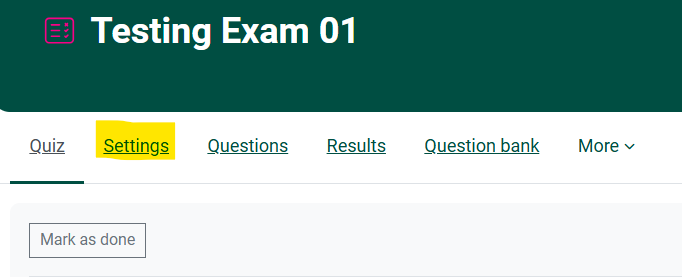
Step 1. Go to the Quiz Activity in Moodle and click on the Settings option on the top navigation for the quiz.
Step 2. Scroll down to Review Options, select/deselect the various options unerunder the four column headings as desired to meet your needs for the quiz.
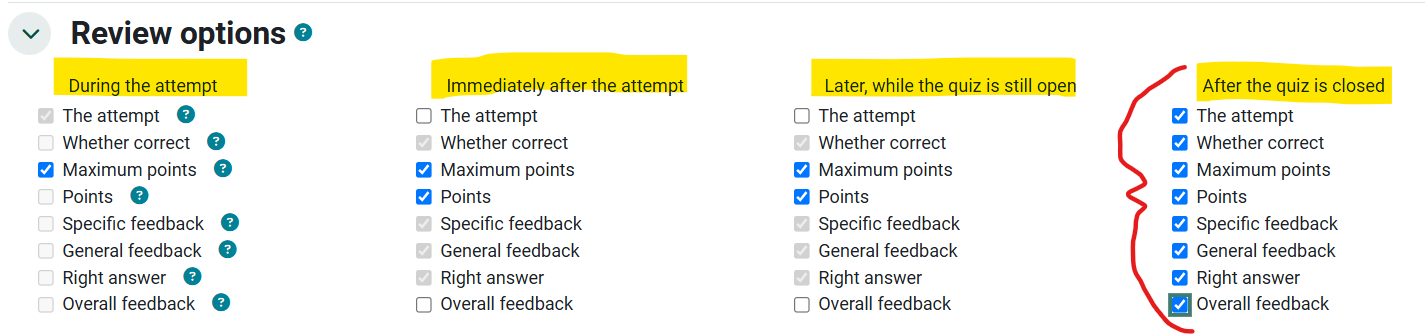
The purpose of the options selected in the screenshot above is to prevent students from sharing answers during the quiz. Students will see only their points earned out of the possible points for the quiz, everything else is hidden until the quiz has been closed. Once the quiz has closed, students will be able to go back and see any of the options checked. See also Open Quiz Scores after Quiz Closes.
See more about Review Options in Moodle Documentation
Seek Further Assistance
For additional assistance please contact, Clarkson OIT Help Desk;
Online: Get Help
Email: helpdesk@clarkson.edu
Call: 315-268-HELP (x4357)