
Quiz: Hide Grades
Summary
Hiding quizzes in Moodle from students until a desired time. Instructors may bewant interestedto inkeep hidingthe quiz gradesresults, grades, and or feedback hidden from students until everyone has submitted their quiz. ToFollow dothe this,steps gobelow to Editkeep Settingssome ofresults hidden until all the quiz due date.
Steps
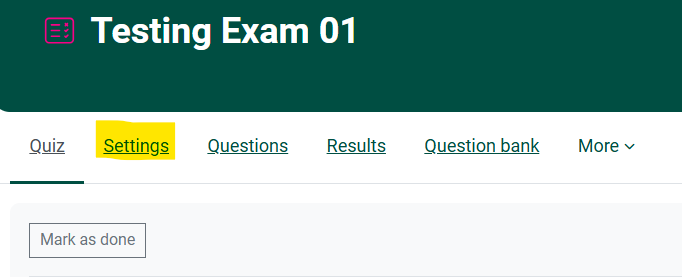
Step 1. Go to the Quiz Activity in Moodle,Moodle underand click on the Settings option on the top navigation for the quiz.
Step 2. Scroll down to Review Options,Options, select/deselect the Pointsvarious optionoptions underuner Quizthe attempts.four Thiscolumn headings as desired to meet your needs for the quiz.
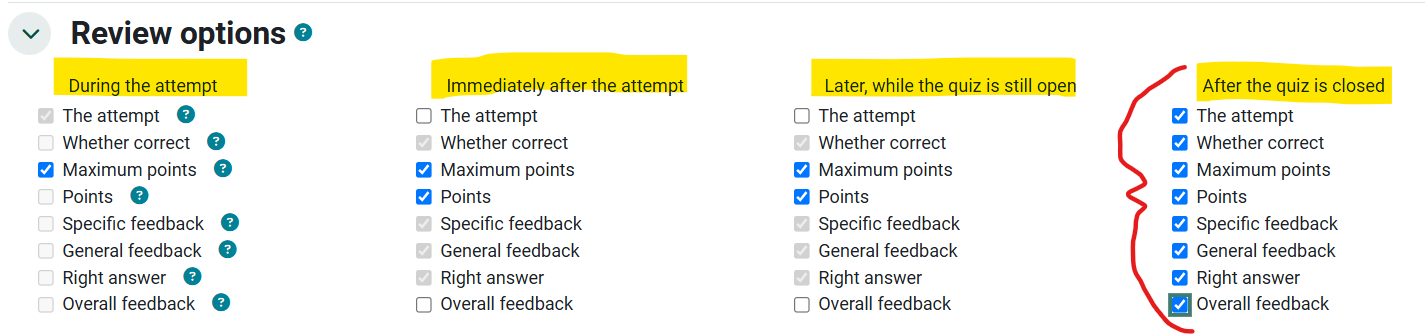
The purpose of the options selected in the screenshot above is to prevent students from sharing answers during the quiz. Students will hidesee only their points earned out of the possible points for the quiz, everything else is hidden until the quiz gradeshas frombeen closed. Once the quiz has closed, students inwill theirbe gradesable areato go back and see any of the options checked.
See more about Review Options in Moodle.Moodle WhenDocumentation
Seek areFurther readyAssistance
For revealadditional quizassistance grades,please returncontact, toClarkson EditOIT Settings,Help and check the Points options. Desk;
ClickOnline: imageGet belowHelp
Email: tohelpdesk@clarkson.edu
Call: view315-268-HELP 7 min video step by step tutorial on how to do this:(x4357)

