
New!! EchoVideo Study Aids
Summary
Study Aids are supplemental learning resources that can be added to EchoVideo recordings. They give students additional ways to review lecture content, reinforce key concepts, and test their understanding—all within the EchoVideo player. Study Aids can be created manually by an instructor or generated with AskEcho, EchoVideo's AI-powered assistant. When using AI-generated content, instructors should review and edit the materials before making them available to students.
This article will help you to:
- Understand How Study Aids Work
- Create Study Aids
- Ideas & Examples for Using Study Aids
- Understand differences in Echo360 support tools.
How Study Aids Work
A useful way to think about Study Aids is:
Recording → AI-generated draft → Instructor review → Student study resource
When AskEcho is enabled, it analyzes the transcript of the recording and generates suggested Study Aid content. The instructor can then review, edit, add, or delete content before sharing it with students.
Important: AI-generated Study Aids should be reviewed before they are shared with students. Consider both factual accuracy and whether the questions and resources actually support your learning objectives.
Steps to Create Study Aids
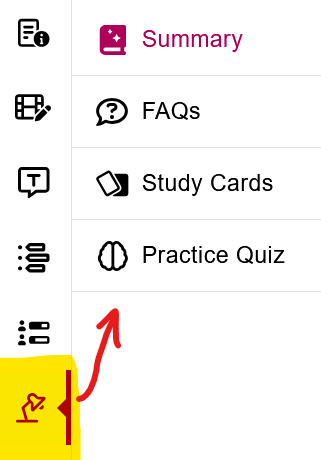
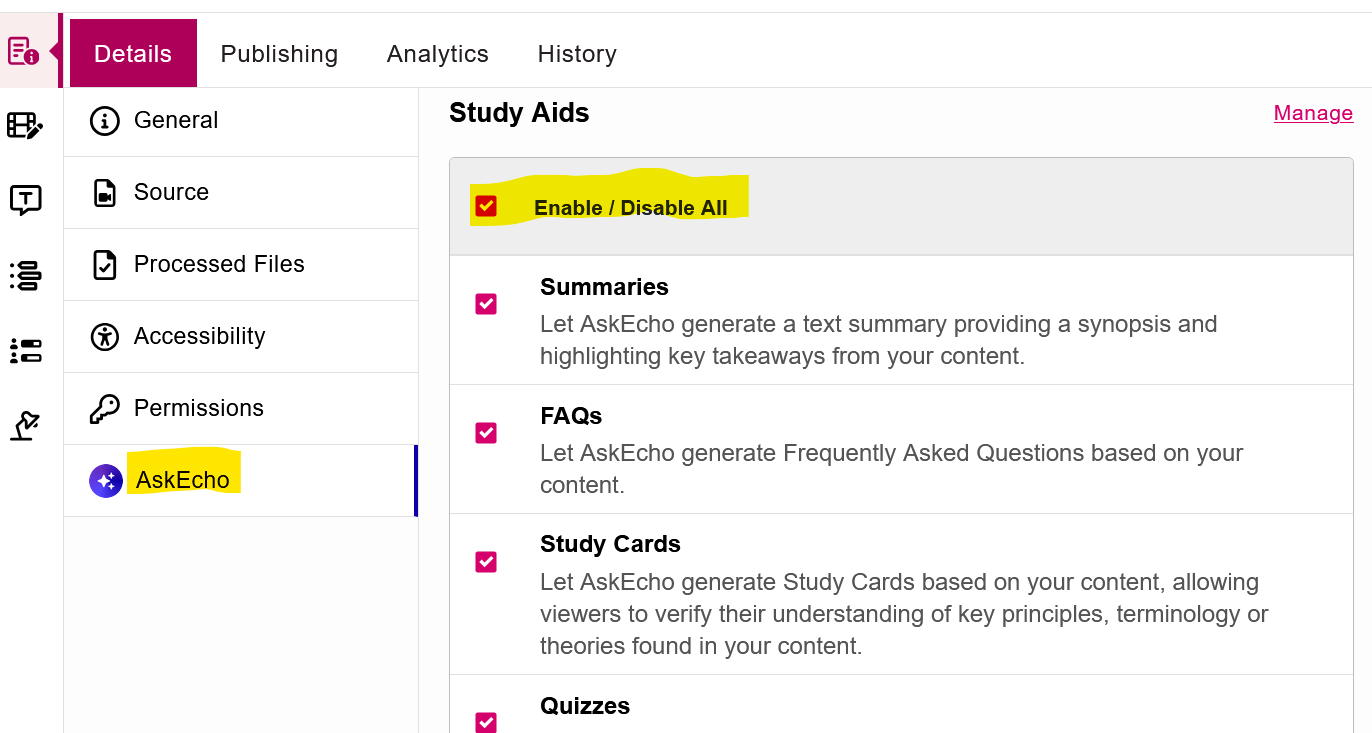
Study Aids are managed from the Study Aids tab on the Media Details page.
Step 1: Open your recording
-
Go to your Echo360 Media Library.
-
Locate the recording you want to work with.
-
Open the Media Details page for the recording.
-
Select Study Aids icon. (Alternatively, select AskEcho)
Step 2: Choose a Study Aid and Generate (or enter content)
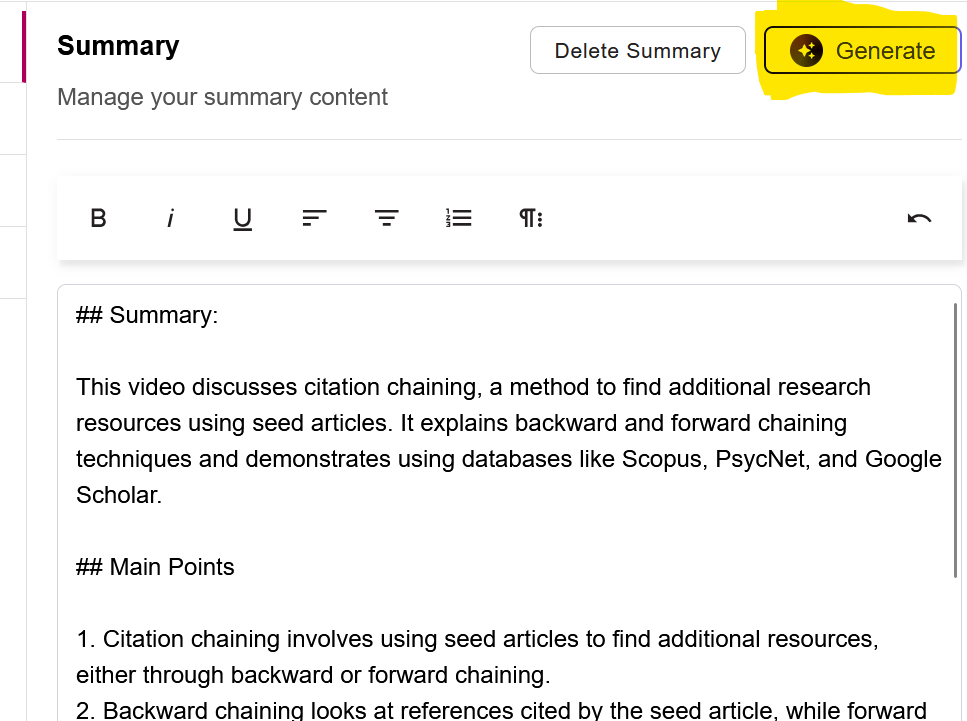
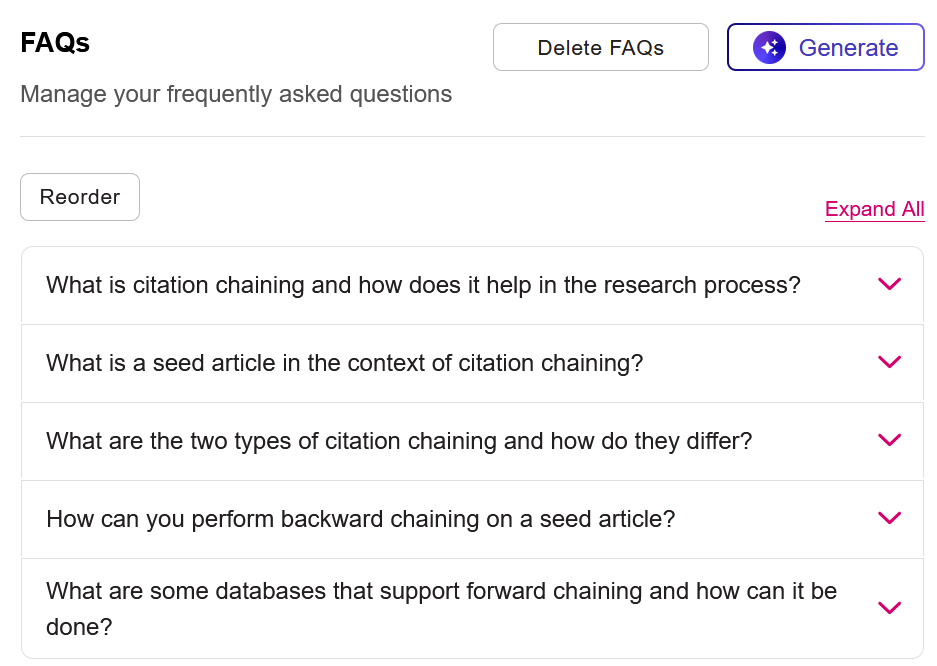
Select Generate to have EchoVideo create an AI-generated draft of the chosen study aid(s) based on the recording transcript. You can also create Study Aids manually without using AskEcho. This allows instructors to maintain complete control over the content.
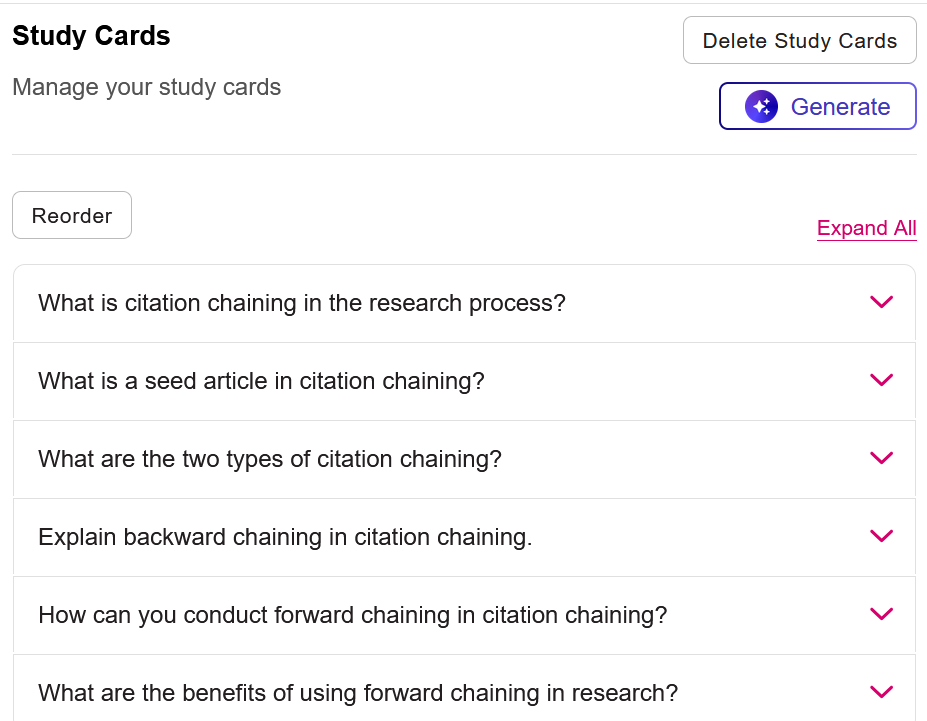
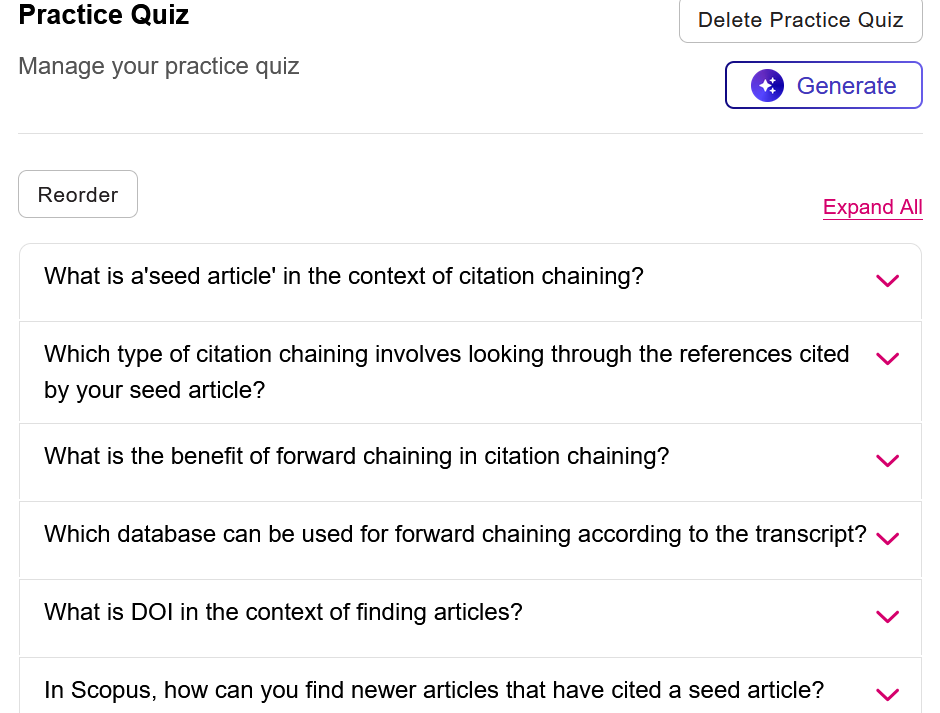
Example resources in the table below were generated by this video:
Summary |
FAQs |
 |
 |
Study Cards |
Practice Quiz |
 |
 |
Step 3: Review and edit
Before making the Study Aid available to students:
-
Check the content for accuracy.
-
Remove information that is incorrect or unnecessary.
-
Add concepts that are important to your course.
-
Edit questions to better align with your learning objectives.
-
Make sure terminology and examples reflect what students were actually taught.
You can edit existing FAQs, Study Cards, and Practice Quiz questions, add new items, delete individual items, or change the correct answer for quiz questions.
Important! In order to SAVE your study aid and make it available to students, you MUST make at least one change or add another card.
Step 5:4: Make the Study Aid available to students
Study Aids are initially visible only to instructors and media owners. This allows you to review and refine the content before students see it. Once Study Aids are enabled for the Classroom Player and content is available, students can access the available resources through the Study Aids icon in the player. Students only see Study Aid types that contain content. may need to enable the feature.
Ideas for Using Study Aids
Study Aids can be used as more than a convenient way to summarize a lecture. Consider how each resource can support students' learning. Examples for Using Study Aids.
Summary: Review and orientation
Use a Summary to help students:
-
Review a lecture they have already watched
-
Refresh their memory before an exam
-
Identify major concepts
-
Review a long lecture more efficiently
FAQs: Check understanding
FAQs can help students:
-
Identify important concepts
-
Think about questions they should be able to answer
-
Clarify information from a lecture
-
Review topics before an assessment
Study Cards: Active recall
Study Cards are particularly useful for:
-
Vocabulary
-
Definitions
-
Formulas
-
Key people or theories
-
Important concepts
Encourage students to try to recall the answer before revealing it rather than simply reading through the cards.
Practice Quiz: Retrieval practice
Practice Quizzes give students an opportunity to test their understanding after watching a recording. Students can use them to:
-
Check what they remember
-
Identify areas they need to review
-
Prepare for an upcoming assessment
-
Practice retrieving information from memory
Study Aids vs. Other EchoVideo Features
Study Aids are supplemental study resources. They are different from EchoVideo's interactive polling activities.
-
Study Aids → Students review and practice material after or while engaging with a recording.
-
Interactive Polls → Instructors embed questions into media to prompt students to respond during playback.
Echo360 Video's interactive media can pause playback at embedded questions, while Study Aids provide separate resources students can use for review.
TLC Tips for Using AI Generated Study Aids
From Echo360 all about EchoVideo: Study Aids
Seek Further Assistance
For additional assistance please contact, Clarkson OIT Help Desk;
Online: Get Help
Email: helpdesk@clarkson.edu
Call: 315-268-HELP (x4357)