Moodle Tips & Tricks

Moodle HacksTips & Tricks 

This page will hold all of the tips and tricks that will make navigating and using Moodle much easier. This webpage will include text guides with supporting images. If you want to view videos, please visit out Moodle Tutorials Video Slide Deck. 

If you have a anything to contribute please submit it to email@gmai.com


Exporting Class Calendars: Have you ever wanted add your school calendar to your personal phone calendar or merge them with another calendar to keep everything in one place? Find the steps below. 

Guided Instructions
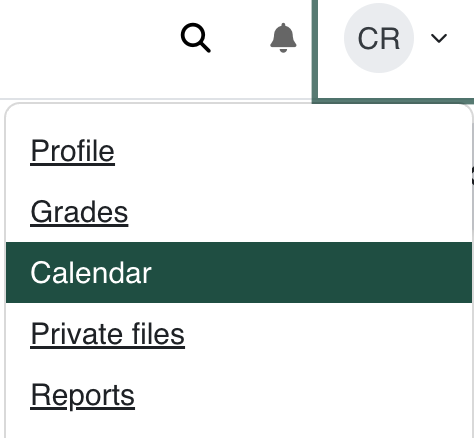
    Head to your Clarkson dashboard on Moodle.com Locate your profile icon on the top right corner. Click on it, then click calendar. 

      Screenshot 2025-06-08 at 4.41.09 PM.png      Screenshot 2025-06-08 at 4.43.15 PM.png


      On the calendar page, scroll to the bottom and click 'import and export calendars"
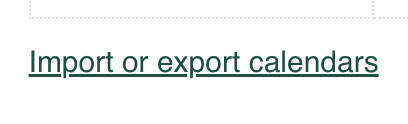
         On the next page click 'export calendars' Screenshot 2025-06-08 at 4.43.38 PM.png

        Screenshot 2025-06-08 at 4.45.13 PM.png


        On the Export Calendars page, you customize the calendar by choosing the type of events and the time period. 
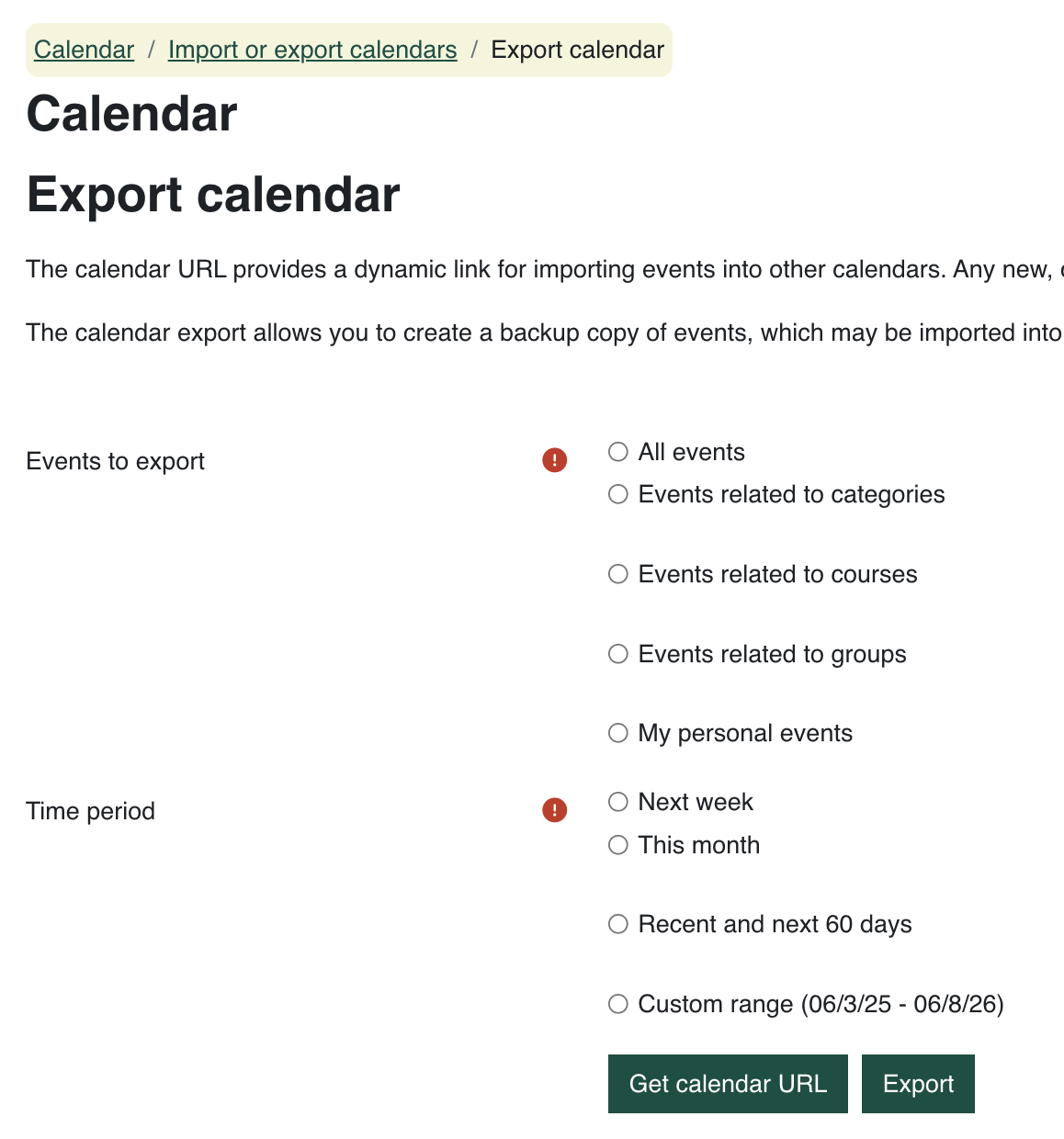
          Click the export button once you are satisfied with your selections 

          Screenshot 2025-06-08 at 4.45.46 PM.png

          Once exported, click on the calendar download. 
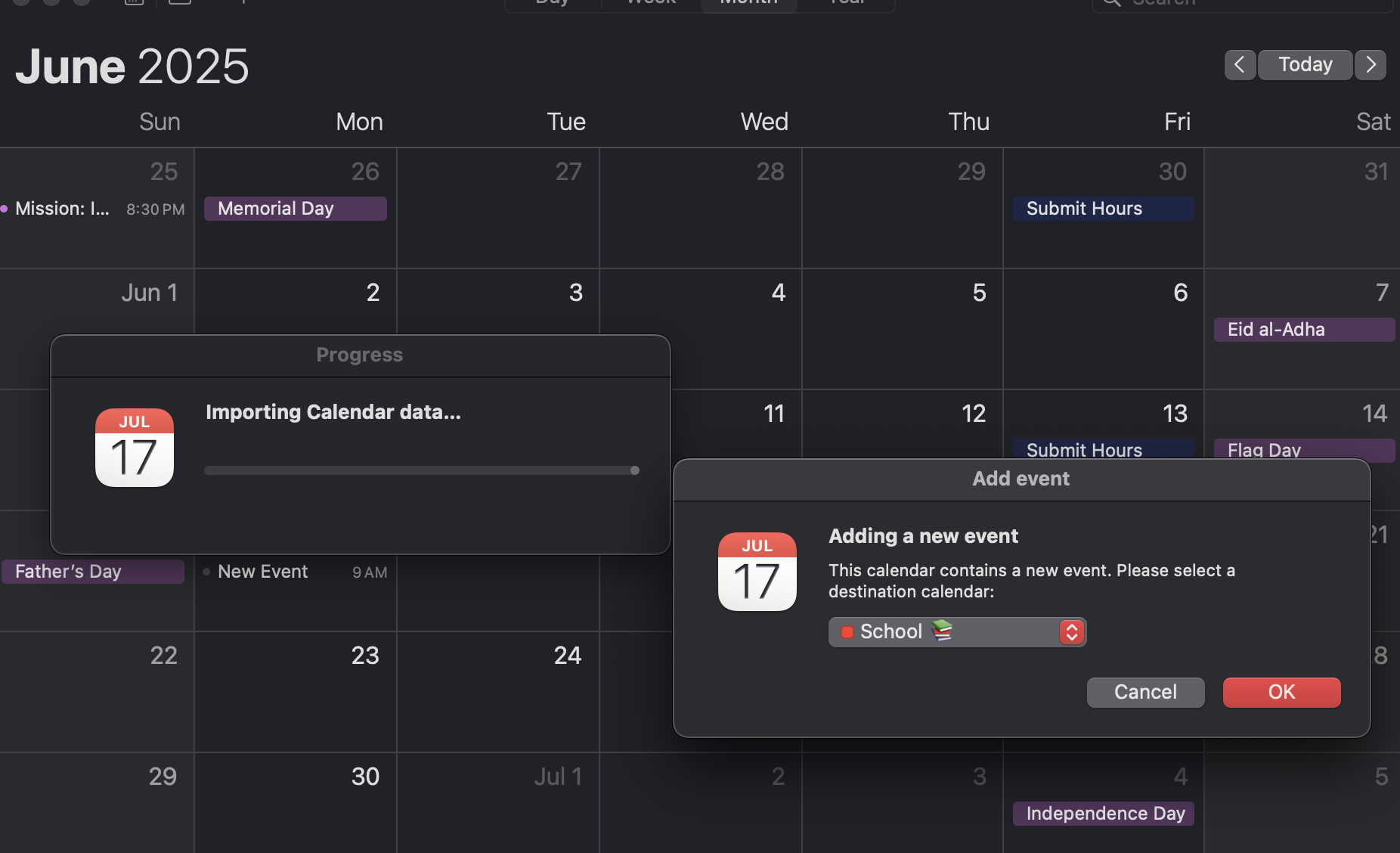
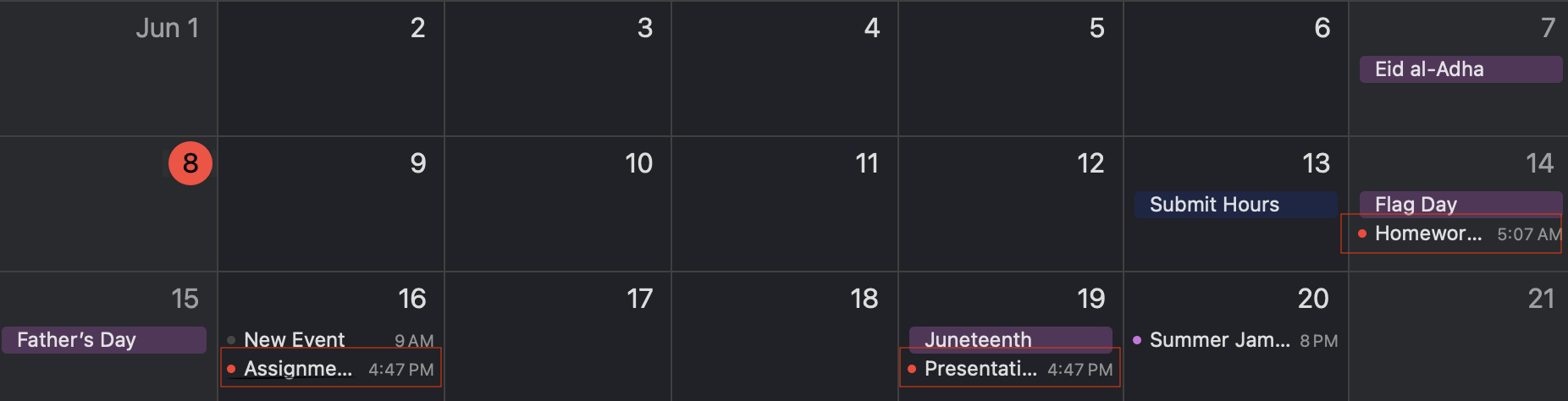
            You will then be taken to your calendar app where you can choose how you want to insert the calendar. Screenshot 2025-06-08 at 4.48.35 PM.png Once you've formatted to your liking your all set! 
              Screenshot 2025-06-08 at 4.49.30 PM.png


              ExportingCustomizing ClassSidebar/Dashboard: Calendars:Learn how to customize your homepage/sidebar with by adding widgets to view assignment dates, uploaded files, upcoming events, and more.

              Dashboard Instructions


                On your Moodle dashboard, locate the edit mode button in the top right corner and click to turn it on. Once done so, you will see a green banner reading "Add a block".
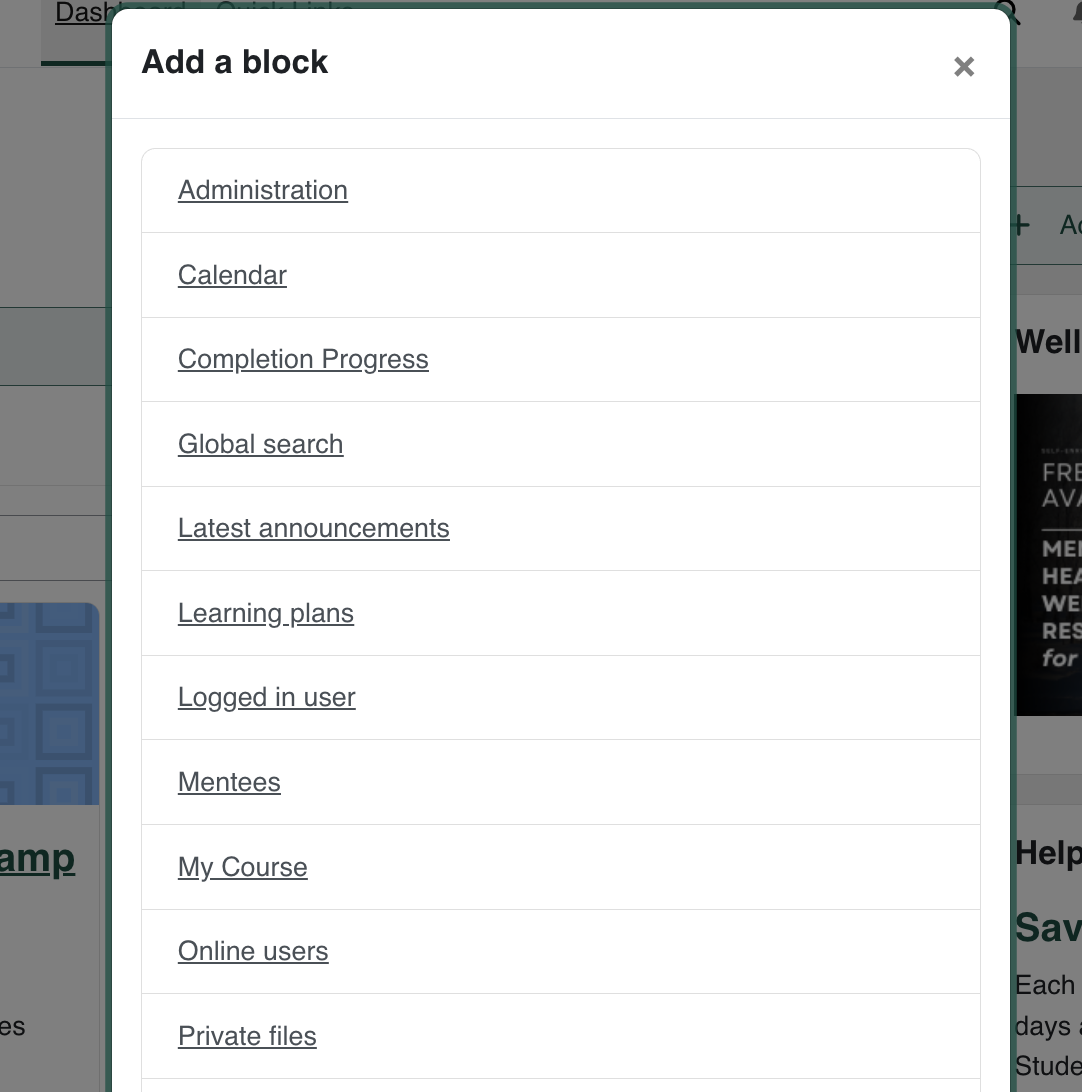
                  Screenshot 2025-06-15 at 3.14.24 PM.png Click on the "Add a Block button" and you will then see a pop up mentioning the different blocks you can add to your homepage. 
                       

                      Screenshot 2025-06-15 at 2.30.09 AM.png

                      Sidebar Instructions

                      Your sidebar is like a mini version of the site. You can place pages or items in the sidebar as widgets. You can also choose what to toggle and the order to place widgets in.

                        To access your sidebar click on the tab with an arrow on the right side of your homepage
                          Screenshot 2025-06-15 at 2.11.31 AM.png Your sidebar will open up and you will be able to see information placed by your teacher
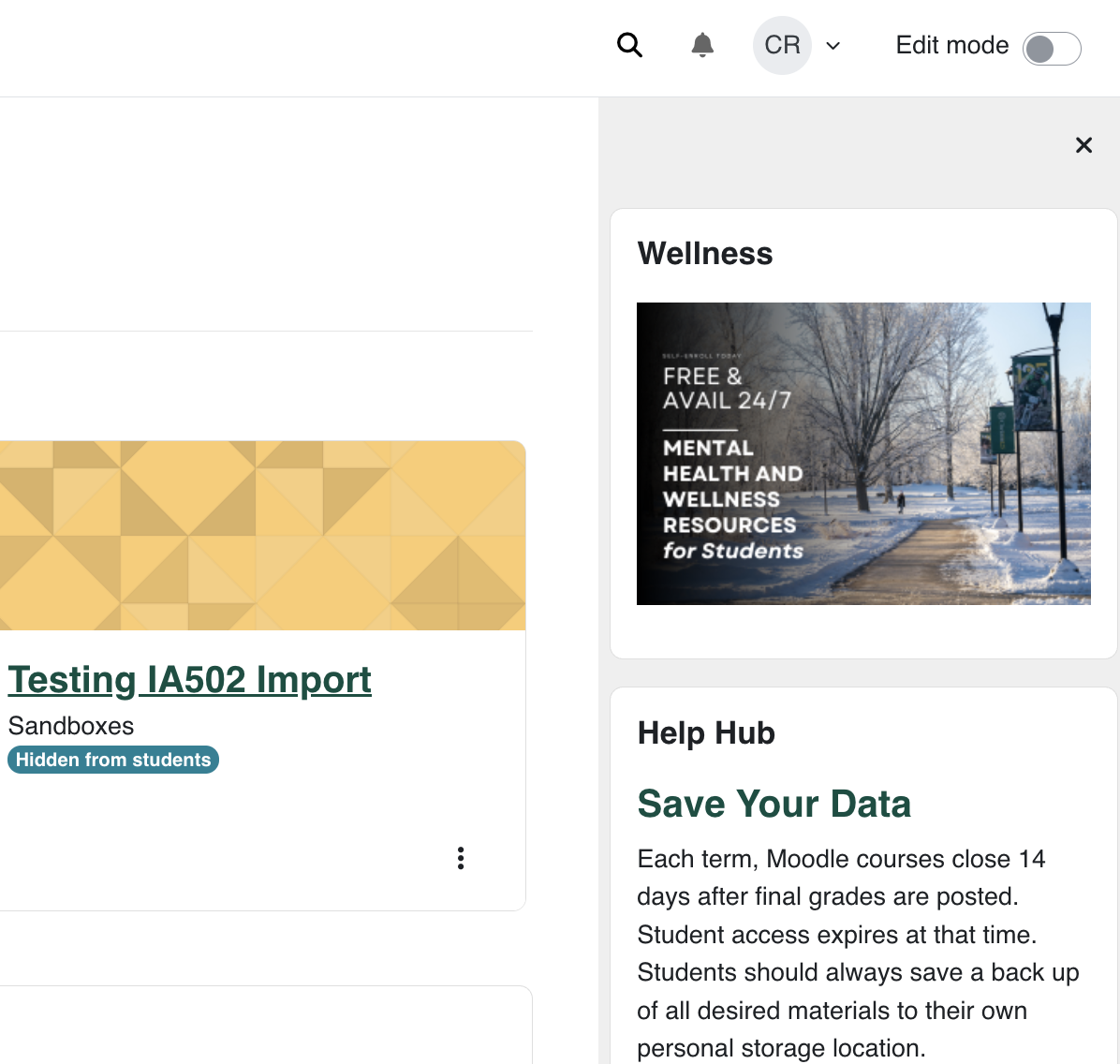
                            Screenshot 2025-06-15 at 2.20.50 AM.png With the sidebar still open, locate the edit mode switch in the top right corner, next to your profile icon. Turning thi mode on allows you to edit everything from your sidebar, homepage and more. Once clicked, green boxes will appear. Your page should look like this:
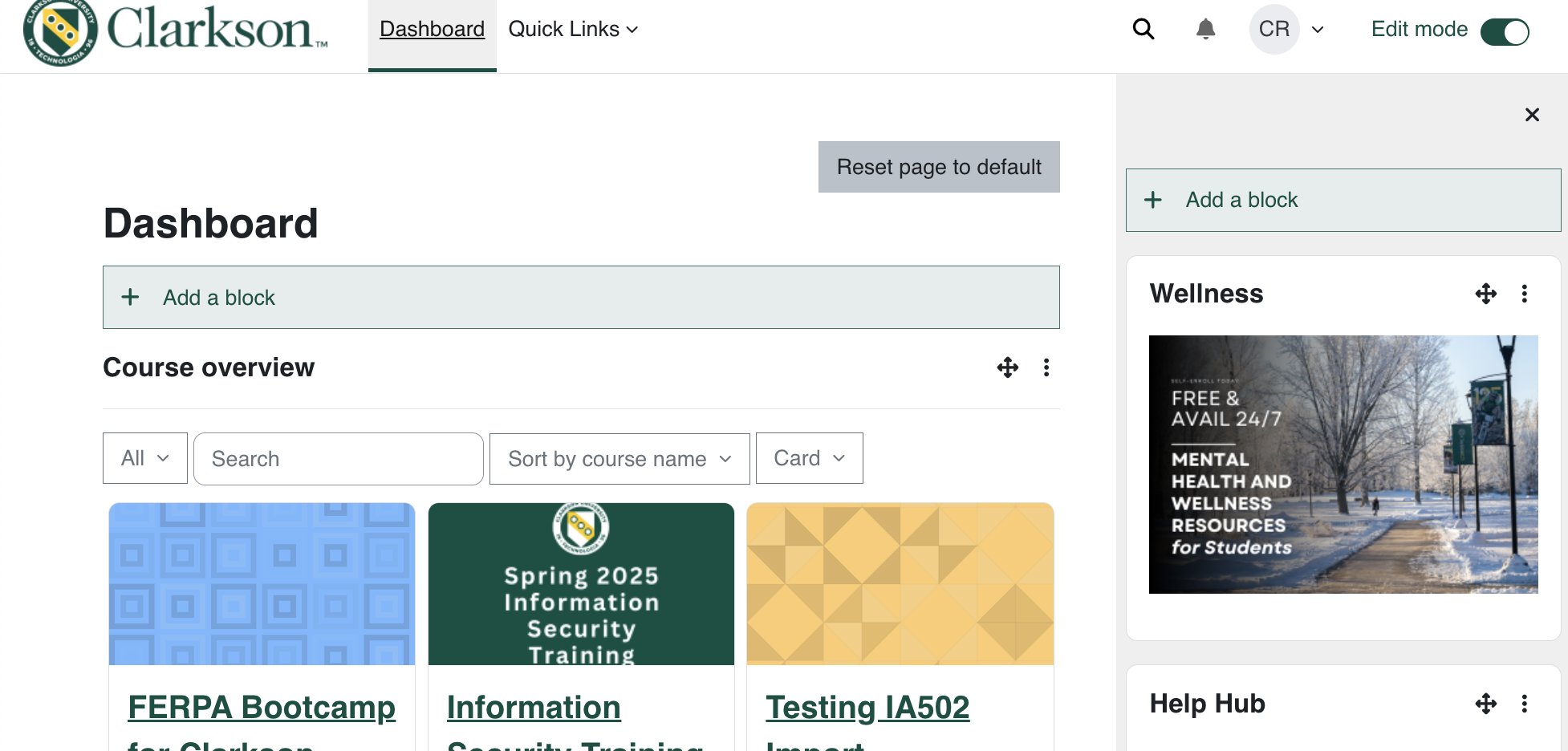
                              Screenshot 2025-06-15 at 2.27.06 AM.png Click on the "Add a Block button" on you sidebar, above the wellness section. You will then see a pop up mentioning the different blocks you can add to your sidebar. 
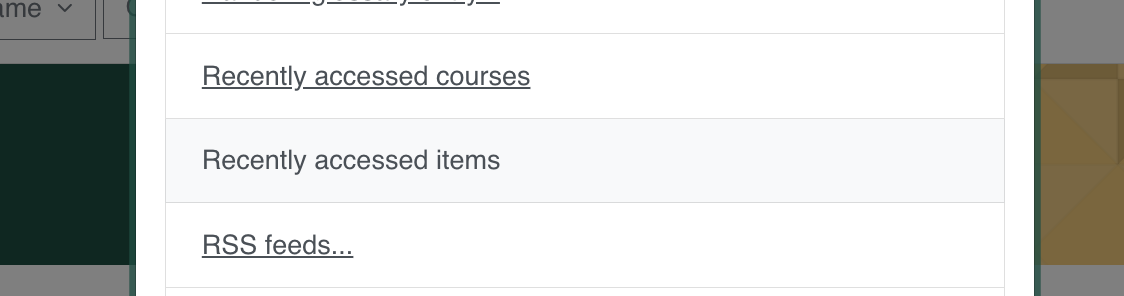
                                 

                                Screenshot 2025-06-15 at 2.30.09 AM.png

                                Scroll down and add the "Recently Accessed Items" section. 

                                  Screenshot 2025-06-15 at 11.00.13 AM.png

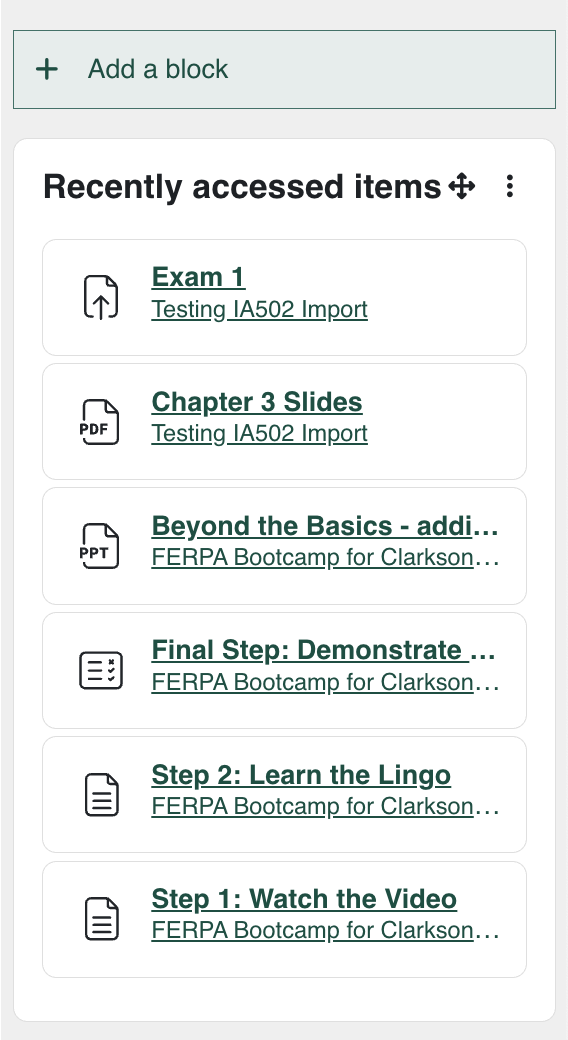
                                  Once clicked, It will appear in your sidebar on top of the other blocks. Now you can see any recent documents/uploads you have accessed. You can repeat this step with any of the widget you want to see on your dashboard/sidebar

                                    Screenshot 2025-06-15 at 11.03.00 AM.png

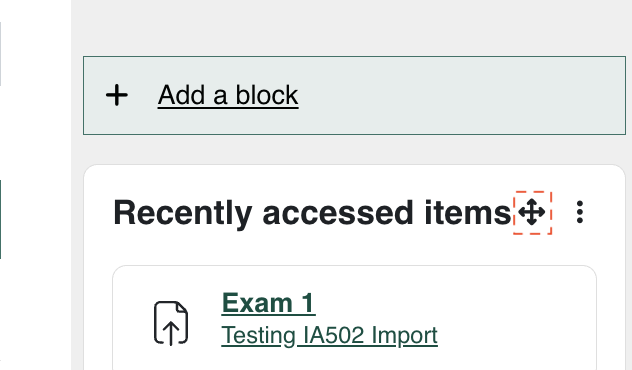
                                    To change the order of the widget or block, drag the item up or down by the icon outlined in red. 
                                      Screenshot 2025-06-15 at 11.06.30 AM.png


                                      Navigating Moodle: Text Placeholder 

                                      Desktop Instructions
                                        Text Place holder
                                        Mobile Instructions
                                          Text Place holder


                                          Displaying Homework/Assignment Due Dates: Text Placeholder 

                                          Guided Instructions
                                            Text Place holder


                                            Turning on Notifications: Missing due dates and discussion posts? Learn how to turn on notification for items or sections you find important!

                                            Guided Instructions
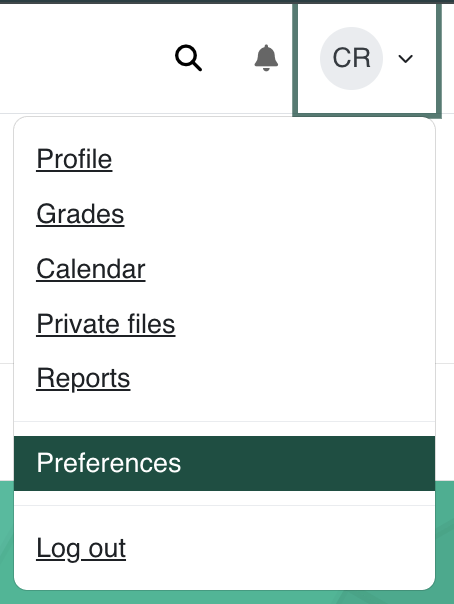
                                             

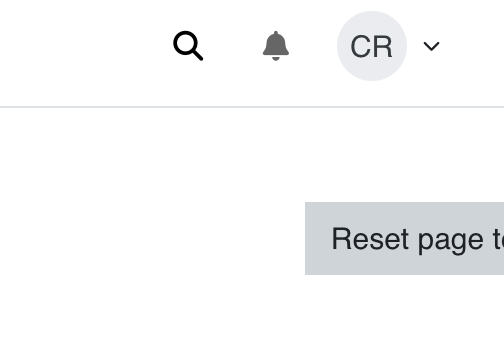
                                              Head to your profile in the top right corner and click on your initials icon
                                                On the drop down, click preferences 

                                                Screenshot 2025-06-15 at 12.33.48 AM.png

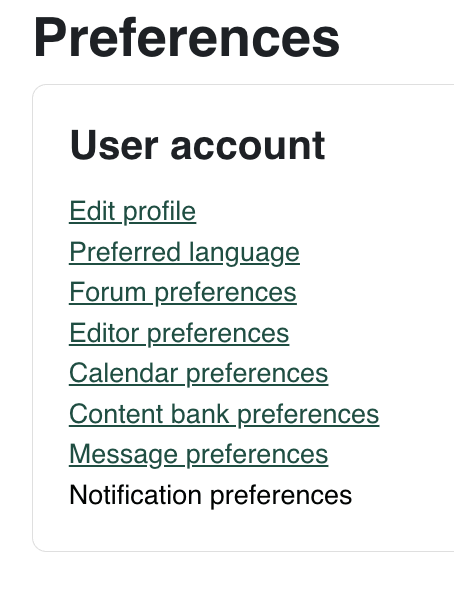
                                                Under User Account, locate the notification preferences tab 

                                                  Screenshot 2025-06-15 at 12.35.53 AM.png

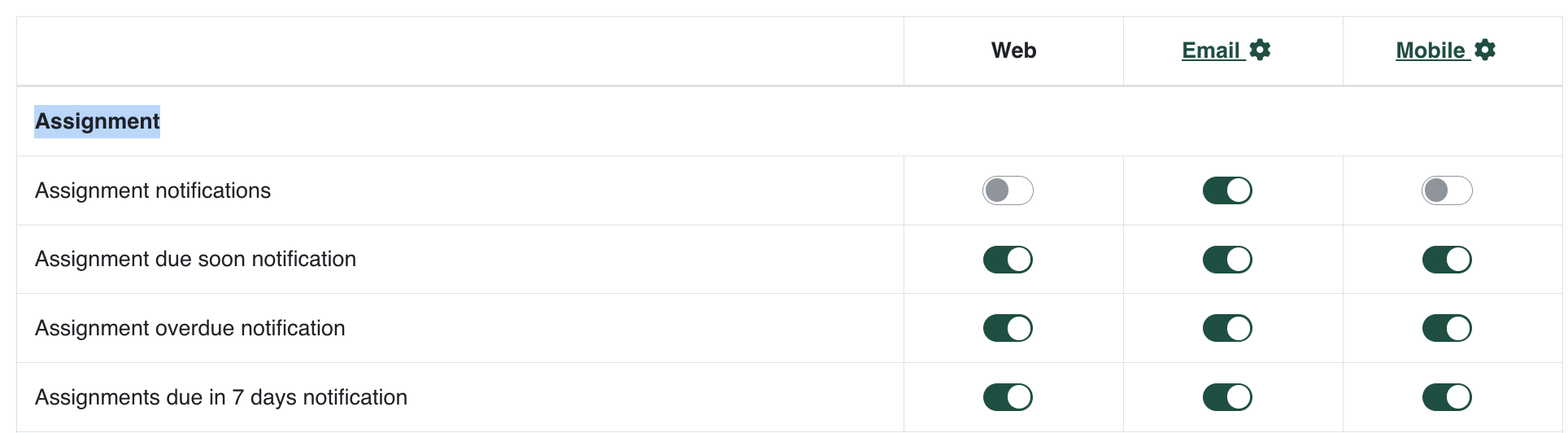
                                                  You will be taken to a page that displays the different sections you can create reminders for. You can toggle for each section and the subsections underneath and for each device type. The sections you can toggle are: Assignments, Feedback, Forum, Lessons, Questionnaires, Quiz, System, Self Enrollment, and more.  

                                                    Screenshot 2025-06-15 at 12.51.59 AM.png

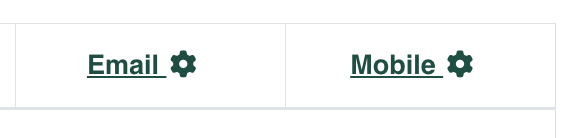
                                                    You can further toggle the Email and Mobile settings by clicking on the settings icon next to each title. 

                                                      Screenshot 2025-06-15 at 1.03.48 AM.png

                                                      For the Email settings, you can choose the email format or where it gets sent too
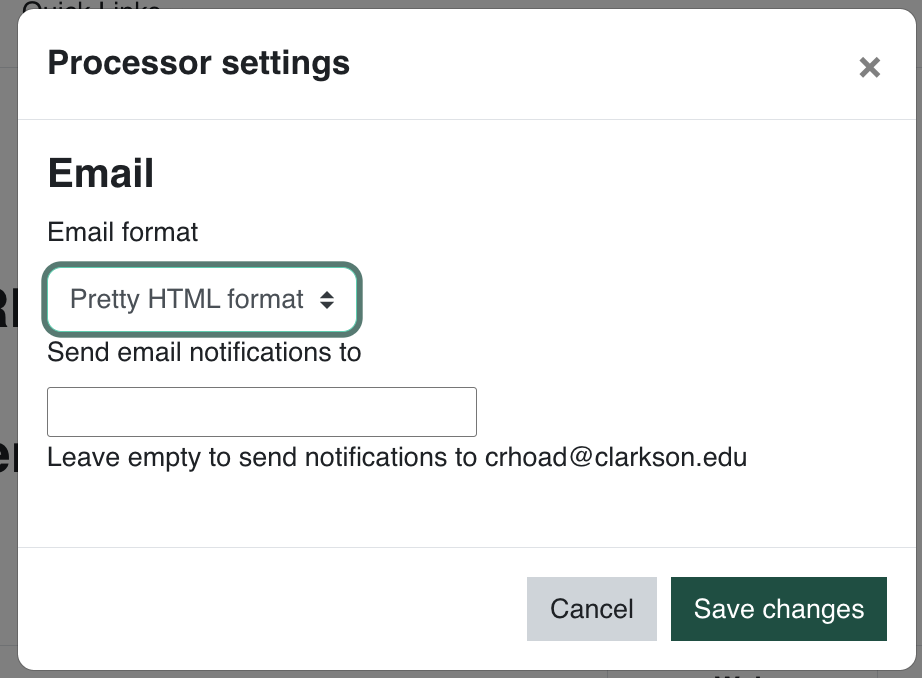
                                                        Screenshot 2025-06-15 at 1.06.08 AM.png


                                                        For mobile settings, you will need to download the mobile at first Moodle app first to set things up and link your Clarkson account 


                                                        Bookmarking Tabs: Text Placeholder 

                                                        Guided Instructions
                                                          Text Place holder


                                                          Emailing Your Classmates: Text Placeholder 

                                                          Guided Instructions
                                                            Text Place holder