
New Bulk Updates in Moodle
There are ways to bulk update assignment dates and other settings in Moodle, which can save you a lot of time. Here are the best options depending on your version and access level:
✅ 1. Use the "Dates" Report Plugin (Highly Recommended)
This plugin is built specifically for what you're describing.
-
What it does: Allows you to see and edit all availability and due dates across your course in a single table.
-
What you can edit: Open date, due date, cutoff date, expected completion.
-
How to use it:
-
Go to your course.
-
In the gear icon menu (top right), choose More...
-
Select Reports > Dates.
-
Filter by activity type (e.g., Assignments).
-
Edit dates directly in the list.
-
Example
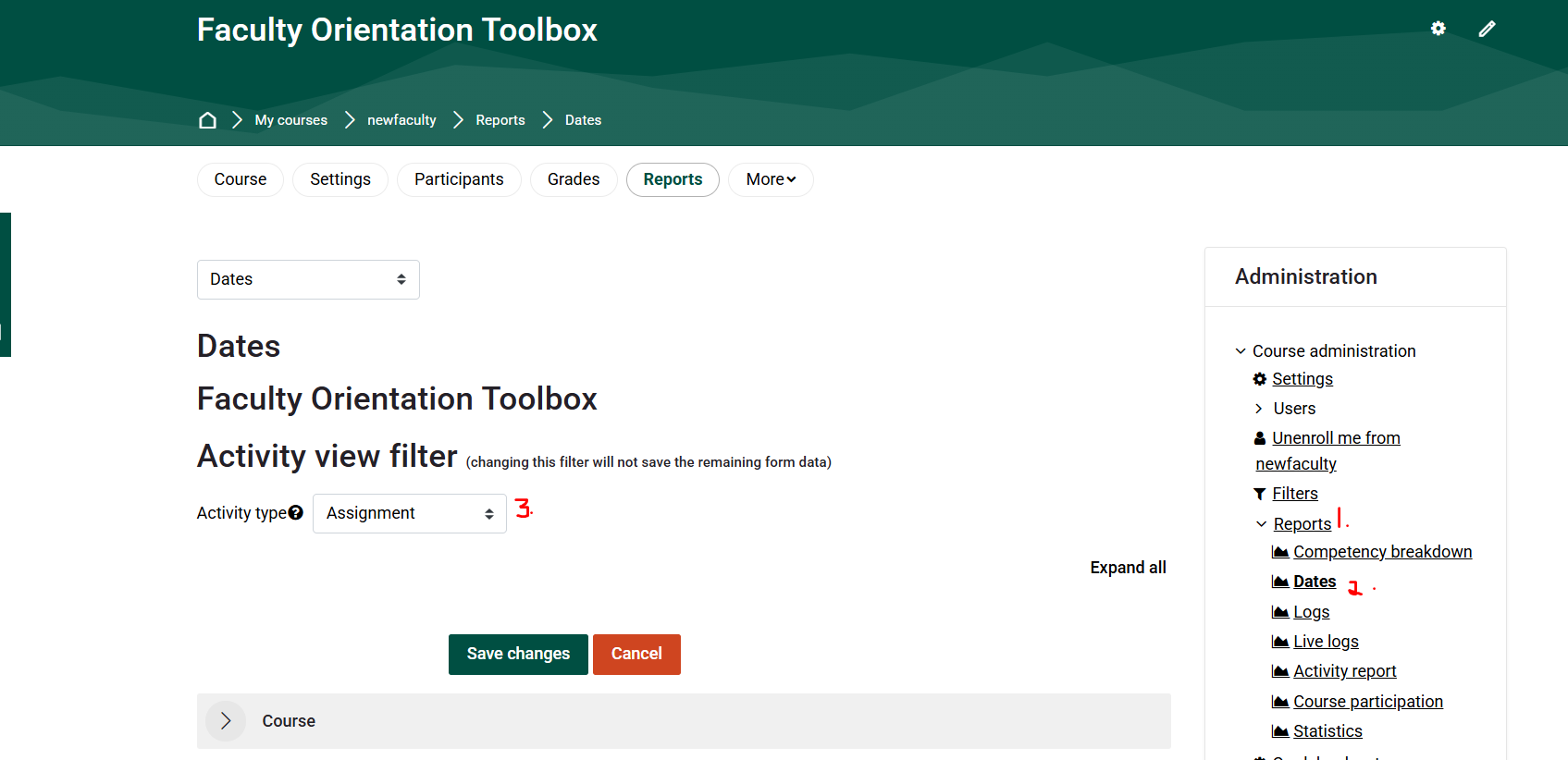
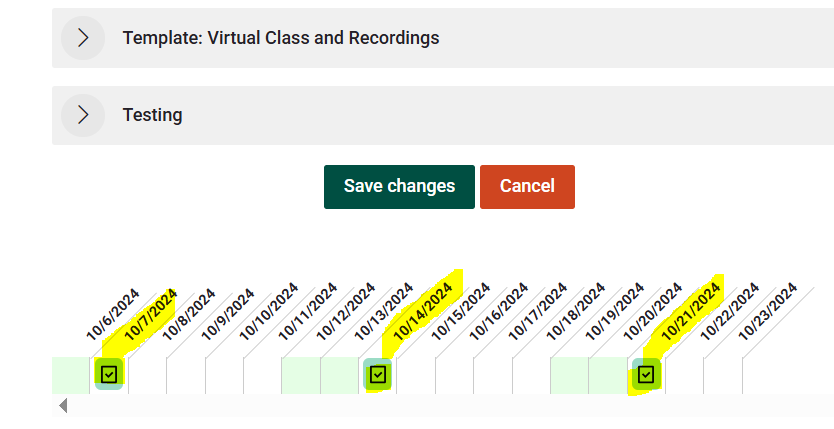
Scroll to the bottom of the page Click on the assignments where you want to change the dates Use the arrows to navigate through the dates
Aw Snap! Tried logging in as admin, as Lperry-teacher, Ldriskel as Manager But received the following error message each time:

🔧 If you don’t see “Dates” in Reports, your Moodle admin might need to install or enable the plugin:
-
Plugin page: https://moodle.org/plugins/report_editdates
✅ 2. Use the “Course Reset” Tool (for shifting dates between semesters)
If your course structure stays the same, this lets you bulk-shift all relevant dates at once.
-
Steps:
-
Go to Course administration > Reset.
-
Scroll to the "Date adjustment" section.
-
Use "Shift all dates" by a specified number of days.
-
⚠️ Be careful—this shifts all dates (including quizzes, forums, etc.) and may affect more than intended.
✅ 3. Use CSV Upload for Assignments (Advanced/Admin)
You can export assignment settings, update them in Excel, then re-upload.
-
This requires admin or manager-level access, or a plugin like Upload assignments.
-
Good for power users or if doing the same task across many courses.
✅ 4. Use a Backup + Restore Template with Relative Dates
If you're reusing the same course every term:
-
When backing up your course, choose “Include activity completion” and use relative dates.
-
When restoring, set the new start date of the course—Moodle recalculates all relative due dates accordingly.
✳️ Summary: Best Choice for You
| Goal | Best Option |
|---|---|
| Quickly edit all dates across a course | Dates Report plugin |
| Shift all dates from last semester | Course Reset: Shift dates |
| Reuse course each semester with auto-adjust | Backup/Restore with relative dates |
Created with assistance from ChatGPT.