Import Grades
Summary
This Guide Will Help You to:
How To Video:
Steps
1) First, createCreate a stable source data file that Moodle will accept on import by exporting a copy of your current gradebook.
To Export:
- Turn editing on.
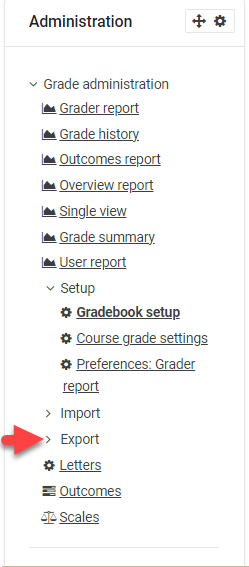
- Under Course Administration, click to expand Gradebook setup. Locate Export. Select desired file type (Excel spreadsheet is most common).
- Select desired grade items to export. There is a Select All/None button at the bottom.
- Select Export format options. The defaults are preferred in most cases.
- Save the
Excelfile(as a .xlsx)csv to a desired destination folder.
2) Populate Grade Data into the source spreadsheet file.
2)3) To Import:
- Click Import in the Grades Administration block.
- Choose file to select to upload. Defaults are preferred in most cases.
- Click Upload Grades.
- You can preview the import to check that things look good.
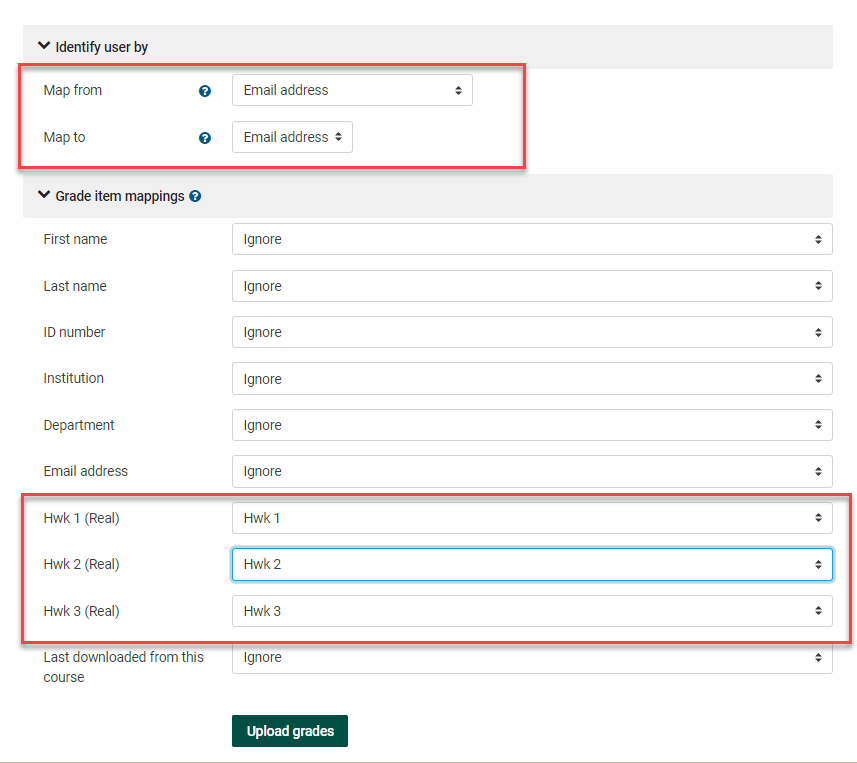
- Identify user by:
- Select the desired fields to map. Recommend mapping Email address to Email address.
- Grade item mappings:
- Select the grade items you wish to map.
- Click Upload Grades.