Grades: Import
Summary
This Guide Will Help You to:
How To Video:
Steps
1) First, you will want to create a goodstable source data file that Moodle will accept on import.import Theby best method is to first exportexporting a copy of your gradebookcurrent setgradebook.
up. This creates the the data structure and columns, that will ultimately nicely import back into Moodle. To export:Export: Go
Turn editing on.
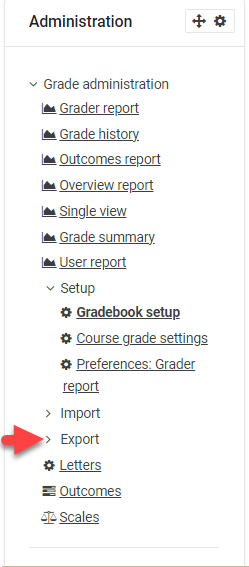
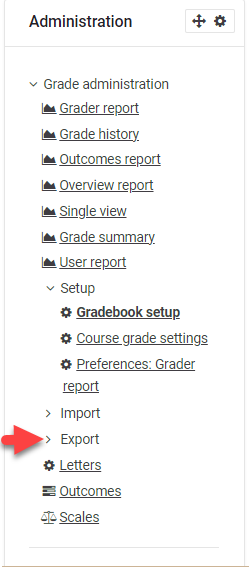
Under Course Administration, click to
the Grades area of your course in Moodle, and selectexpand Gradebook
Setup.setup. Locate
theExport. Export tab.

Select desired file type (Excel spreadsheet tab,is andmost selectcommon).
Select desired grade items to export. There is a Select All/None button at the
itemsbottom.
youSelect anticipateExport importingformat options. The defaults are preferred in most cases.
Save the Excel file (.xlsx) to
youra Gradebook.desired Indestination thisfolder. case,
allPaste itemsgrade aredata selected. Leave Export Format Options at defaults.

Click Download.
2) You will now have an excel spreadsheet of your Moodle gradebook. You can saveinto the fileExcel locally.spreadsheet.
DOAVOID NOTaltering Editthe Column Headings or
anythe datastudent identification information in the
firstoriginal sixfile.
columns.Save Copy/Pasteas fromfile yourtype otheras dataa source.csv
any
grade2) dataTo intoImport:
Click Import in the Grades Administration block.
Choose file to select to upload. Defaults are preferred in most cases.
Click Upload Grades.
You can preview the import to check that things look good.
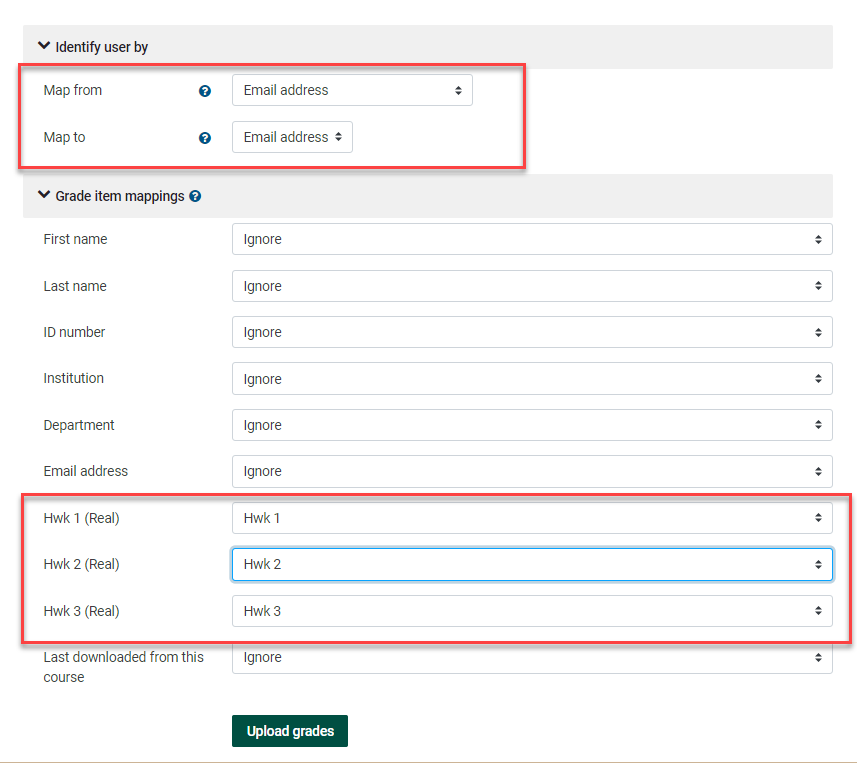
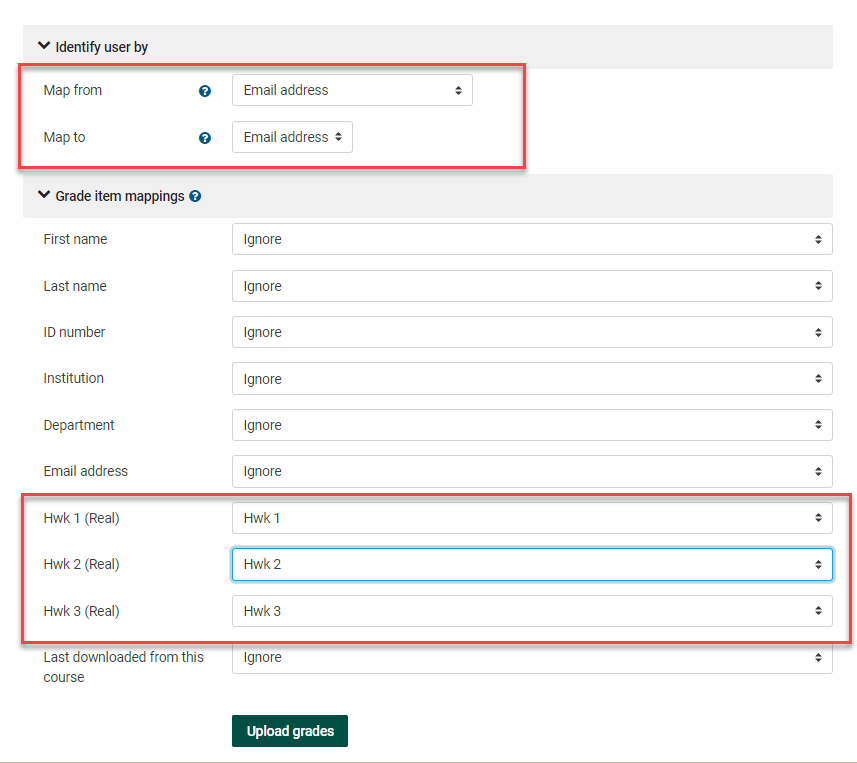
Identify user by:
Select the desired fields
associated with desired grade items. Be sure correct grades are associated with students. Save file as .csv.

3) Return to Moodle,map. Grades,Recommend Gradebook Setup, select Import tab. Choose file. Locate the .csv file you just saved in step 2 above. Click Upload.

4) View preview screen. Then Map from and to fields. If you have followed above instructions in Clarkson's Moodle, you will Map frommapping Email address to Email address. Then
you
will
selectGrade item mappings:
Select the grade items you wish to
import under Grade Item Mappings, by selecting the item to which to map.
In
this
example,
IClick amUpload choosingGrades.
to
import Hmwk 1, 2 & 3 only.