
Echo360: Add Content from Library to an Echo Course
Summary
Instructors can add content they have uploaded to their Echo library to any of their courses.
Steps
-
Log into
Echo atgo.clarkson.edu/echoClarkson's Echo360 -
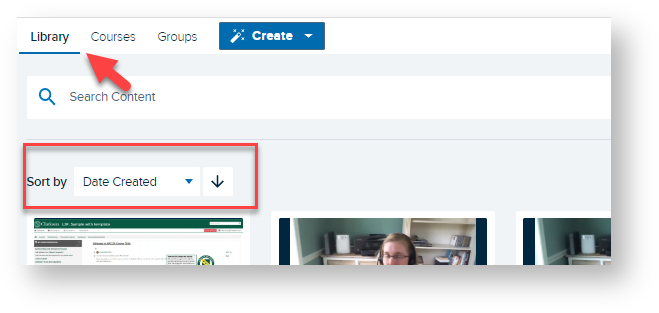
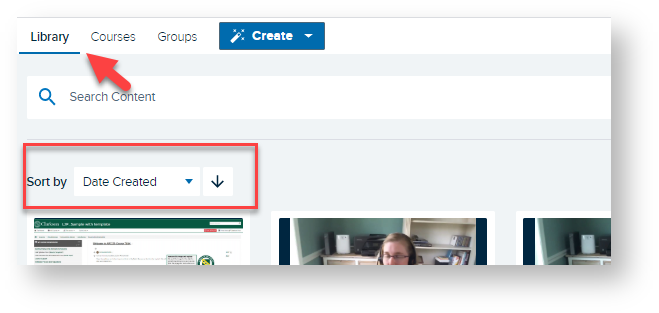
Click Library
-
Sort by or Search for desired recording

-
Click on desired recording
-
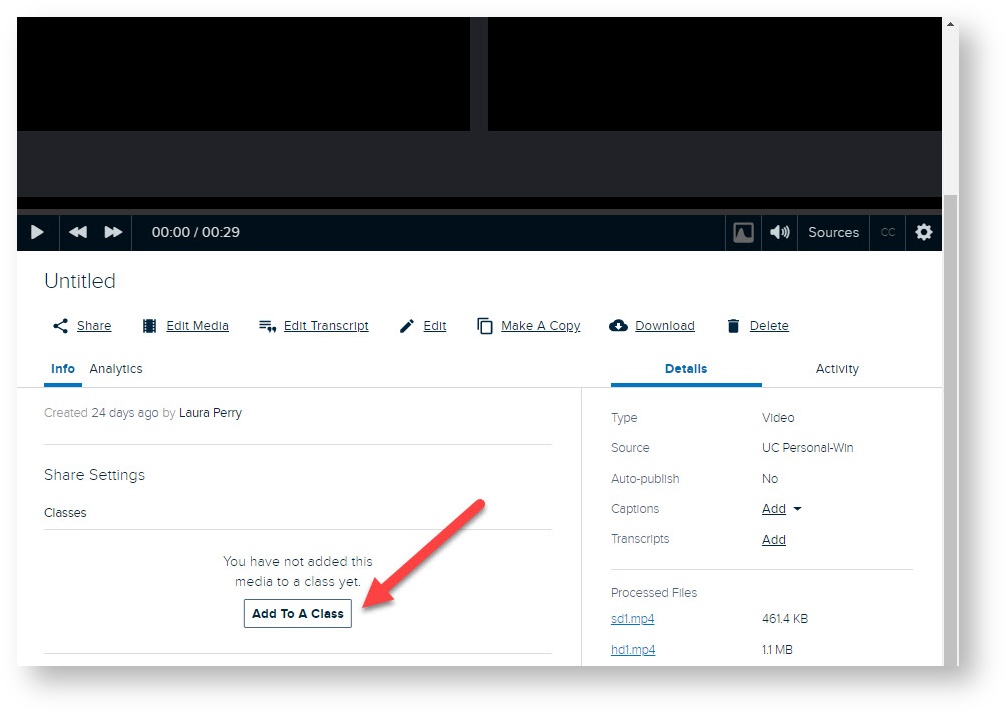
Scroll down until you see Info/Share Settings
-
Click Add to A Class
-
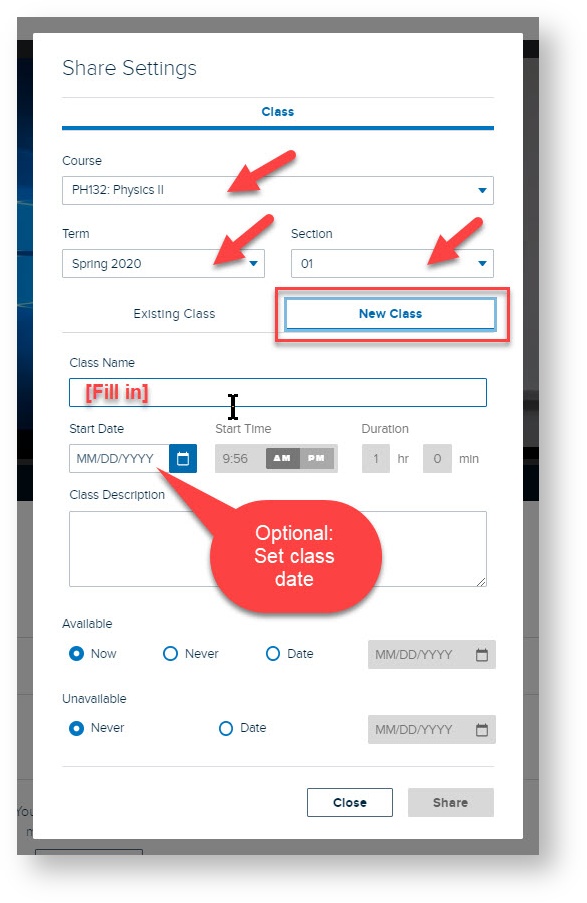
Select Course, Term, Section, New Class and Availability Settings - see image below.
(Instructors should see the desired course in you drop down menu. )

8. Check that your selected recordings will be available inside the desired Echo course.
Seek Further Assistance
For additional assistance please contact, Clarkson OIT Help Desk;
Email: helpdesk@clarkson.edu
Call: 315-268-HELP (x4357)