
Overview: Moodle 4 Dashboard and My Courses
Summary
This article highlights...
This Guide Will Help You to:
- Use the Dashboard page
- Access your courses from the My courses page.
- Customize and filter the My courses page.
- Seek further assistance.
Use the Dashboard
When you login into Moodle 4, you will be directed to the Dashboard page.
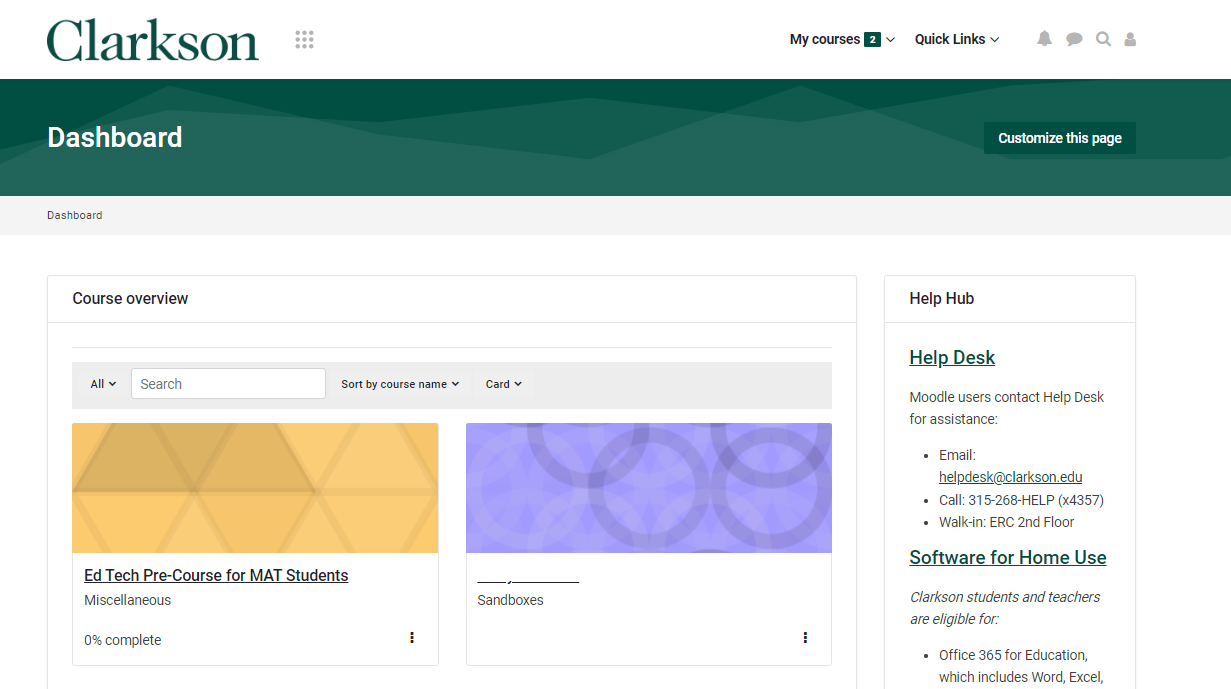
The dashboard provides a Course overview block which provides links to your Moodle courses.
Access your courses from the Course Overview block.
Customize and filter the Course Overview block.
The Course Overview block appears on the Moodle Dashboard. All Moodle courses you are enrolled in are listed in this block. You can customize this block by sorting in a number ways to find a specific course.

Use the filter to view courses in the following areas:
Note: Courses that you marked as 'Removed from View' will not appear in this list.
Note: In general before a semester starts and after it ends, courses are hidden from student view. Students should note course start and end dates, and work with the instructor for access to the course.
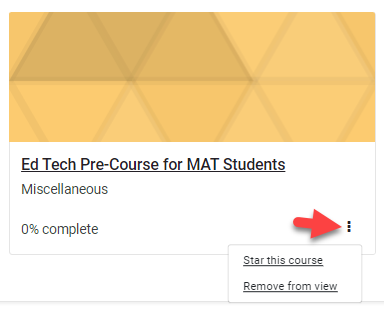
Note: Starred and Removed from view courses can be managed on the individual course card:
Search by Name
Use the search box to filter by the course name.
Courses names and Course short names in Moodle 4 include the following information:
Course Title ([Subject][Number][Section]_[Term and Year])
Examples of a complete course name in Moodle 4:
Examples of the course short name in Moodle 4:
TIP: The Course Short Name is helpful to reference when requesting support from Help Desk.