
Accessibility Standards Technical Guide For Moodle
Use this checklist below to review your course for accessibility. For each topic, review the need for meeting the standard, how to meet the standard in your course, along with an example of what a correction looks like.
Topics
1. Abbreviations/Acronyms & Misspellings
Need: Full definition of abbreviation/acronym
How to: Look the course pages and handouts and anytime an abbreviation or acronym is found, add the full name by editing the page in Moodle or within the shared document.
Example:
NASA = National Aeronautics and Space Administration
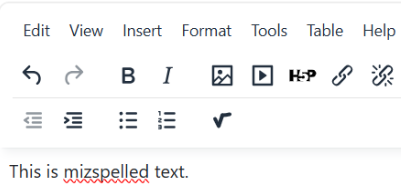
Need: Fix mispelled words like this one!
How to: When you are editing text in Moodle, the text area’s toolbar (HTML editor) has a built-in spell checker. Check for red squiggly lines and fix any misspellings. You may right-click on the word to see a suggested spelling or retype the word to correct the spelling.
2. Audio or Video Created/Hosted by Clarkson University's Echo360
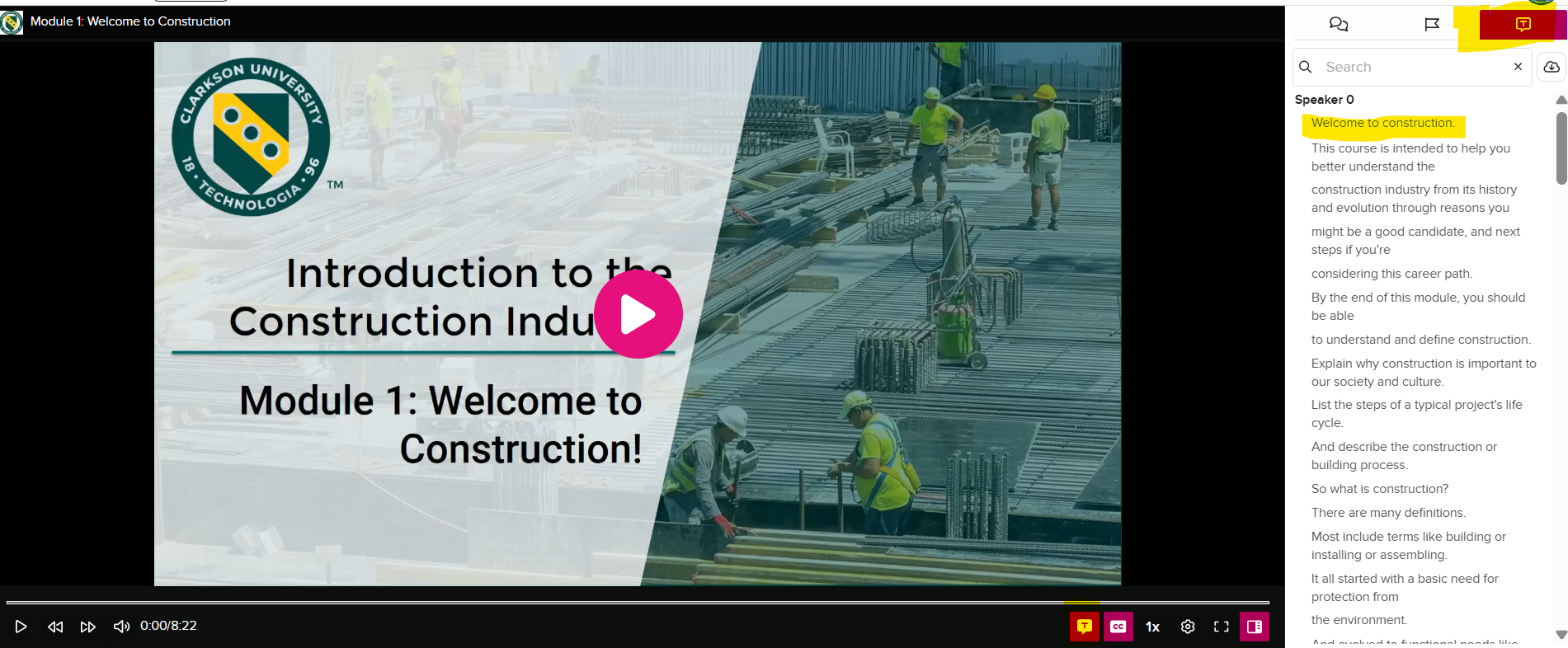
Need: Plain-text transcript or description of all audio or video files created and/or hosted by Clarkson University instructor (file is embedded or linked from Echo360). (If presentations are created with recorded audio, a script used to record the audio may be acceptable.)
How to: review how to turn on automatic transcribing (and closed captioning) Echo360: Automatic Speech Recognition or ASR Students who view/listen to the video or audio recording will also have the option to read the transcript.
Example:
3. Charts & Diagrams
Need: All charts and diagrams need descriptions. Academic/content knowledge is needed to accurately describe some images, charts and diagrams.
How to:
* A graph showing enrollment trends → Describe the trend and key data points.
* A process diagram → Describe the steps and relationships.
---
## Step 2: Identify the Key Message
Before writing, summarize the image in one sentence.
### Examples
* "This graph shows online enrollment increasing over five years."
* "This diagram explains the water cycle."
* "This chart compares operating expenses across departments."
If you cannot identify the main point, students may struggle as well.
---
## Step 3: Describe the Information, Not the Appearance
Avoid describing colors, shapes, or layout unless they are important to understanding the content.
### Less Helpful
> Blue bars are taller than the red bars.
### More Helpful
> Undergraduate enrollment increased from 1,200 students in 2020 to 2,100 students in 2025, while graduate enrollment remained stable.
---
-
4. Complex Images-provide:
1. Short alt text
2. Longer description nearby or below the image
**Alt text:**
## Step 4: Include Important Data or Relationships
For charts, graphs, and diagrams, explain:
* Trends
* Patterns
* Comparisons
* Cause-and-effect relationships
* Key values when relevant
### Example
Instead of:
> Line graph showing sales over time.
Use:
> Line graph showing quarterly sales increasing steadily from $50,000 in Q1 to $120,000 in Q4.
---
## Step 5: Match the Description Length to the Complexity
Example:
> Enrollment trend graph. Detailed description follows.
**Long description:**
> The graph shows total enrollment increasing from 3,200 students in 2020 to 4,700 students in 2025, with the largest growth occurring between 2023 and 2024.
---
# Special Tips for Common Teaching Materials
## Photographs
Describe:
* People
* Actions
* Relevant objects
* Context
**Example:**
> Nursing student practicing blood pressure measurement on a patient in a clinical skills lab.
---
## Charts and Graphs
Describe:
* What is being measured
* Main trend
* Significant comparisons
* Important values
**Example:**
> Bar chart comparing course completion rates. Online courses show an 85% completion rate, hybrid courses 88%, and face-to-face courses 91%.
---
## Diagrams and Models
Describe:
* Components
* Relationships
* Sequence or flow
**Example:**
> The diagram illustrates the marketing process: identify customer needs, develop products, promote offerings, and evaluate results.
---
## Infographics
Describe:
* Main purpose
* Key statistics
* Important takeaways
Do not attempt to describe every visual element.
---
# Quick Faculty Checklist
Before finalizing your description, ask:
☐ What is the instructional purpose of this image?
☐ Have I described the important information?
☐ Would a student understand the image without seeing it?
☐ Have I explained trends, relationships, or conclusions?
☐ Is the description concise but complete?
## A Simple Rule
> Describe what a student needs to learn from the image, not everything a student can see in the image.
This single principle helps instructors create effective descriptions for nearly all course materials.
Example:
4. Color Schemes for Files (Presentations, Media, Text, etc.)
Need: Use high-contrast colors together, especially with text (light on dark, dark on light). Avoid using red for text and background images/patterns behind text. Only solid colored backgrounds should be used for text.
How to:
Example:
5. Data Tables
Need: All data tables must have a title and a text description of the data in the table that is being shown
How to:
6. Hyperlinks/URLs
Need: Descriptive title for links (i.e. name of website, title of article, title/description of file)
How to: Fixing broken links improves usability for all users. Prior to the start of courses 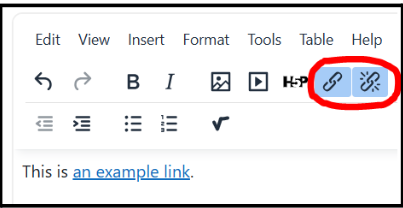
click through each of the links in your course, especially those that link to external websites, to be sure they are working correctly. If you find any broken links, fix them by clicking on the chain link icon in your toolbar. If the link is not fixable, remove the link by clicking on the broken chain icon in your toolbar, or by deleting the text.To create a new link or to see how to add descriptive text, see step-by-step instructions in the article Create an Active Hyperlink
Example:
7. Images
Need: All images must have descriptions if the image is relevant to the learning material. Screen readers will read the description of any image in the page.
How to: When adding an image, fill in any information about the image when prompted, giving the image a descriptive name or describing the image in more depth if necessary. When creating alternative text (alt text) or image descriptions, focus on the information students need to understand the content—not every visual detail
- Determine why the Image Is Included. Ask yourself: "If I removed this image, what information would students miss?"
- To edit an image already in the course, click on the image to select it, click on the image tool (or right click on the image and choose edit image from the drop down menu. Add the complete description, or if the image is not important to the content of the course add double quotes "" in the description area. Screen readers will skip any image with double quotes.
Examples:
 A decorative image → No description needed (mark as decorative if possible "").
- A photo of a laboratory setup → Describe the equipment and arrangement.

- Use brief alt text.
- Image: laboratory setup
- Alt text: Basic equipment needed for experiments


Special Tips for Common Teaching Materials-Photographs
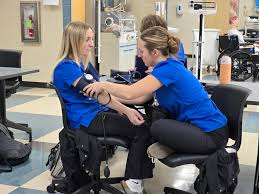
Nursing student practicing blood pressure measurement on a patient in a clinical skills lab.
Describe:
- People
- Actions
- Relevant objects
- Context
Example:
Before finalizing your description, ask:
☐ What is the instructional purpose of this image?
☐ Have I described the important information?
☐ Would a student understand the image without seeing it?
8. Mathematical Equations & Symbols
Need: Names of symbols or definition of equation. Also use Live Text (not Images): never upload screenshots or images of math equations.
How to: There are several ways to accomplish accessible math equations and symbols but unless you want to write code manually, use Moodle's Graphical Equation Editor which is built-in to either the TinyMCE or Atto text editor to automatically convert input into accessible MathJax.
- Open any text area in Moodle (e.g., a Page, Assignment, or Quiz).
- Expand the toolbar and click the Equation Editor (a calculator icon).
- Use the tabs to select operators, arrows, and Greek symbols visually, or type your TeX directly into the provided field.
- The editor provides an instant preview so you can see how it will display before saving
Equation Editor Example:
- Type a number for your equation into the text box below the operator options.
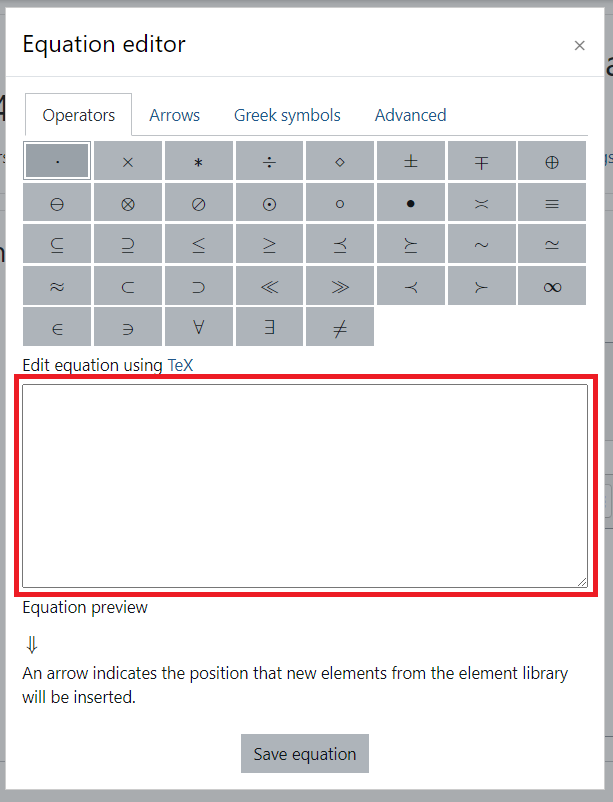
- Click the button of the operator you want to use.
- Now complete your equation by adding another number and any additional operators you would like.
- You can see a preview of what the students will see before you save by looking at the equation Preview below the text box!
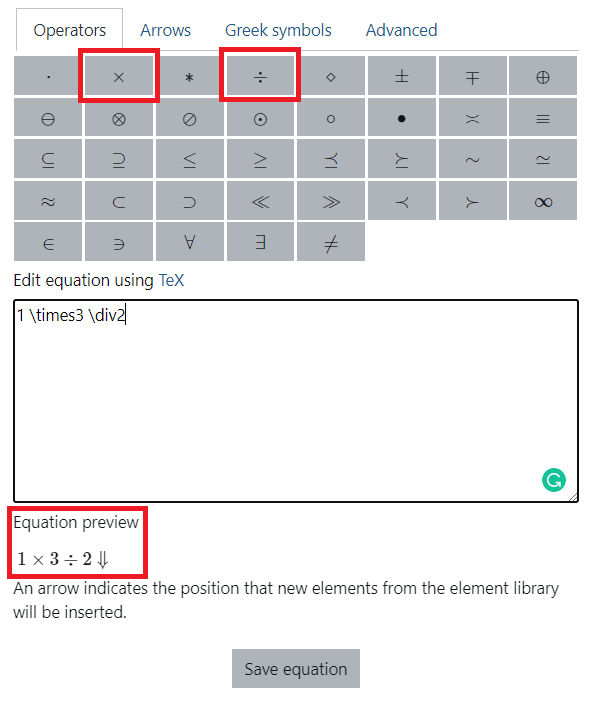
- You can see a preview of what the students will see before you save by looking at the equation Preview below the text box!
- Once ready click Save Equation to add it officially to your text area.
Simple Example:
- Equation: a2 + b2 = c2
- Definition: a squared plus b squared equals c squared
9. Multimedia
Need: Plain-text transcript or description of multimedia (content used to create the multimedia is usually acceptable)
How to:
Example:
10. PDFs (Portable Document Formats)
Need: PDFs must be text-based, not scanned. If scanning is the only option, they must be scanned using an Optical Character Recognition (OCR) and reviewed for accuracy. Publishers of articles can be contacted to request text-based electronic copies.
How to: If you have a scanned PDF file, use Google Gemini , which is included with your Clarkson Google Workplace for Education plan. TLC Staff will be glad to help you turn your scanned PDFs into text-based PDFs.
Example: