
Reset an end-user password
Reset an end-user password
When to use this page: You need to set a new password for another Clarkson user (end user) via the SetPassword Help Desk module and relay it to them.
Prerequisites: Your elevated Clarkson credentials (e.g., johnsmith).
Important: If you replay any priviledged information to an end user during this process (username, pin, emplid), you must verify their identity first.
Steps
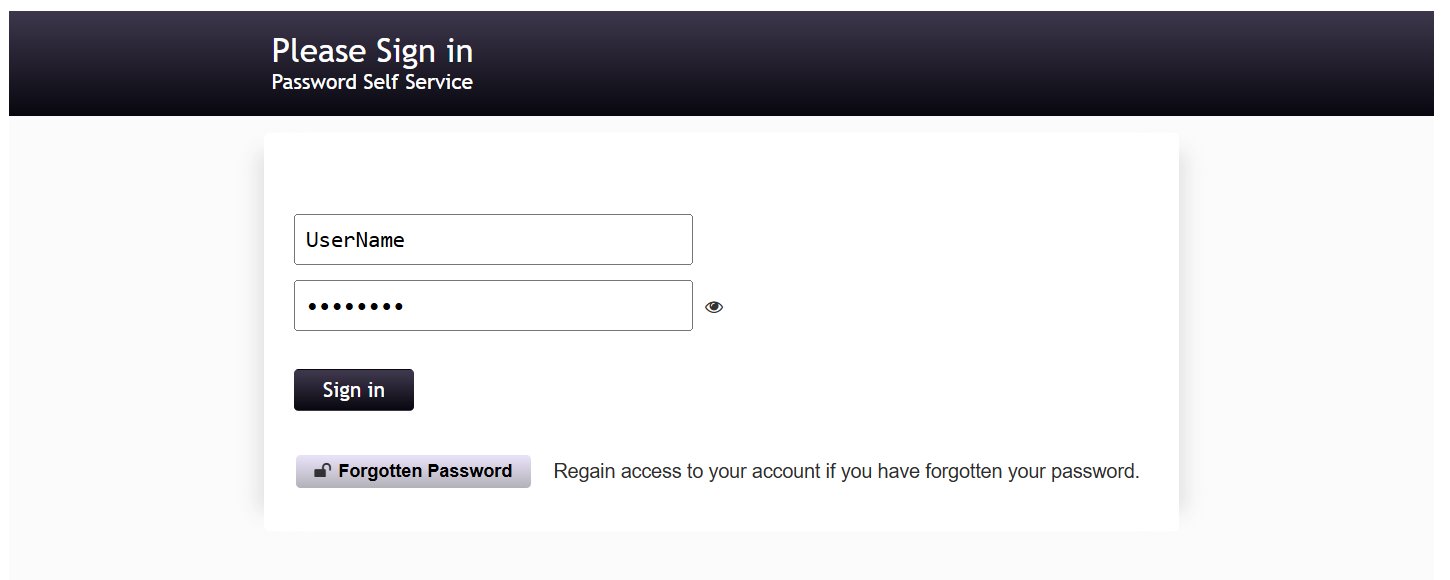
- Enter your elevated username and password in the fields provided, then click Sign in.
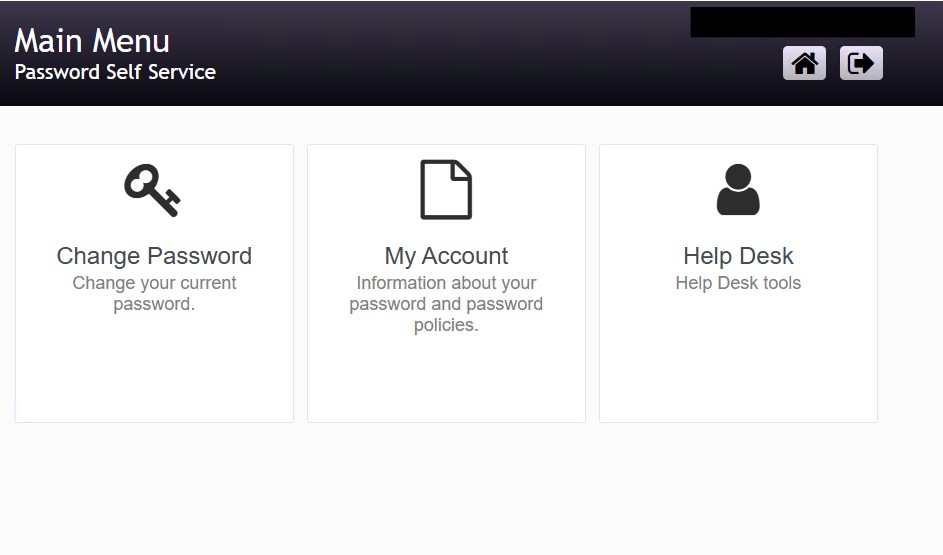
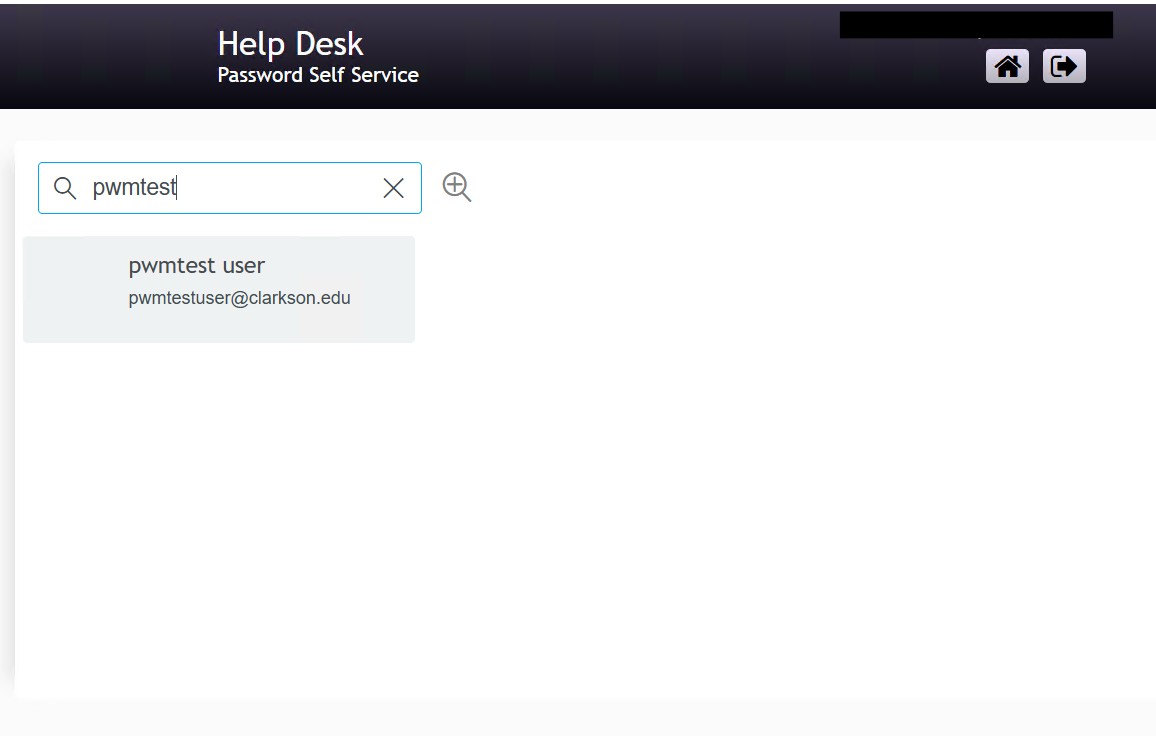
- Type the user's username or name into the search bar; results appear automatically as you type. Confirm the correct user by verifying the display name and email address in the result.
-
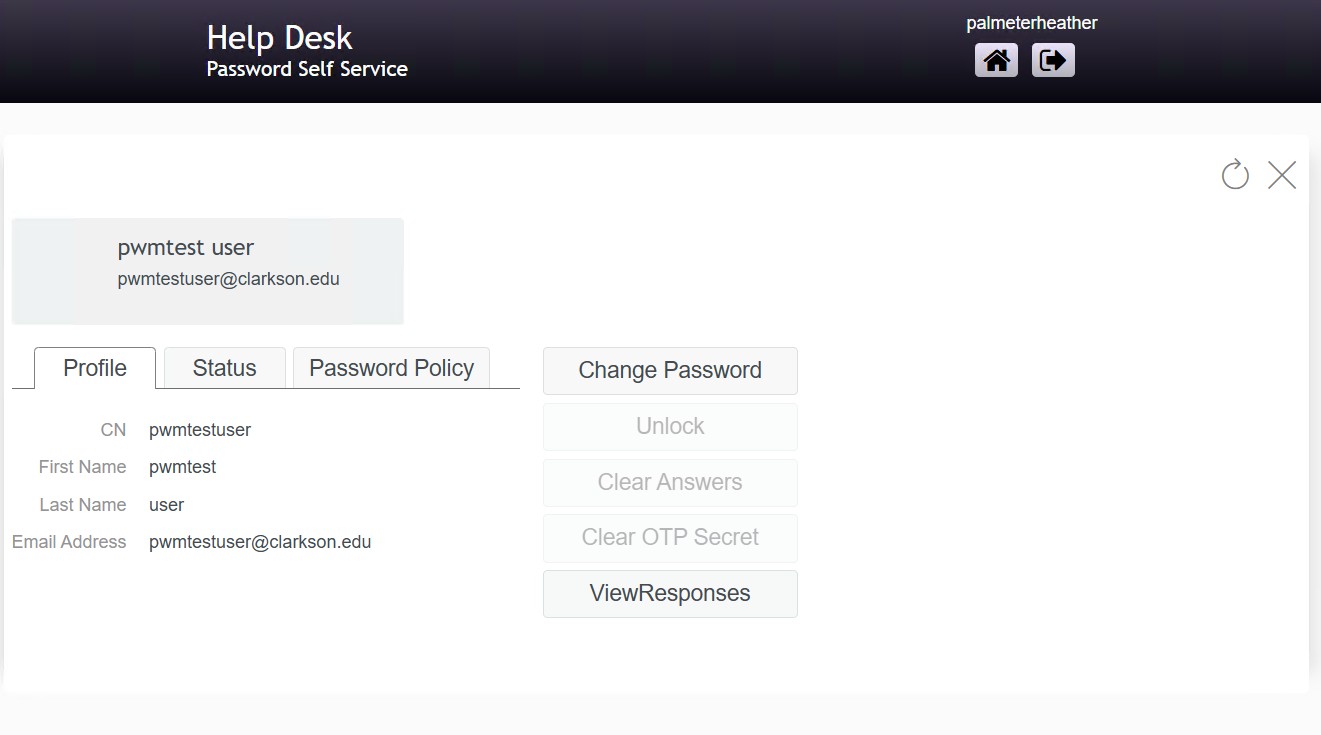
Click the user in the search results to open their record, then click Change Password on the right side of the screen.
The Unlock, Clear Answers, Clear OTP Secret buttons, and others, may be grayed out or absent if they are not applicable to this user's current state.
-
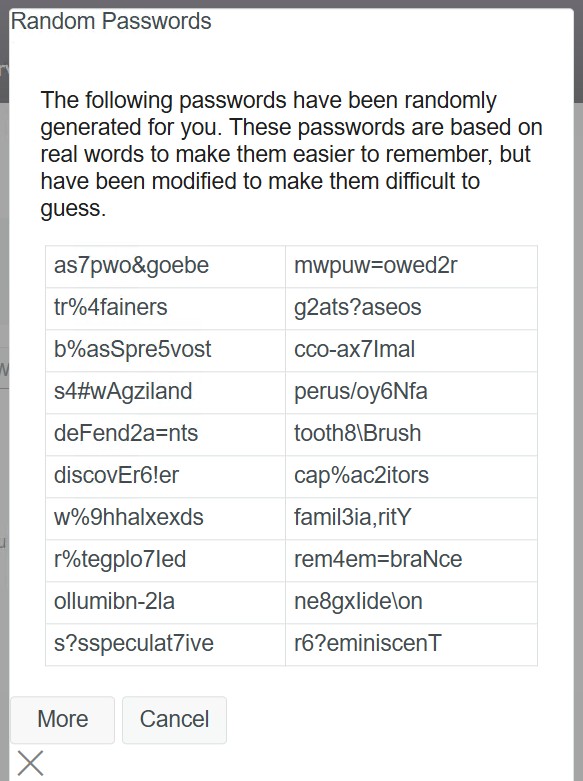
In the Random Passwords dialog, click any password from the list to select it, then click OK.
If you need a different set of options, click More to generate a new list. Click Cancel to abort without making any changes.
-
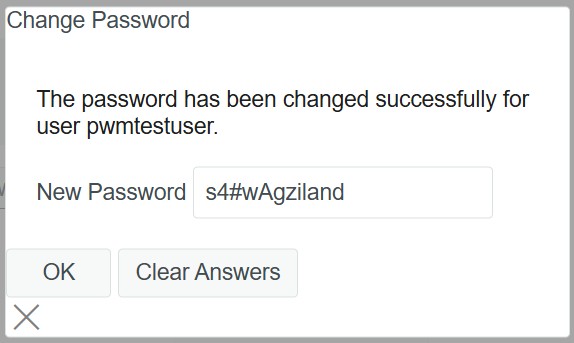
In the confirmation dialog, read the new password to the user or communicate it via a secured channel to a verified individual. Inform the user to change this password immediately after logging in. Click OK to dismiss the dialog.
⚠️ Do not click Clear Answers unless you are processing an account termination. This action removes the user's security question responses and will prevent them from using self-service password reset.
Verification
- The confirmation dialog in Step 7 displays the newly set password, confirming the change was applied.
- For additional verification you can log in to https://cas.clarkson.edu with the username and new password.
If it doesn't work
-
Error Conditions
- If you can not access the system
- Take a screenshot of each of the following, that contains a visual representation of the URL you are visiting and the time and date
- Your entries in Step 2
- Any failure dialogs that result from Step 2
- Take a screenshot of each of the following, that contains a visual representation of the URL you are visiting and the time and date
- If you can not find the end user in the system
- Take a screenshot of each of the following, that contains a visual representation of the URL you are visiting and the time and date
- Your entries in Step 4
- Take a screenshot of each of the following, that contains a visual representation of the URL you are visiting and the time and date
- If the password reset does not work
- Take a screenshot of each of the following, that contains a visual representation of the URL you are visiting and the time and date
- The confirmation dialog provided in in Step 7
- Any resulting errors from attempting to test the login against cas.clarkson.edu (or a similar attempt by an enduser against a cas backed Clarkson application)
- Take a screenshot of each of the following, that contains a visual representation of the URL you are visiting and the time and date
- If you can not access the system
-
Escallation:
- Escalate based on [VERIFY: Escalation Doc link]
Notes
- None
meta:
  audience: helpdesk
  system: setpassword
  task: password-reset
  tier: tier1
  aliases:
    - "reset user password"
    - "reset a user's password"
    - "help desk password reset"
    - "set a new password for a user"
    - "campussetpassword"
  related:
    - "[VERIFY: link to account termination"
    - "[VERIFY: link to offboarding runbook]"
review:
  last_reviewed: 2026-07-01
  reviewed_by: hpalmete
  volatility: high
  cadence_days: 90
  next_due: 2026-09-29
  canonical_source: internal
  status: current
  human verification:
    - "The reset flow works"
  automated_verification:
    - "https://campussetpassword.clarkson.edu returns HTTP 200 and loads the SetPassword sign-in page"
    - "After sign-in, the Main Menu still shows a 'Help Desk' tile distinct from the 'Change Password' tile"