Running An Advisement Report
Advisement Reports are used to show a students progress in their degree. You will be able to see Followall PeopleSoftcourses path:that the student has taken that are being used towards their program, along with what requirement the courses satisfy. This report will not show courses that a student takes if they do not apply to their program (ex. an unrecognized elective, EAP courses, a failed course).
MainHow Menu>Academicto Advisement>Studentrun Advisement>Requestan Advisement Report
In

Select
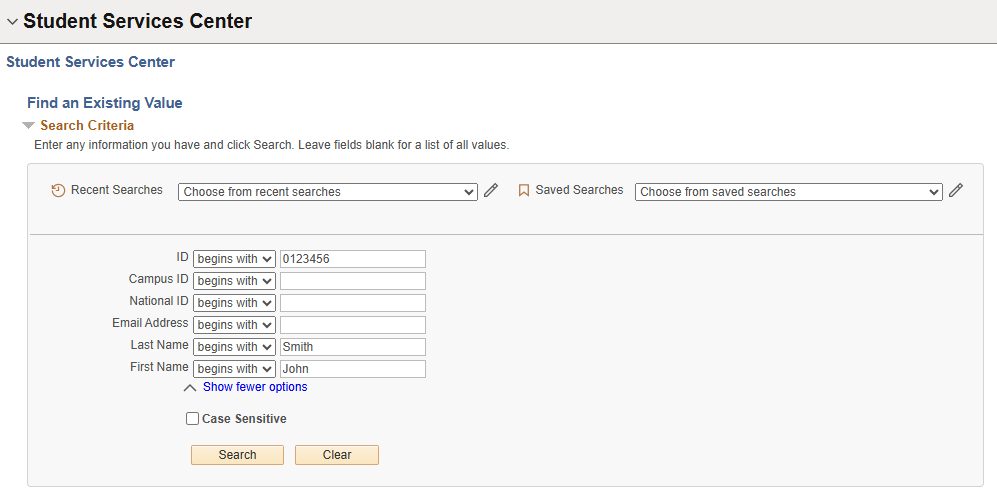
In Requestthe onceStudent Service Center page, type in the students ID number in the top box. If you havedo verifiednot know the informationstudents isID correct for the date range.

Once the Report generatesnumber, you can viewsearch by first and last name in the boxes further down the list.
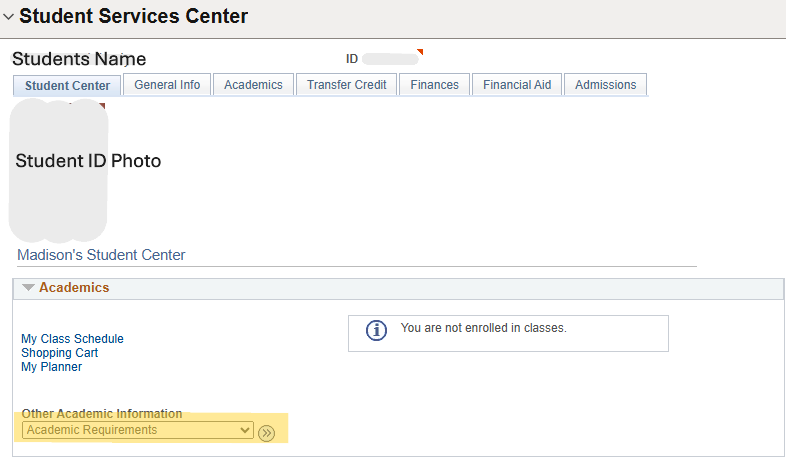
Under the Academics box in the middle of the screen, there will be a dropdown menu under Other Academic Information. Select Academic Requirements, then click the blue arrows in the circle next to the drop down.
Select View Report as PDF
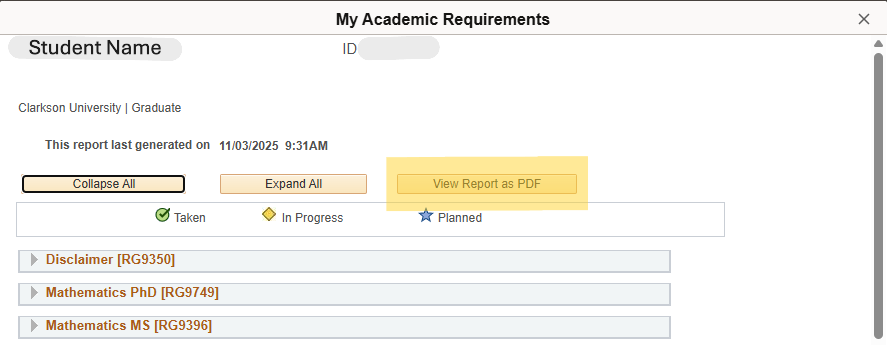
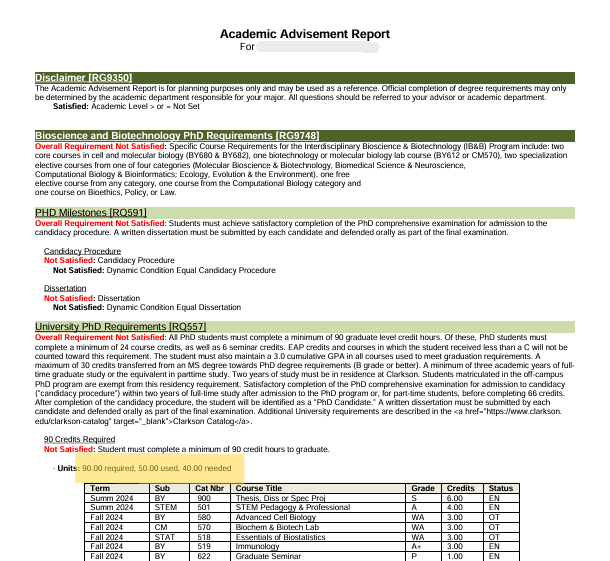
The advisement report will be at least two pages. Review each page to ensure all requirements are met. If a pdfstudent orhas rightmet all requirements, under every heading there will be the word 'Satisfied' in PeopleSoftgreen. If you would like to know how many of the students credits applied to their program, the required and used numbers are listed above the course breakdown.

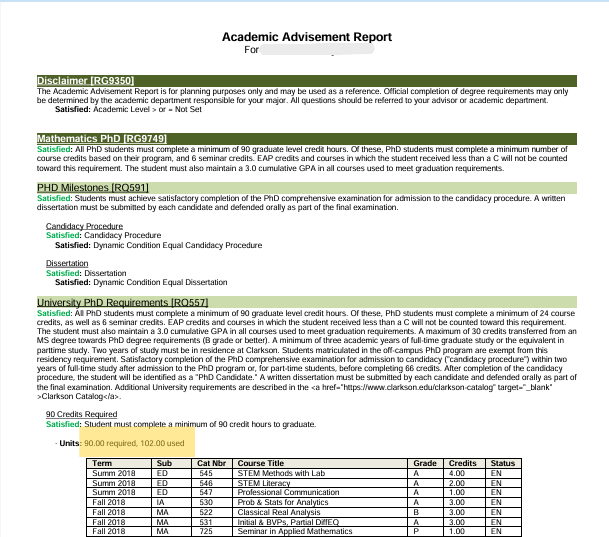
If a student has not completed all requirements there will be the words 'Not Satisfied' in red under each non-complete section. If the number of credits is the issue, you can find out the number of credits the student is lacking above the course breakdown.