
Approving A Graduate Appointment
When you receive an email for Graduate Appointment Approval: you will need to follow the steps below.
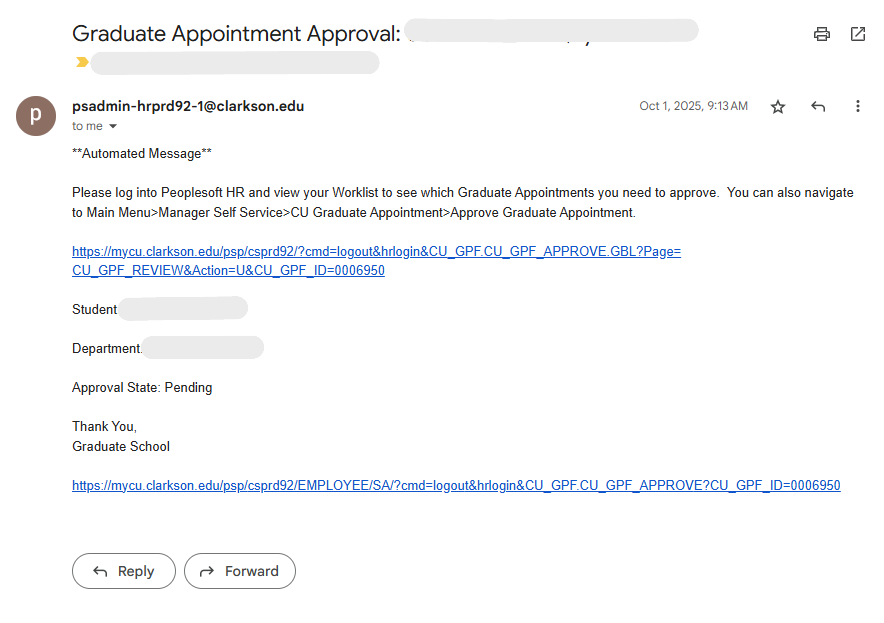
When it is your turn to approve a graduate appointment you will receive an email like the one below. Click the top link and then follow the instructions below:
- The link should bring you to
thisthe appointment approvals page in PeopleSoft HR. (Click image below to enlarge detail)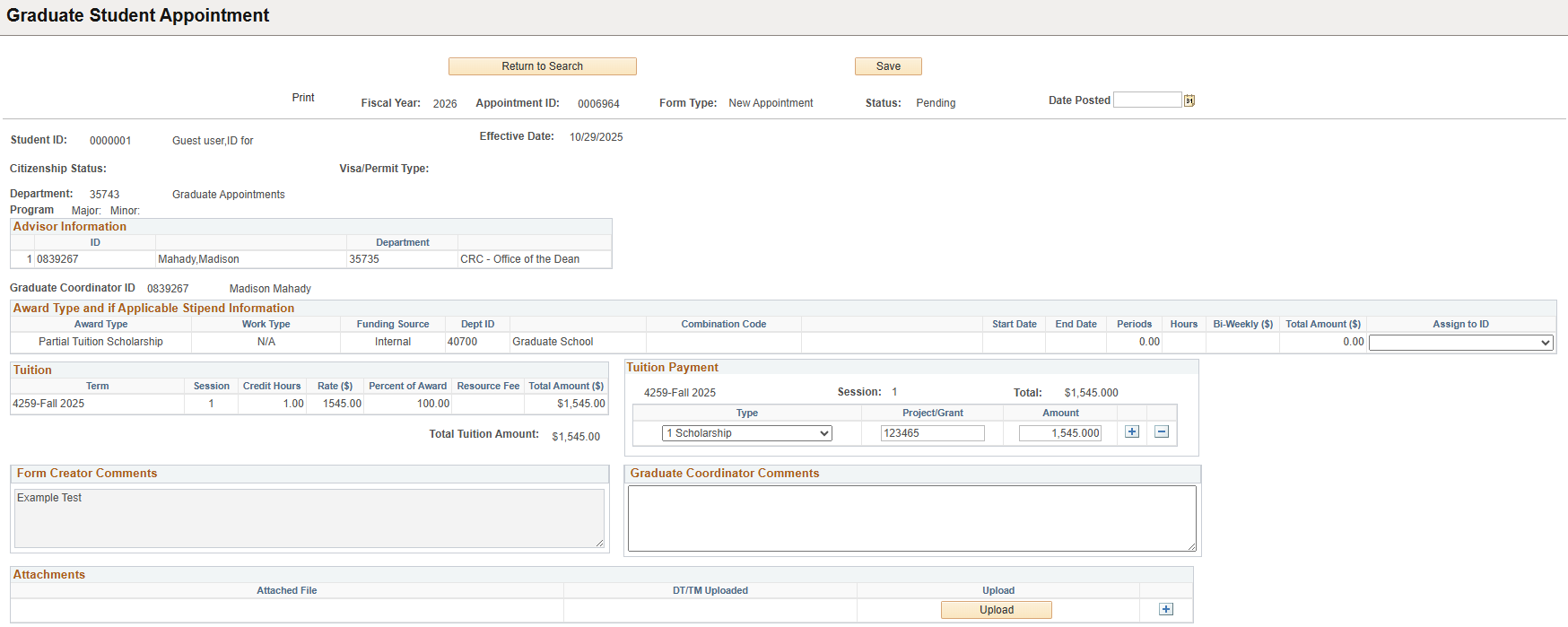
- Review the information in the appointment.
-
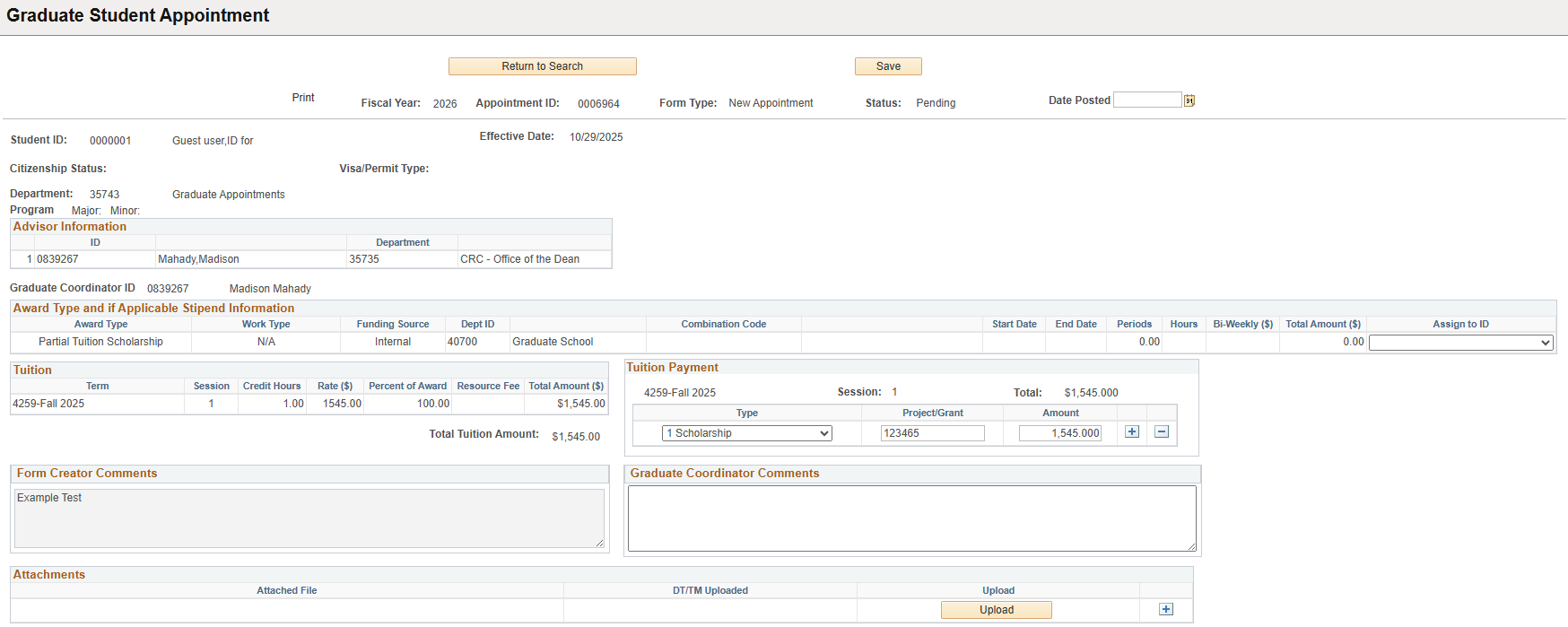
- If all of the information looks correct, click the Approve button (indicated by green arrow).
- If information needs to be updated, leave a comment in the box and click Send Back (indicated by blue arrow) to send the appointment back to the preparer for edits.
- If the appointment needs to be cancelled, click Deny (indicated by red arrow)

-

Note: If the link does not bring you to the approval page, you can find the approval page as follows:
 From the menu on the left, select Approve Graduate Appointment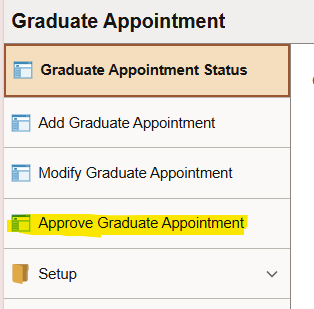
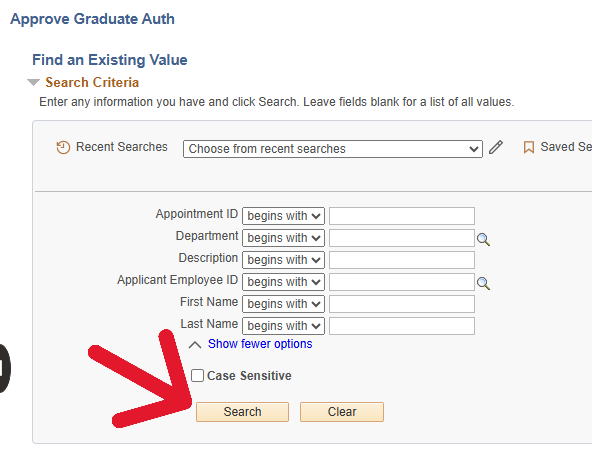 If you have one appointment in your queue, the appointment approval page should automatically open on that appointment when you select Approve Graduate Appointment form the menu