Echo360: Adding Media to Echo
Adding media to Echo360 and sharing with students via Echo 360 is easy. And since Clarkson University pays to use Echo360 for media storage, this is the best place to keep your videos secure. All instructors (and students!) have Echo360 video privileges. Videos can be stored and shared from your Echo360 library, directly from your course through Echo, or from a Collection. Please consult with the TLC to help determine your best option.
Instructors may:
- Upload a video that students should view before discussing it at a class meeting
- Upload materials that expand on a particular lecture
- Upload materials not linked to any specific section, but share them with students
You can upload any of these materials to your library in the Echo360, and then edit and manage them as you would an Echo.
Step-by-step guide:

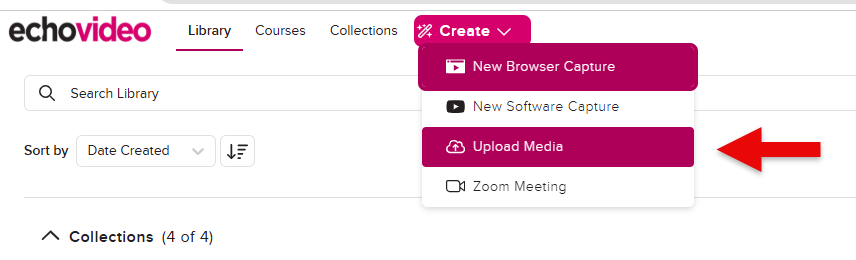
- Log
ininto go.clarkson.edu/echo with your Clarkson login. - From top menu, click Create drop down menu, and select Upload
Media.Media (or if you want to create a new video, choose to create New Browser Capture. - Drag or Browse for file.
- Allow time for file to process in Echo.
LearnThenmore:view: How to Share your recording from your library via a link.,
WARNING: Only do this if you wish to permanently delete files from Echo:your
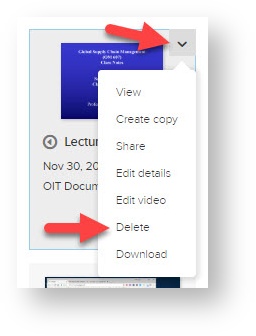
Delete Captures fromEcho Library: Instructors now have the ability to delete captures from their Echo library. This option was activated 1/2019. From within the Echo library, users click on the menu in the upper right hand corner of video, select Delete. WARNING: Only do this if you wish to permanently delete a video file:
It will present a warning, click ok and recording will be permanently deleted.