
Echo Cloud: Add Content from Library to an Echo Course
Instructors can add contentvideos they have uploaded toor have automatically uploaded from the Zoom Cloud from their Echo libraryLibrary to any of their courses. To do so:
-
Log into
Echo at go.clarkson.edu/echoEcho360. -
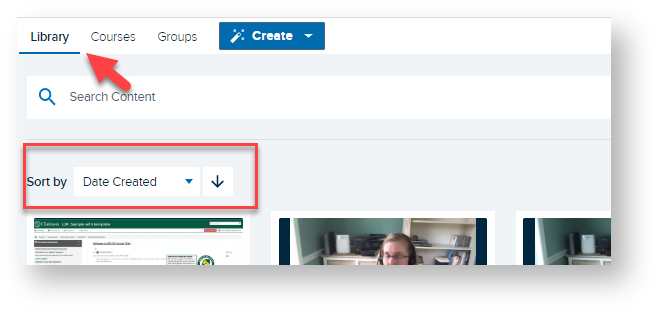
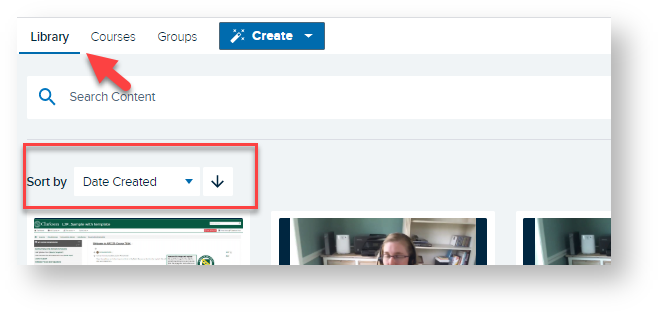
Click Library.
-
Locate desired recording. You can use the Sort by or Search
fortooldesiredifrecordingneeded.
-
Click on desired
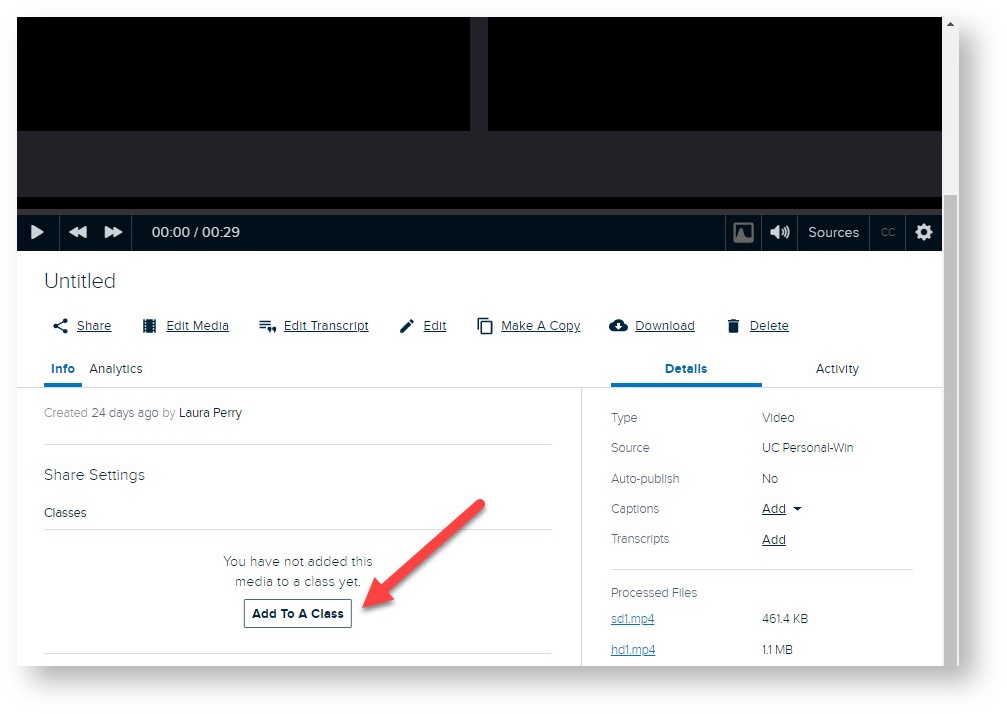
recording Scroll down until you see Info/Share Settingsrecording.-
Click
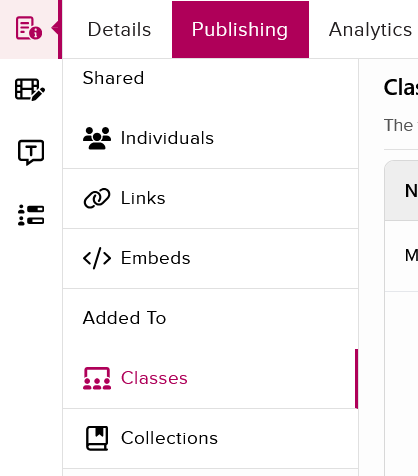
AddthetoPublishingA Classtab. -
SelectClickCourse,ClassesTerm,inSection,the Added To area.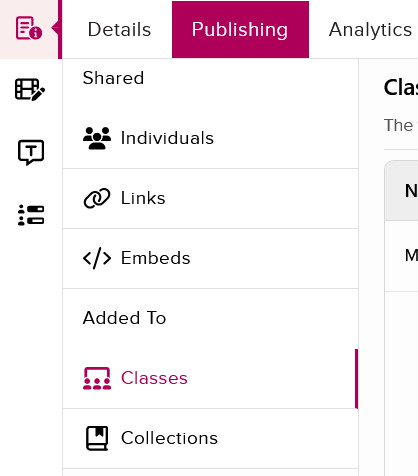
- Click Add To A Class.
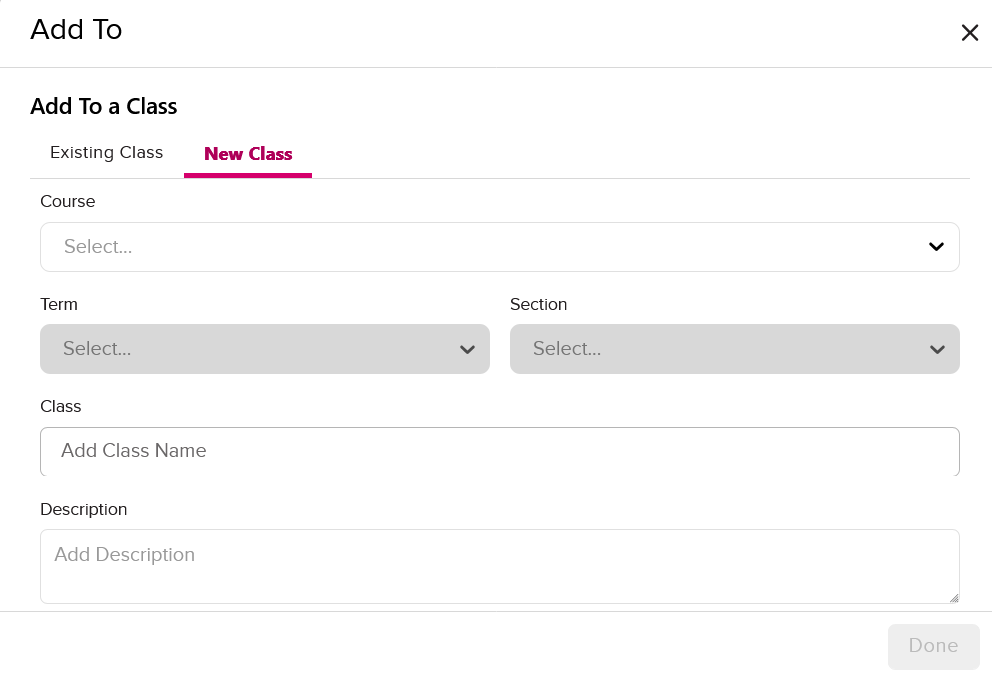
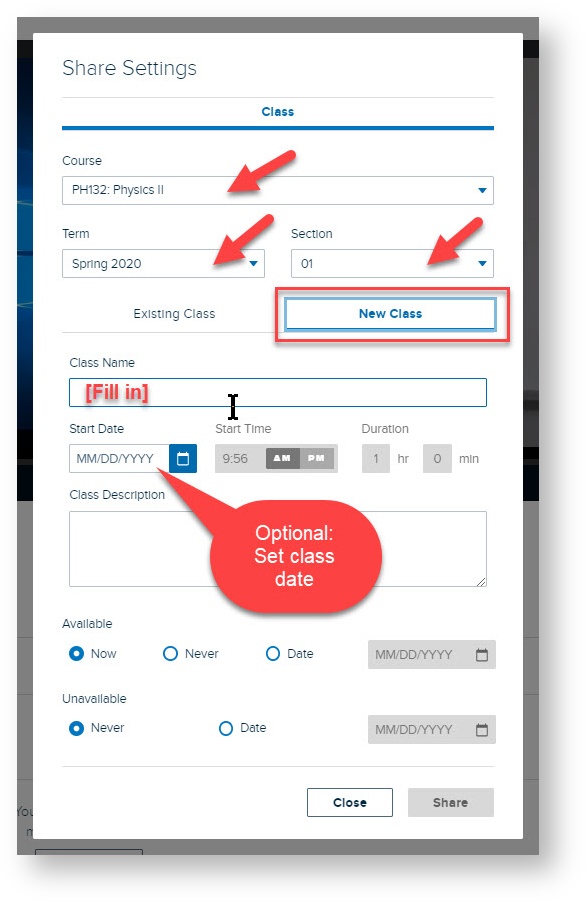
- Click New Class towards the top of the pop-up.
-
Select Course, Term, and Section, then add New Class title. Select any additional Availability Settings
-asseedesired.image below.(Instructors should see the desired course in you drop down menu. )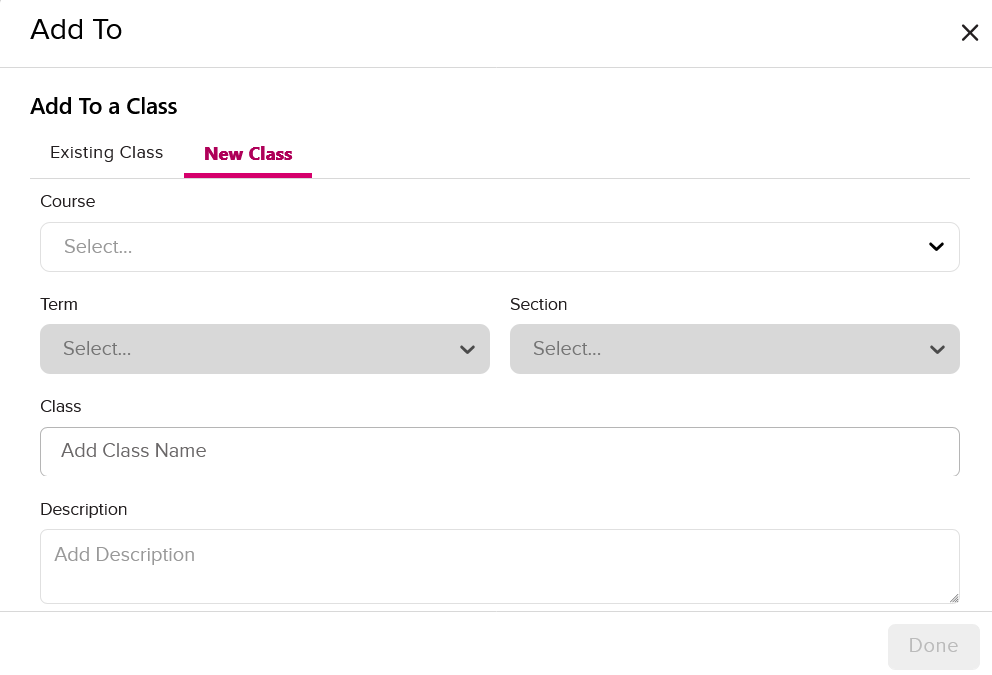


Now your selected recordings will be available inside the desired Echo course.
Read on to link your Echo recordings to your course in Moodle so students can view.