
Configuring Wireless Using Android
Steps:
- Download geteduroam
- Install the Clarkson Profile
Download geteduroam
1.
If you have a previous version of the eduroam profile saved on your device, delete2. Install geteduroam from the Play store and click on the Install button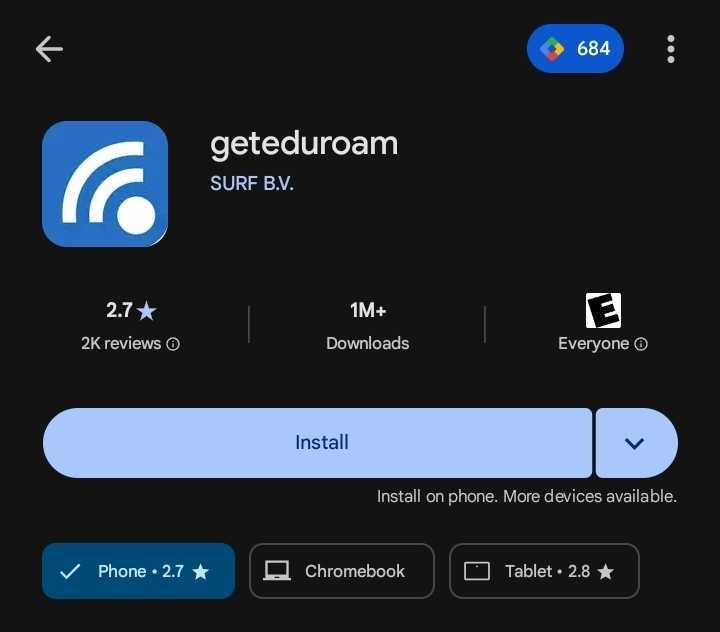
3.
Install the Clarkson Profile
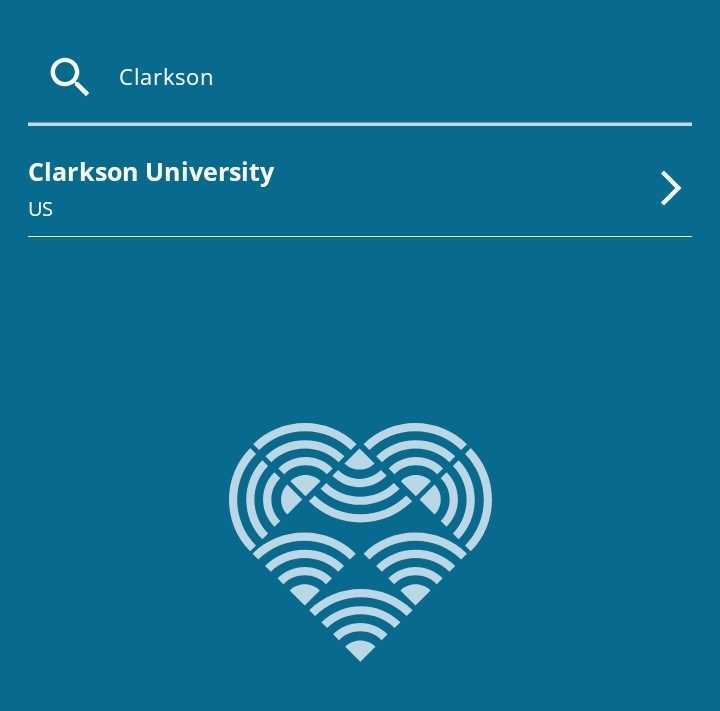
4. Login using your full Clarkson University email address and password, and click on the "Log in button"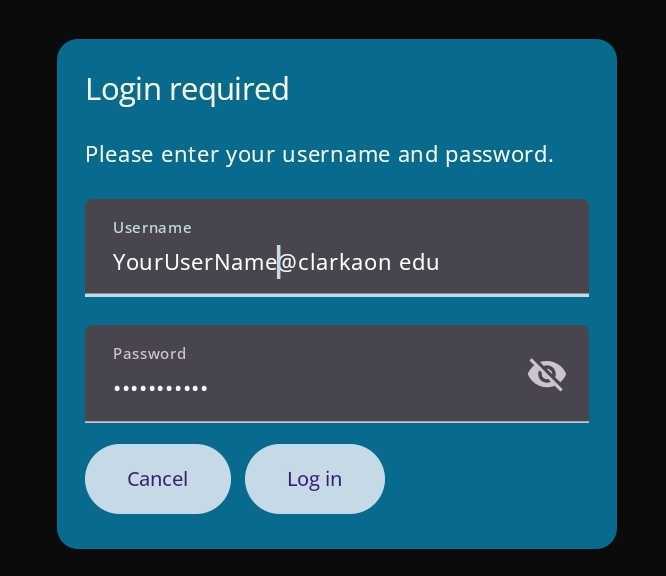
Pro Tip : Be VERY CAREFUL entering your password! An incorrect password here may repeatedly lock your Clarkson accounts until you remove and re-install eduroam with the correct password. Copy-paste from your password manager if you use one.
5.
Save the network when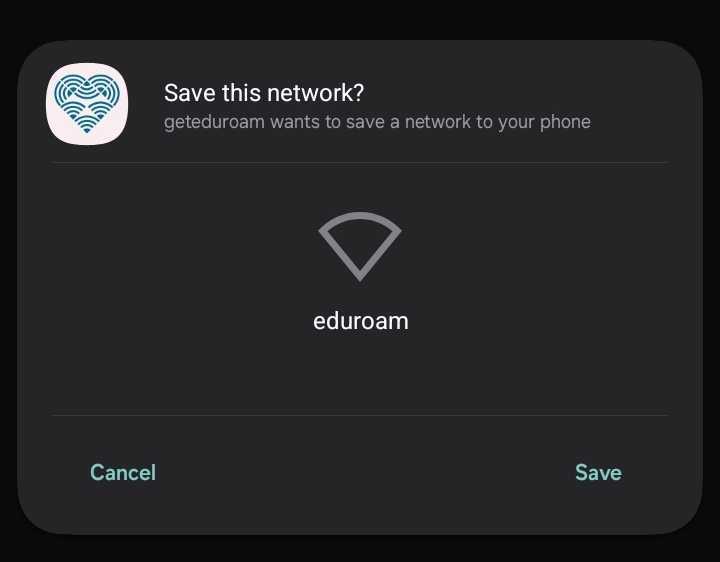

Seek Further Assistance
For additional assistance please contact, Clarkson OIT Help Desk;
Online: Get Help
Email: helpdesk@clarkson.edu
Call: 315-268-HELP (x4357)