
Configuring eduroam WiFi Using iOS (iPhone/iPad)
-
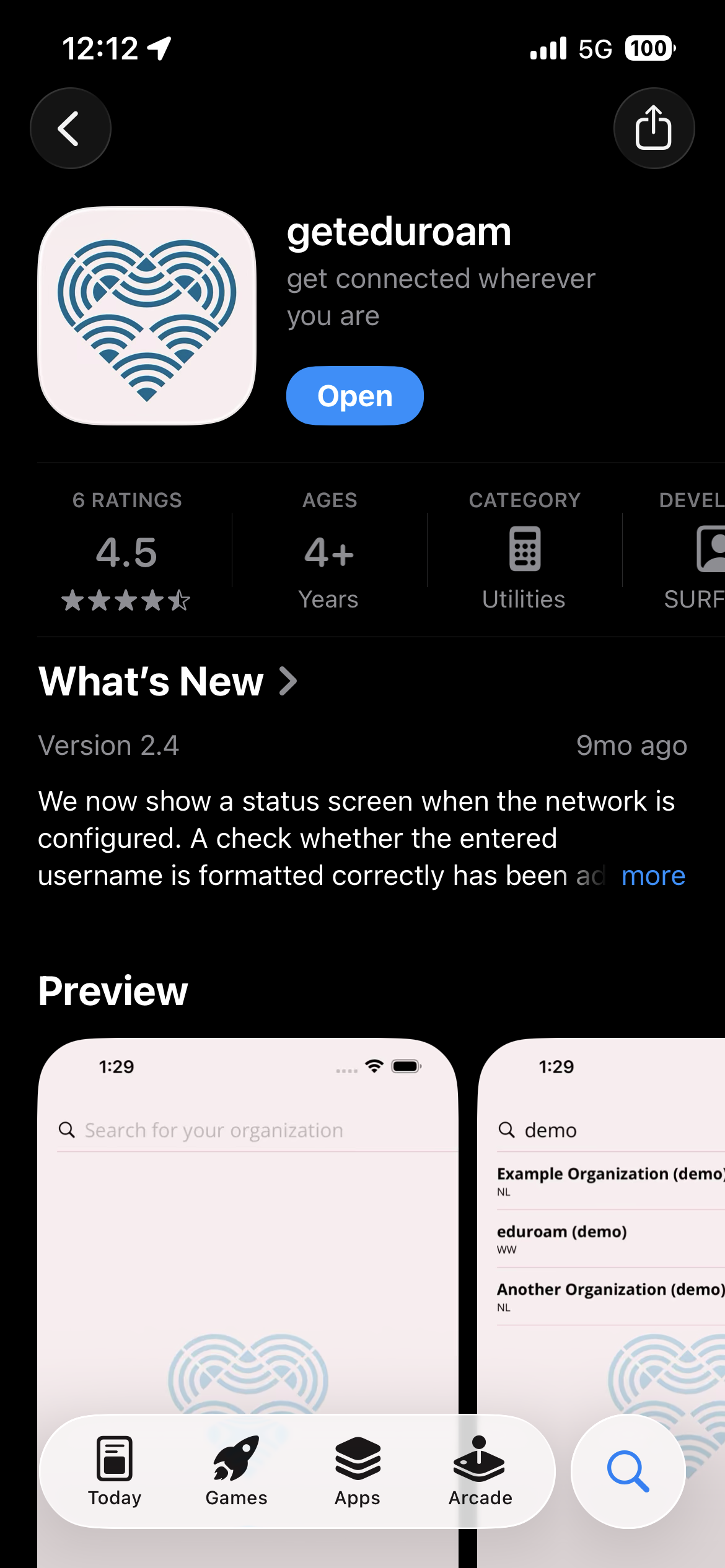
In the App Store, download the geteduroam app. You can find a link here.
-
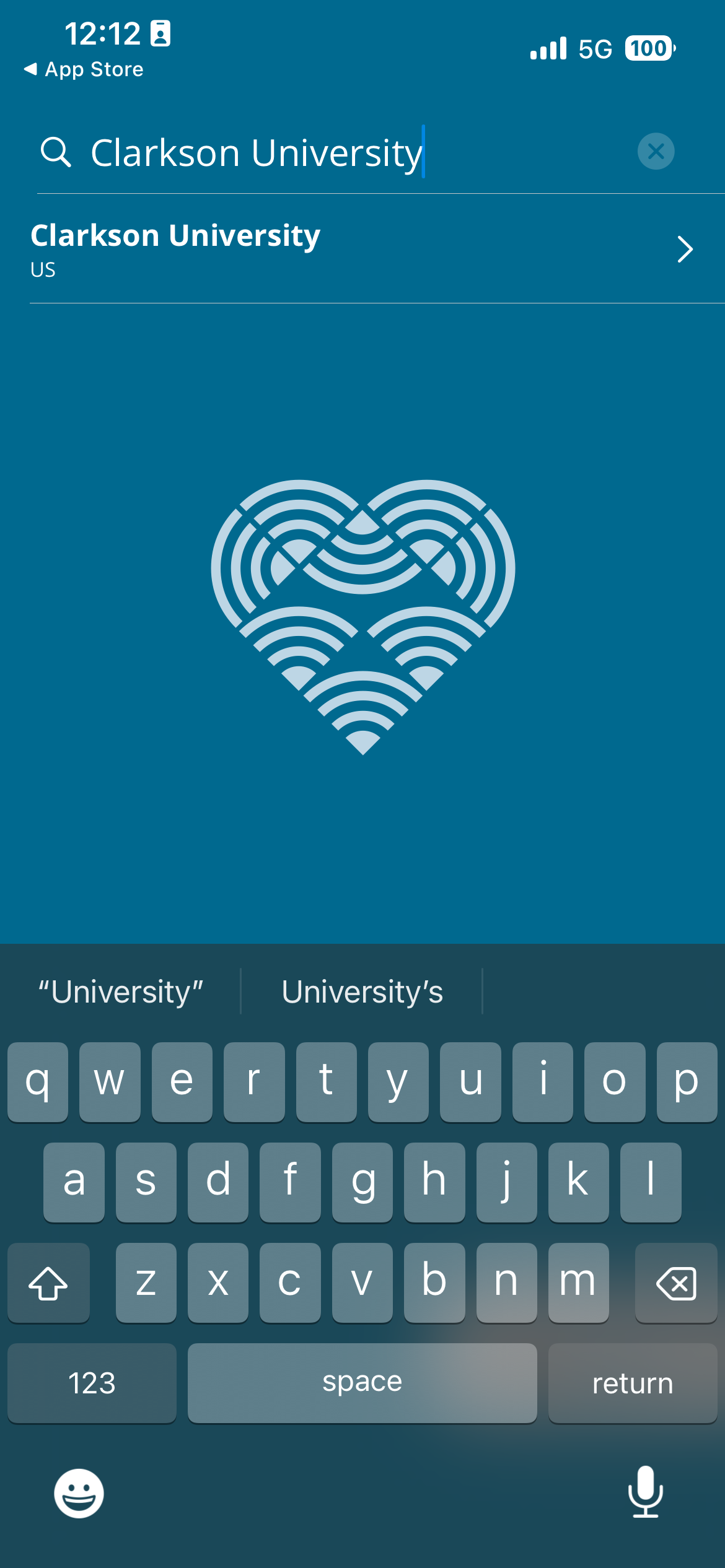
Open the app and search for Clarkson University.

-
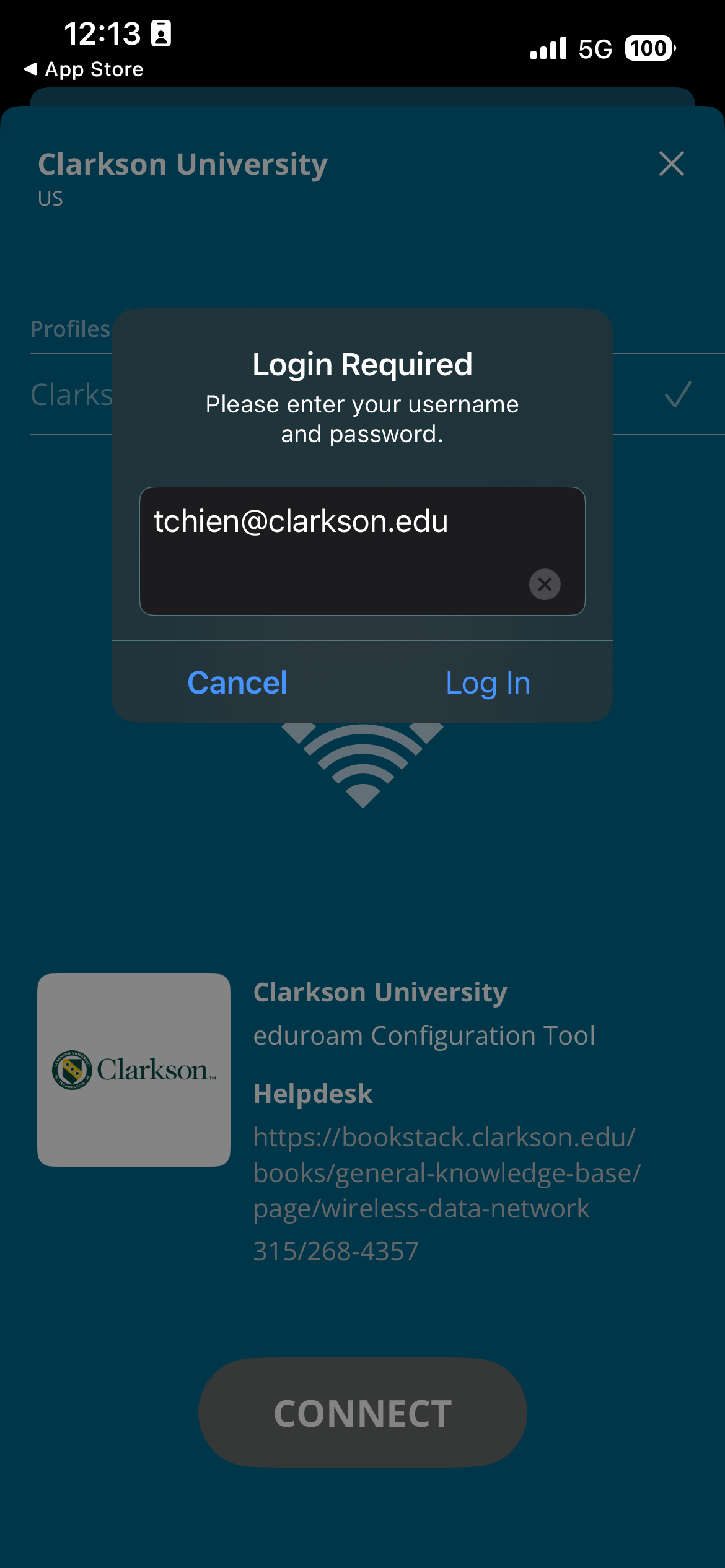
Select Clarkson University, enter credentials including the @clarkson.edu
- WARNING: Entering incorrect credentials here may lock out your account due to eduroam's rapid attempts to log you in! Please make sure they are correct before hitting Log In!
-
Accept the prompts to connect you to networks and install profiles

- If eduroam fails here, please follow the article below about Removing Previous eduroam profiles. Return to the geteduroam App once the previous profile has been removed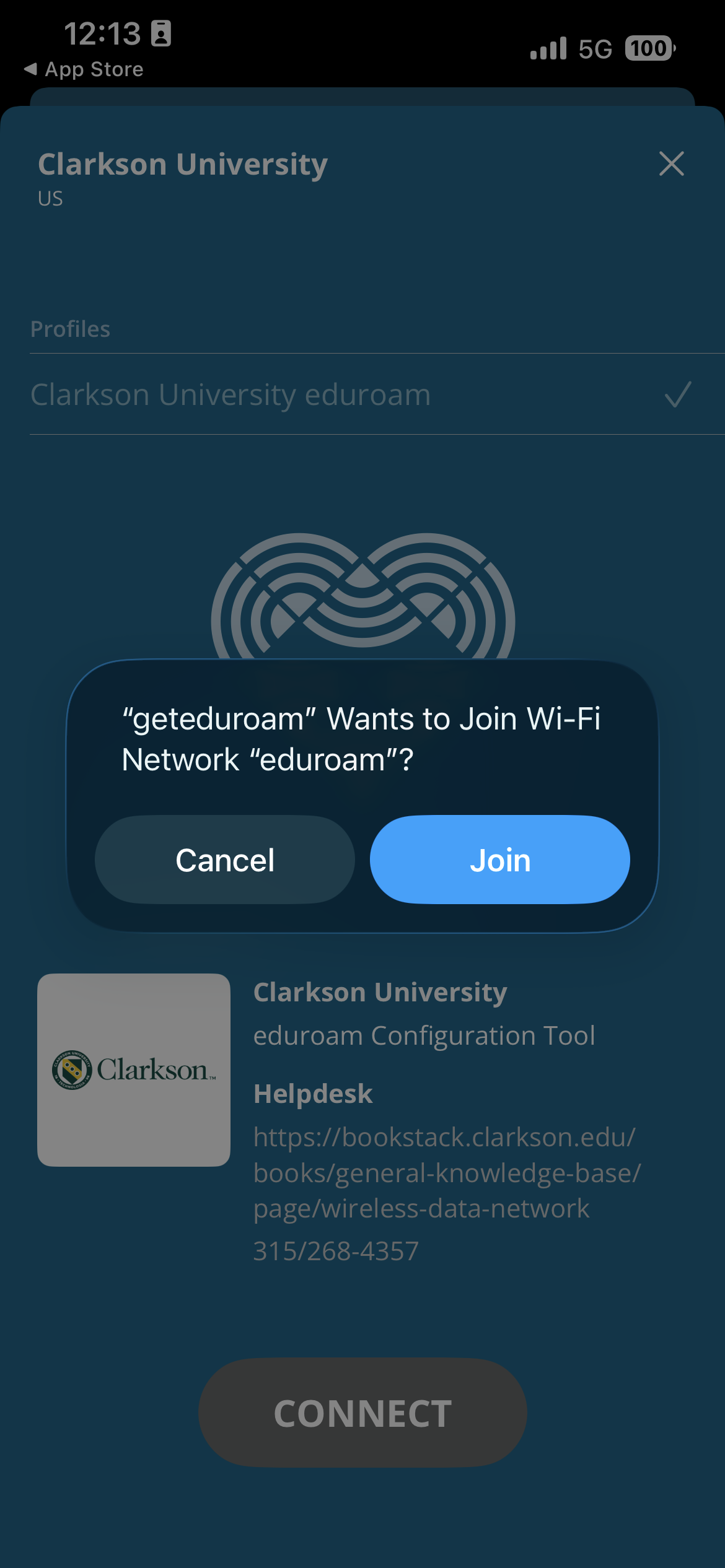
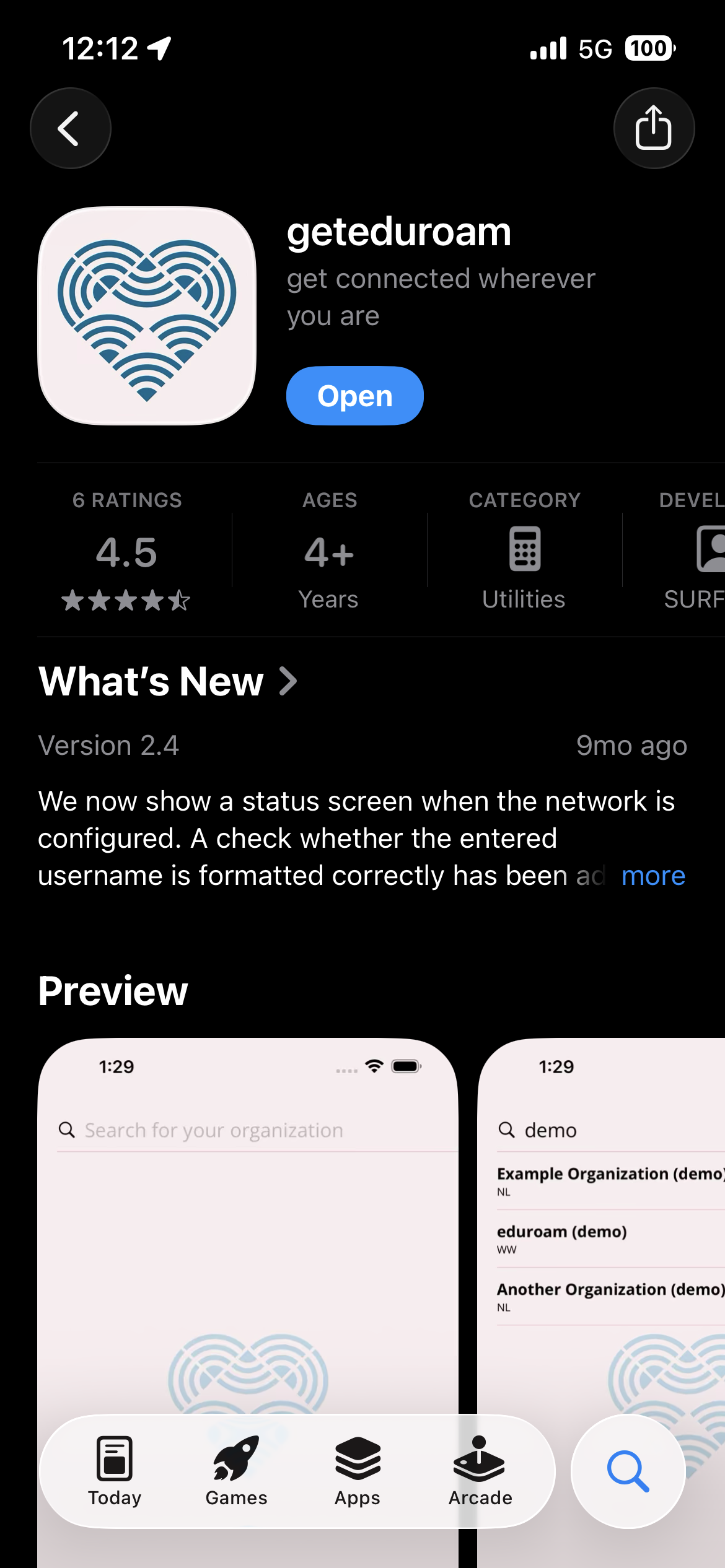
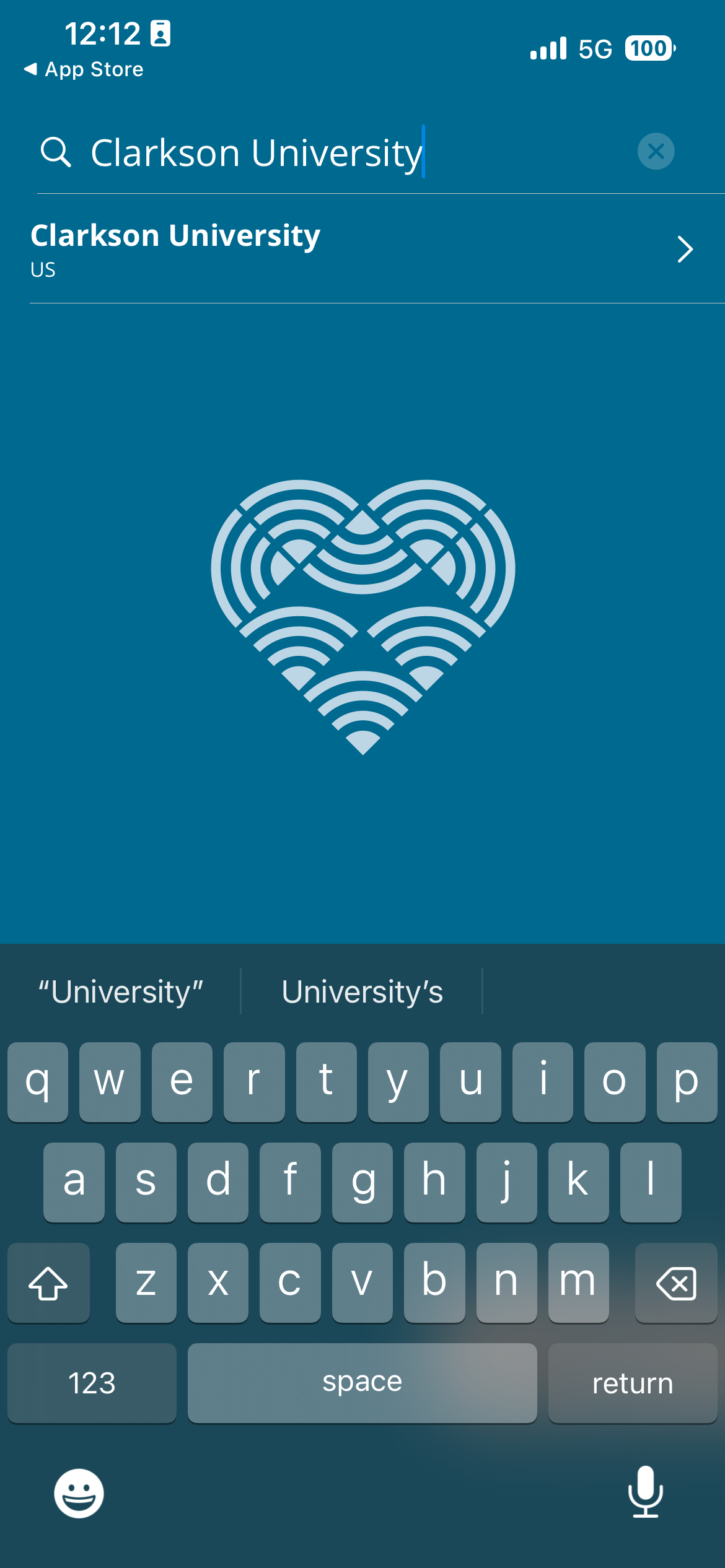
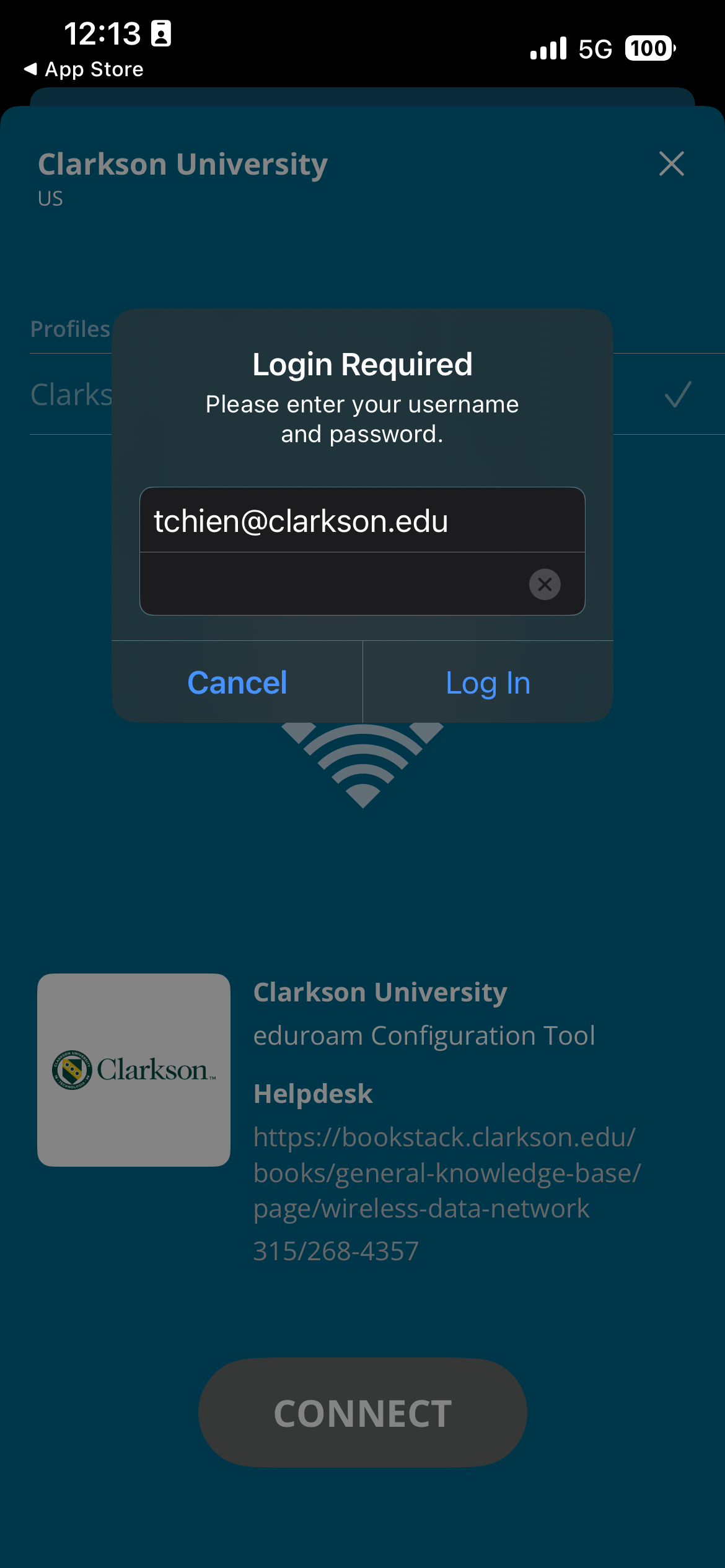
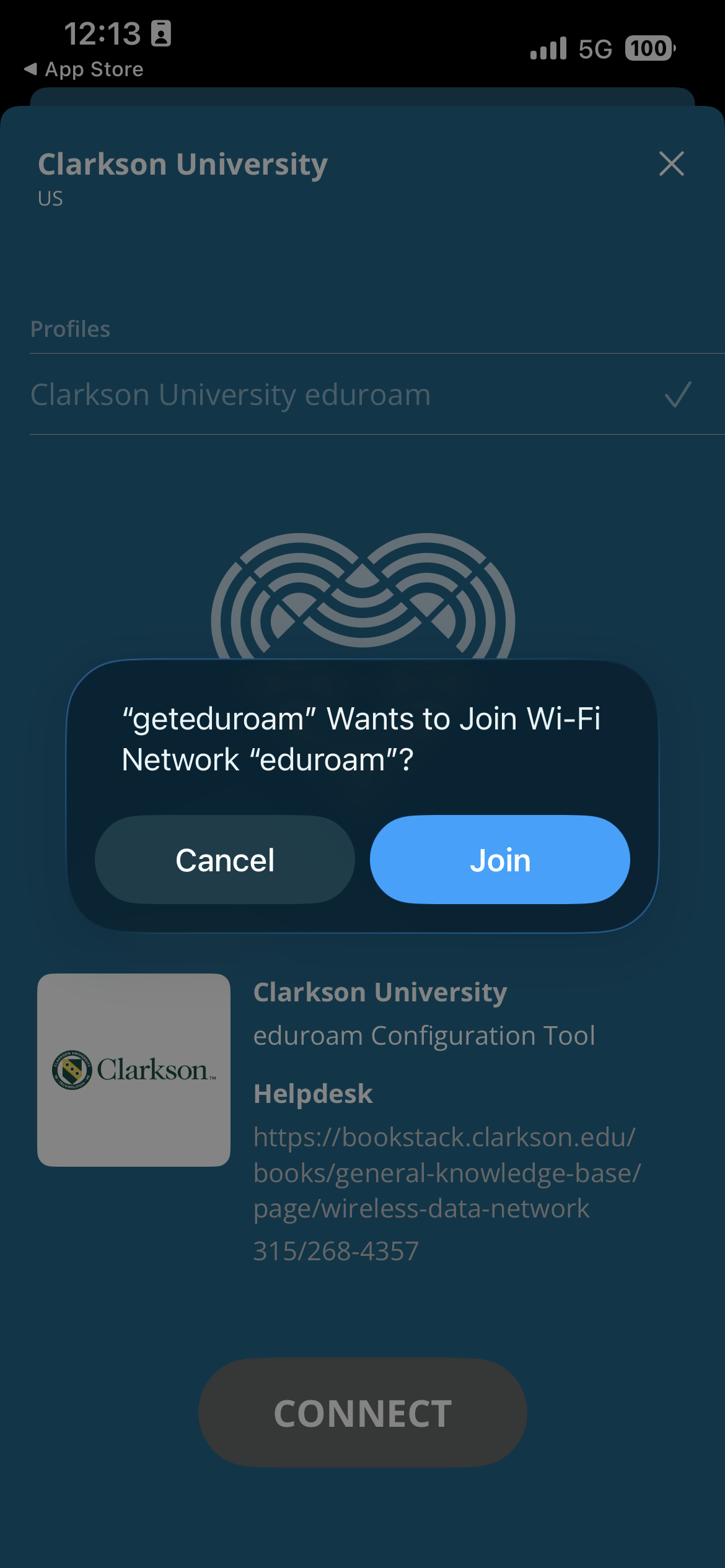
If you had no errors, then you are all set! You should now be connected to the eduroam network!
Removing previous eduroam profiles
- Under General > VPN & Device Management, look for an eduroam® profile
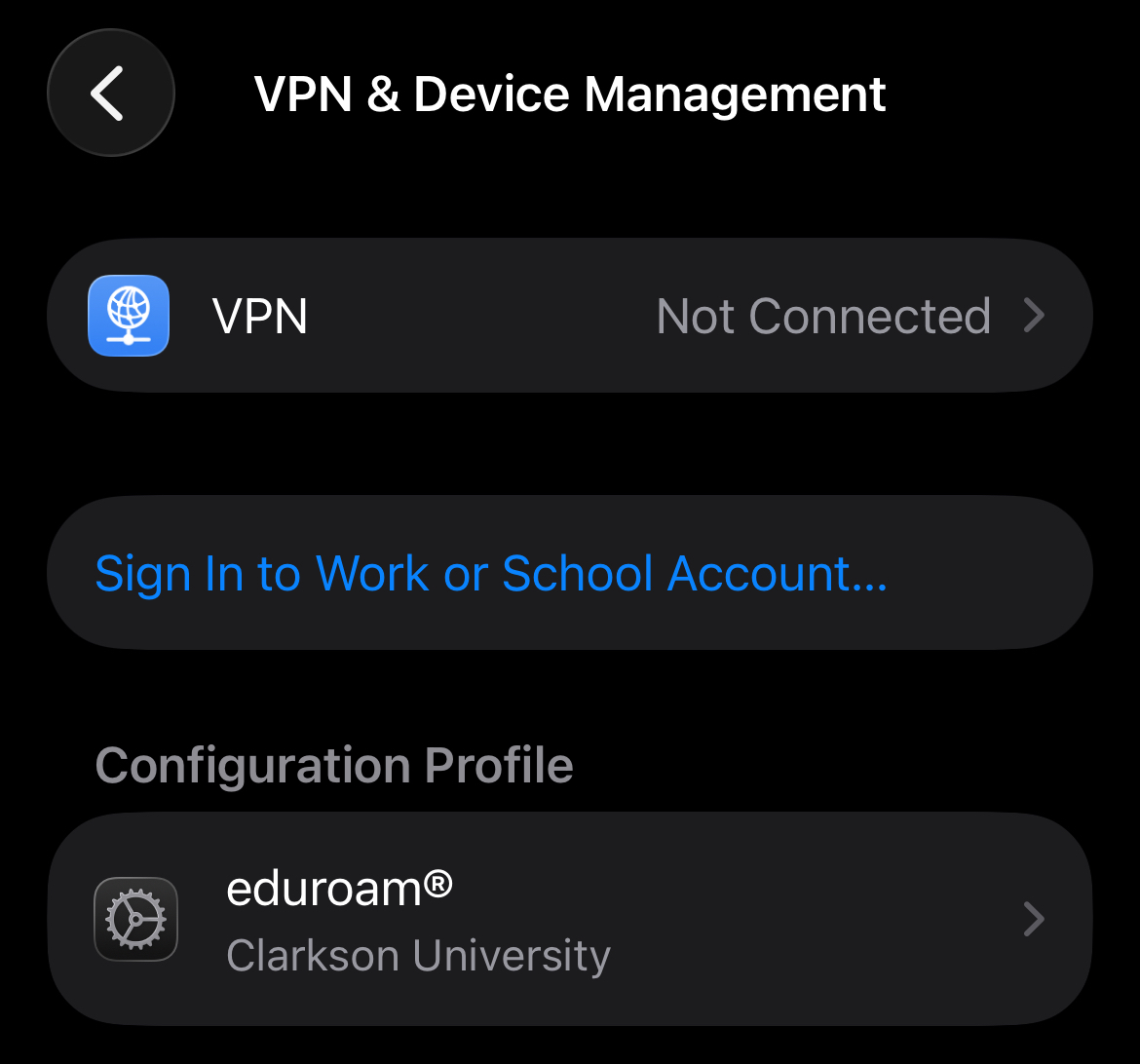
- Open this eduroam profile and remove it
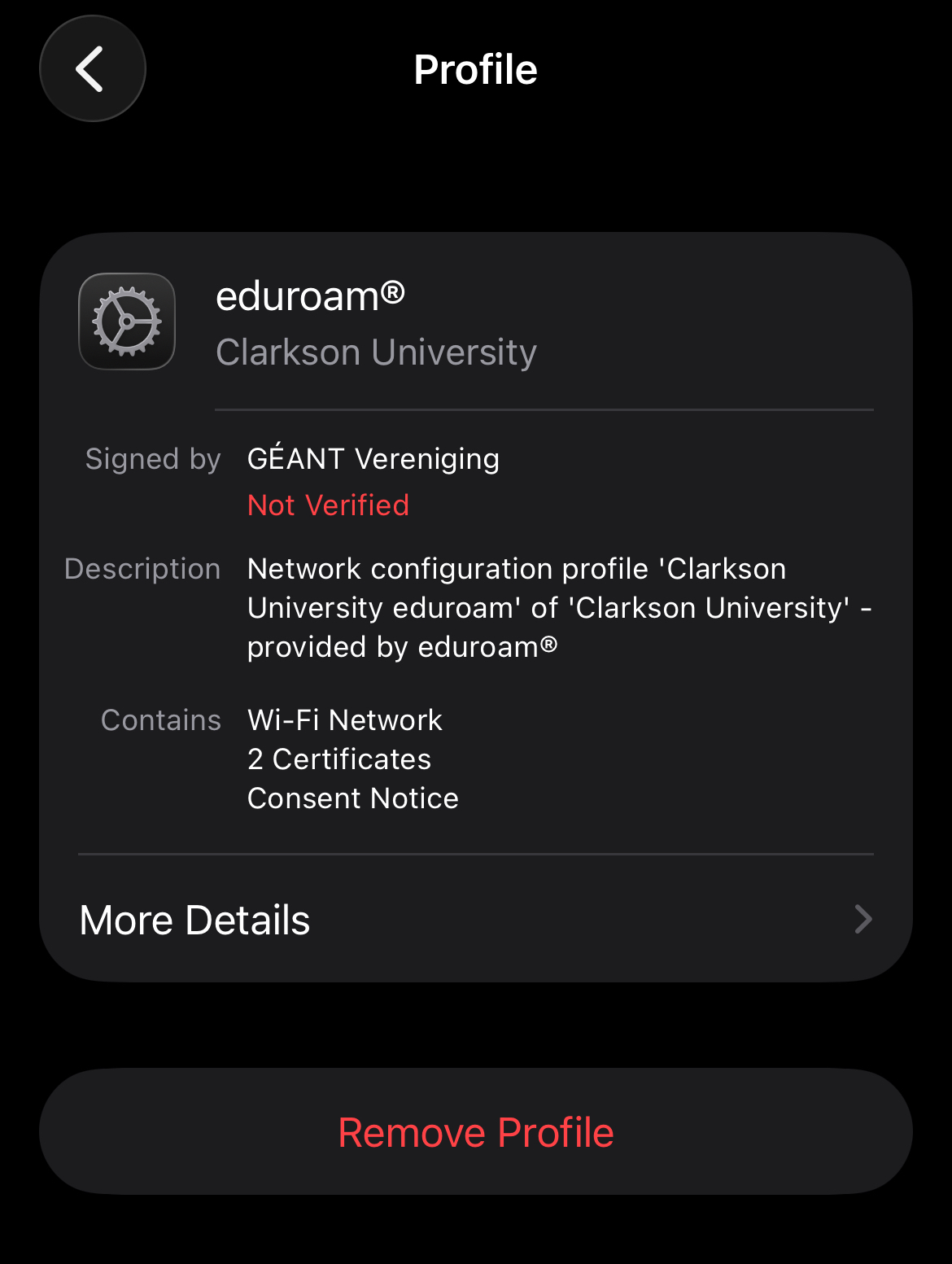
- Follow the instructions for reinstalling using the geteduroam App
Guests use public WiFi with ClarksonUniversity
The ClarksonGuest network is available with no authentication for general and guest network access. However performance on this network will be limited, and since it is open, it is NOT considered secure. Only use this network to connect to eduroam CAT, or if your device cannot use eduroam.
