
Configure eduroam WiFi using Windows
-
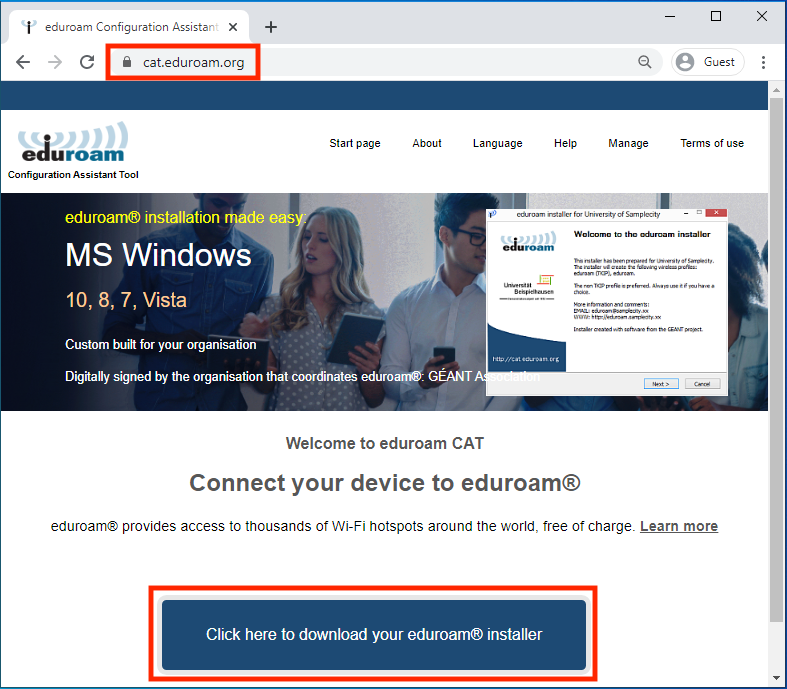
Open a web browser and navigate to https://cat.eduroam.org. If you receive any certificate or verification errors, please stop the process and notify the IT HelpDesk.
Click Click here to download your eduroam® installer.
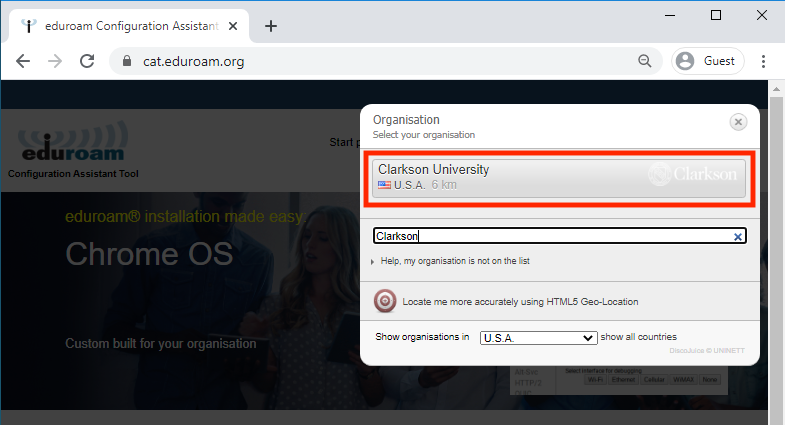
Select Clarkson University from the list. Begin typing "Clarkson" to filter if necessary.
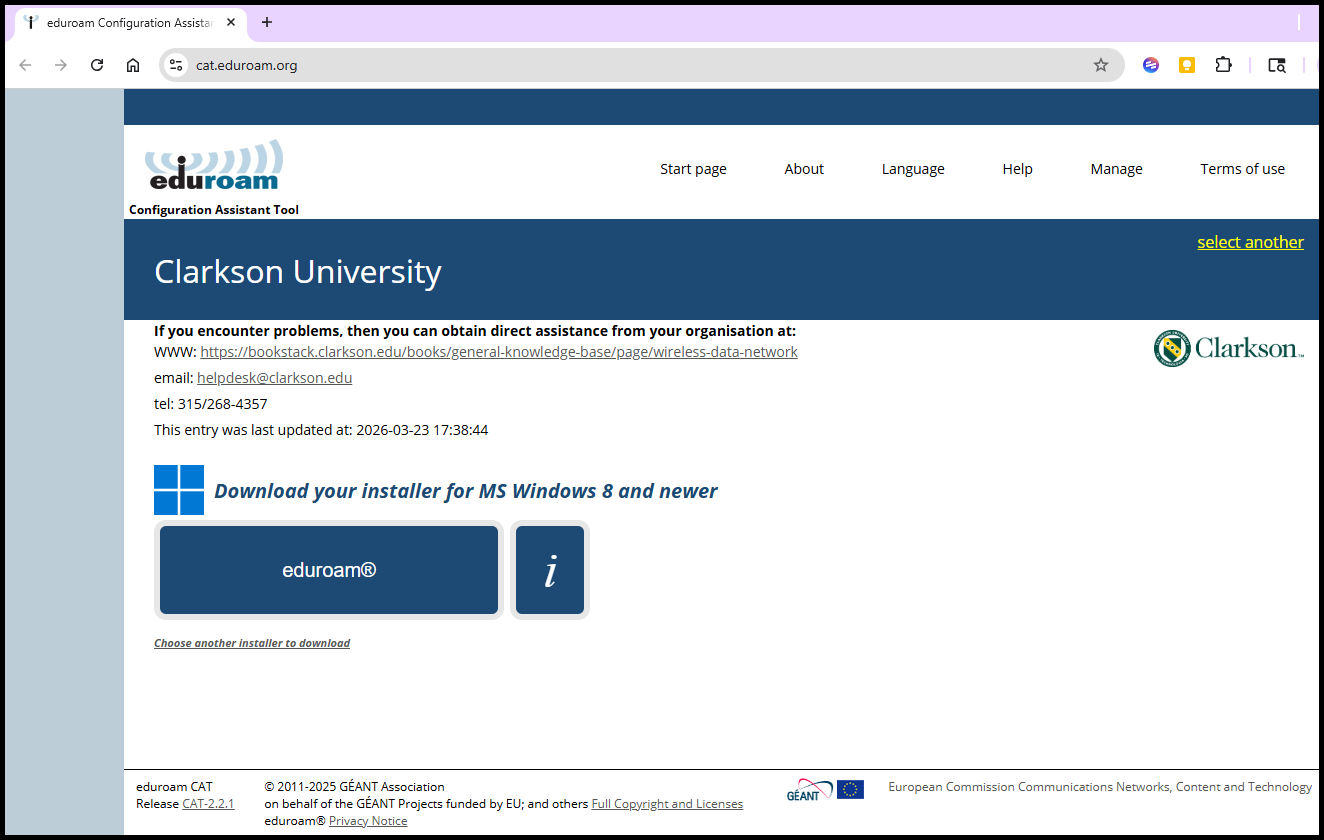
Click **Download your **eduroam® installer****installer verifying that the correct operating system has been detected.
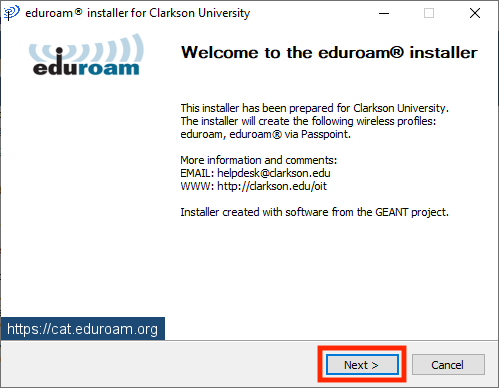
Open the downloaded file. Click Next.

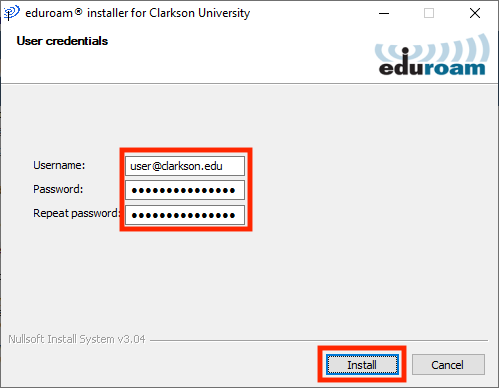
Ex) jsmith@clarkson.edu
Pro Tip: You must provide your username as: username@clarkson.edu when prompted. If you do not include @clarkson.edu, eduroam will not work. This is because eduroam has more participants than just Clarkson, so it needs to know which university to authenticate against.
Pro Tip : Be VERY CAREFUL entering your password! An incorrect password here may repeatedly lock your Clarkson accounts until you remove and re-install eduroam with the correct password. Copy-paste from your password manager if you use one.
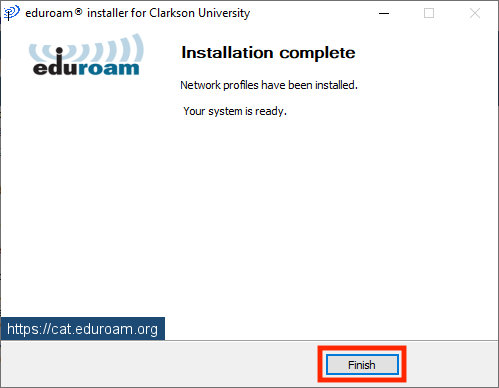
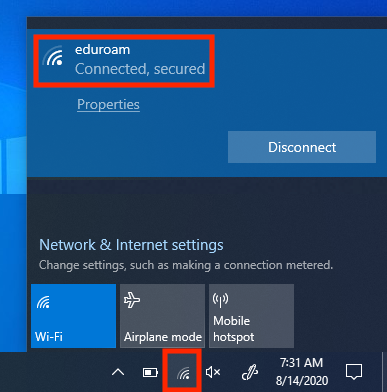
7. The profile is now installed. Click Finish. Your device should automatically connect to the eduroam network if in range. To verify, check the Wi-Fi menu in the taskbar.

Guest and General Access
Turn on Wi-Fi and connect to the network (SSID) ClarksonUniversity.

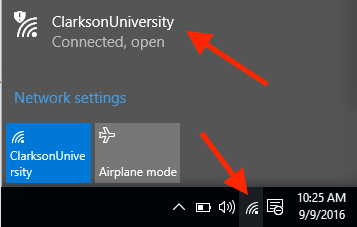
You are now connected.