Clearing Browser Cache In Microsoft Edge

    1.

    Click the 3 horizontal dots in the upper right of the screen and click SettingsDelete browsing data
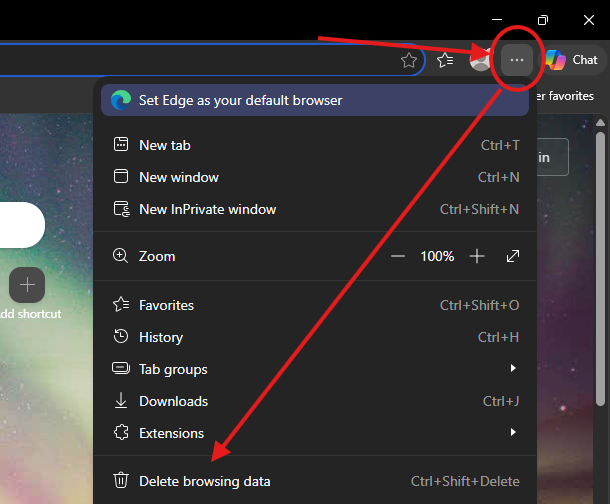
    image2021-4-13_13-58-4.png?version=1&modificationDate=1618336685000&api=v2&effects=drop-shadowimage.png

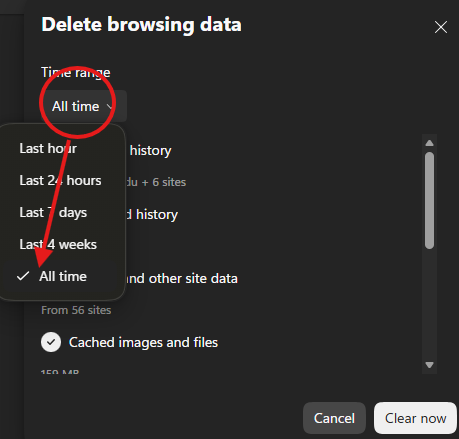
    2.  Click Privacy, searcn, and services onIn the leftTime andrange clickdropdown, select ChooseAll what to cleartime.

    image2021-4-13_14-0-14.png?version=1&modificationDate=1618336815000&api=v2&effects=drop-shadowimage.png

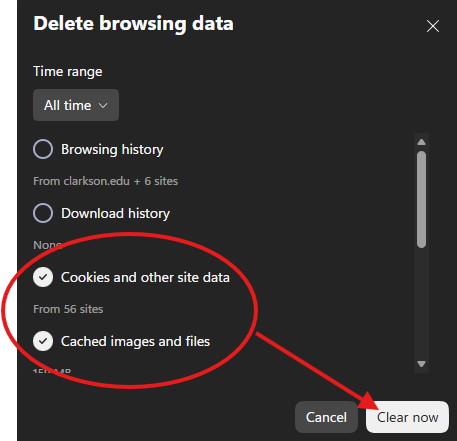
    3. Select AllCookies timeand fromother thesite Time range drop-down menu. Check all the boxes. Uncheck the boxes for Passwordsdata and AutofillCached formsimages dataand files. ifEverything youelse havecan thoseremain saved.unchecked. Hit Clear now.

    image2021-4-13_14-2-58.png?version=1&modificationDate=1618336980000&api=v2image.png

    4. It may take a few moments to clear if it has been a while. Important: Once done, close all open Microsoft Edge browsers and re-launch.