Add an Echo360 video to an H5P Interactive Video Activity
A video in Echo360 can be embedded directly into an H5P Interactive Video activity, instead of having to upload the video. Uploading a video directly into Moodle makes your course size large, which can create issues.
Copy the H5P video link from within Echo360:
- Locate your video in Echo360.
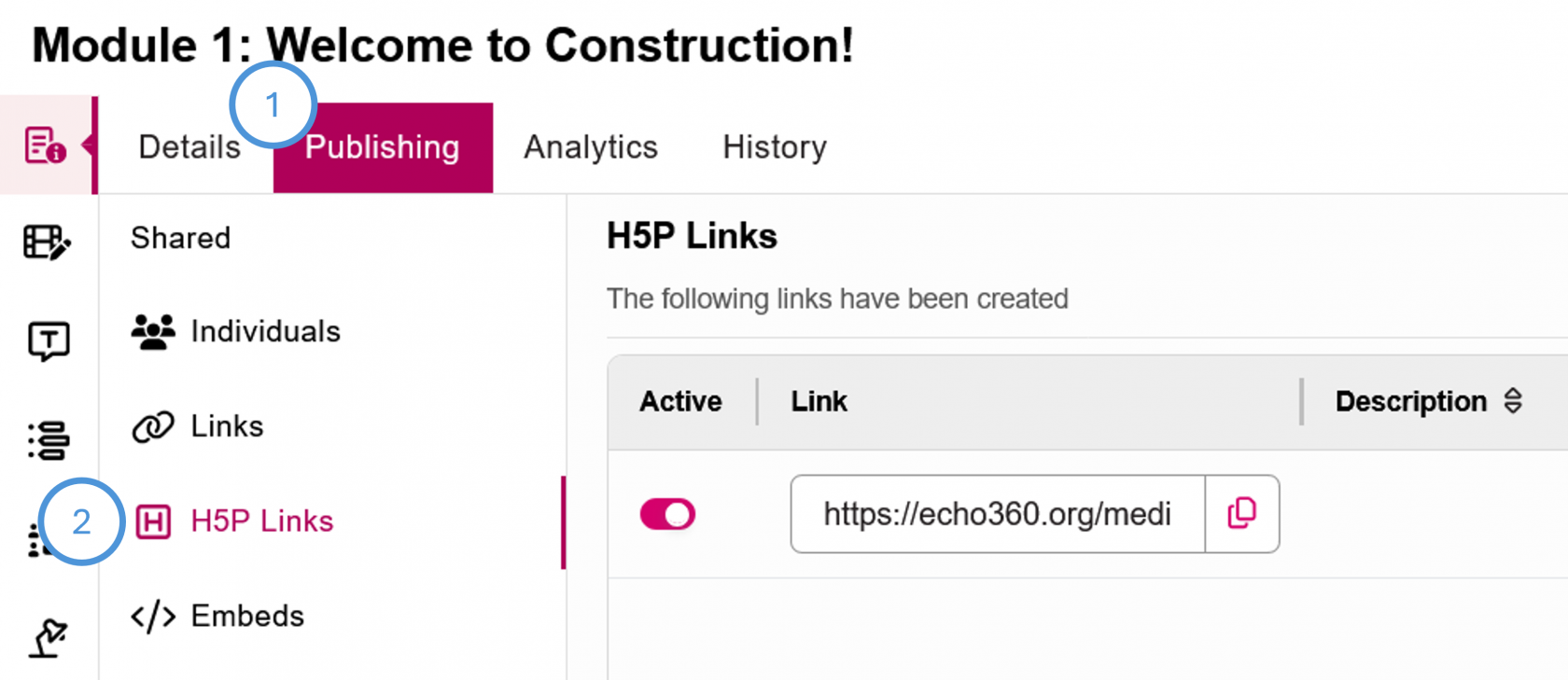
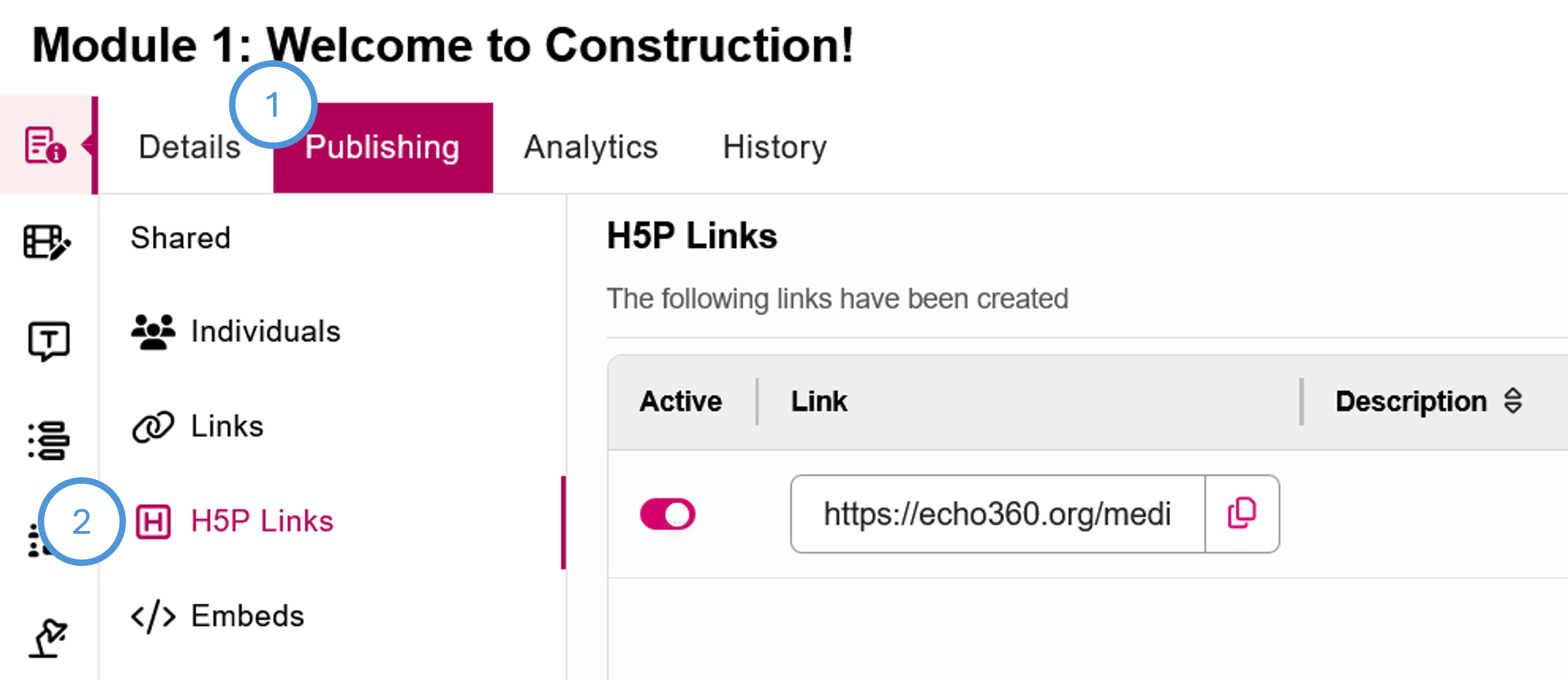
- Click the Publishing tab, then H5P Links. Note that the H5P link is different than the regular embed link, so be sure to click H5P Links first.
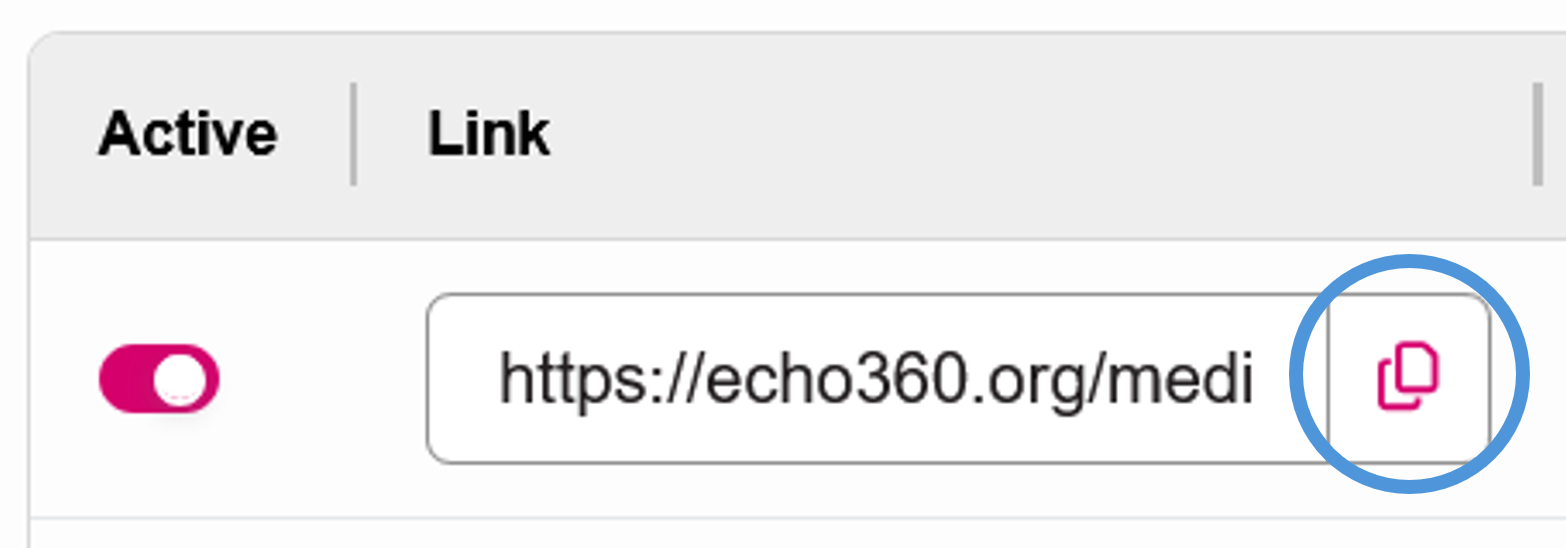
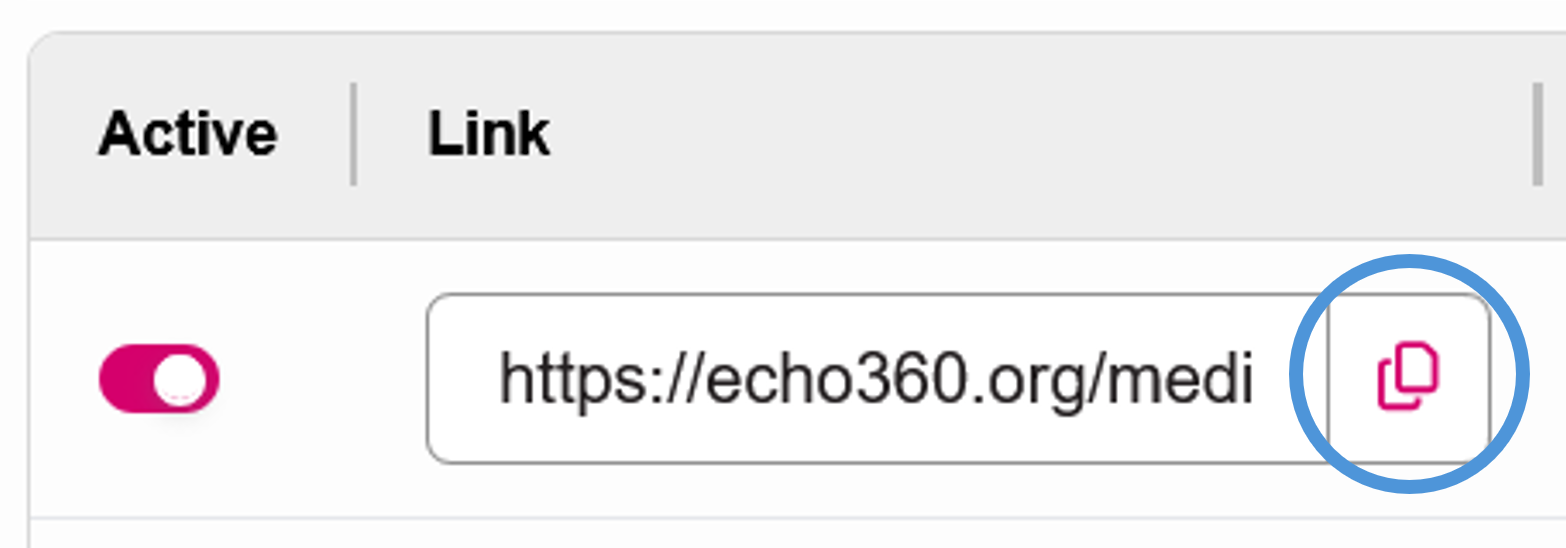
- Copy the link by clicking the Copy icon to the right of the link.
Insert the video link into the H5P Interactive Video activity in Moodle:
- From your course in Moodle, with Edit Mode turned on, click Add an activity in the module you would like to put the interactive video.
- Choose H5P Interactive Content.
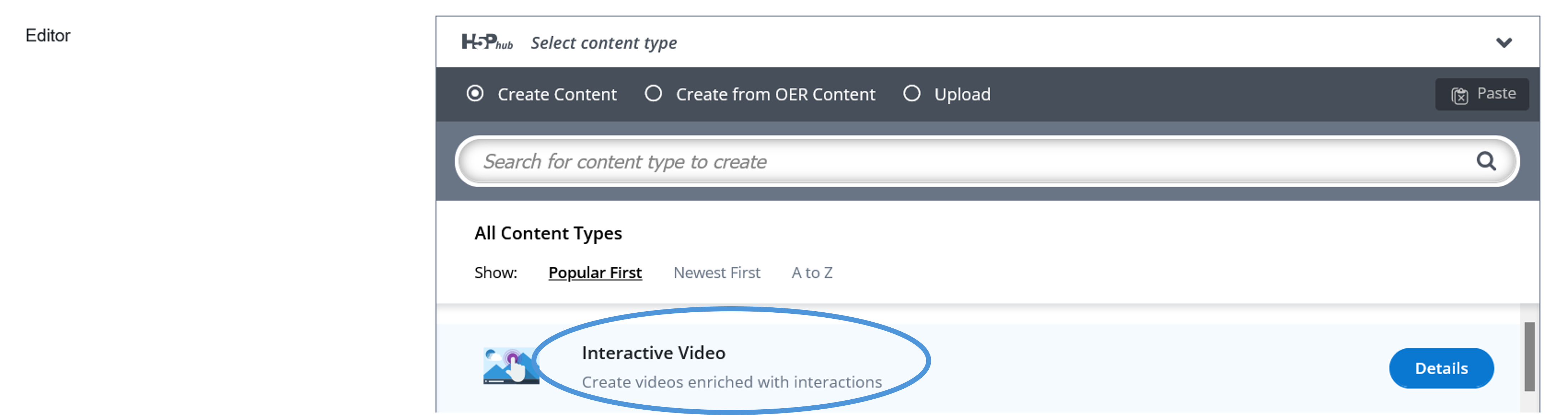
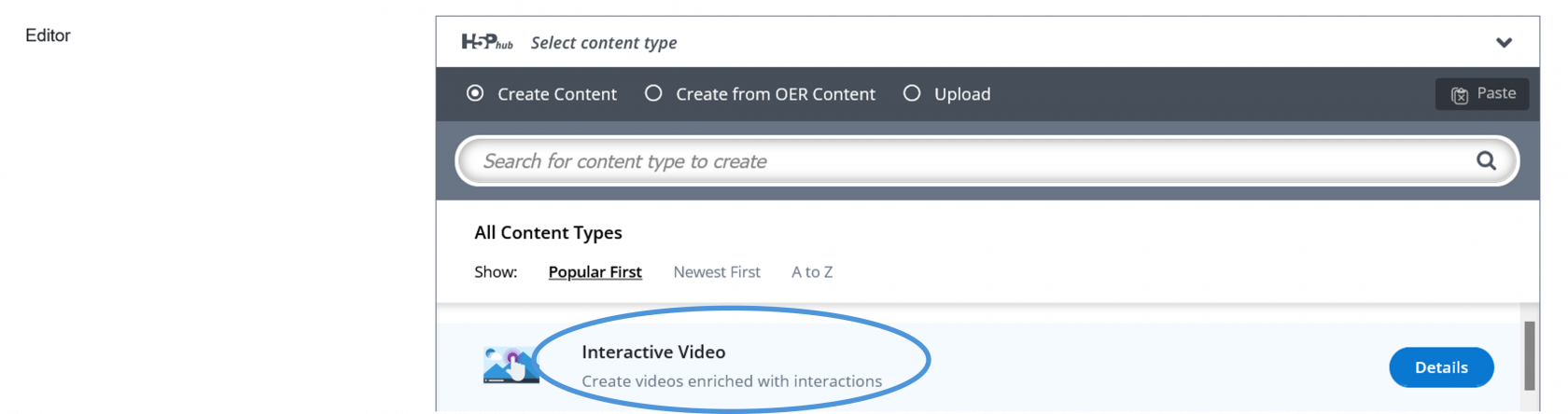
- In the Editor, choose Interactive Video as the content type.
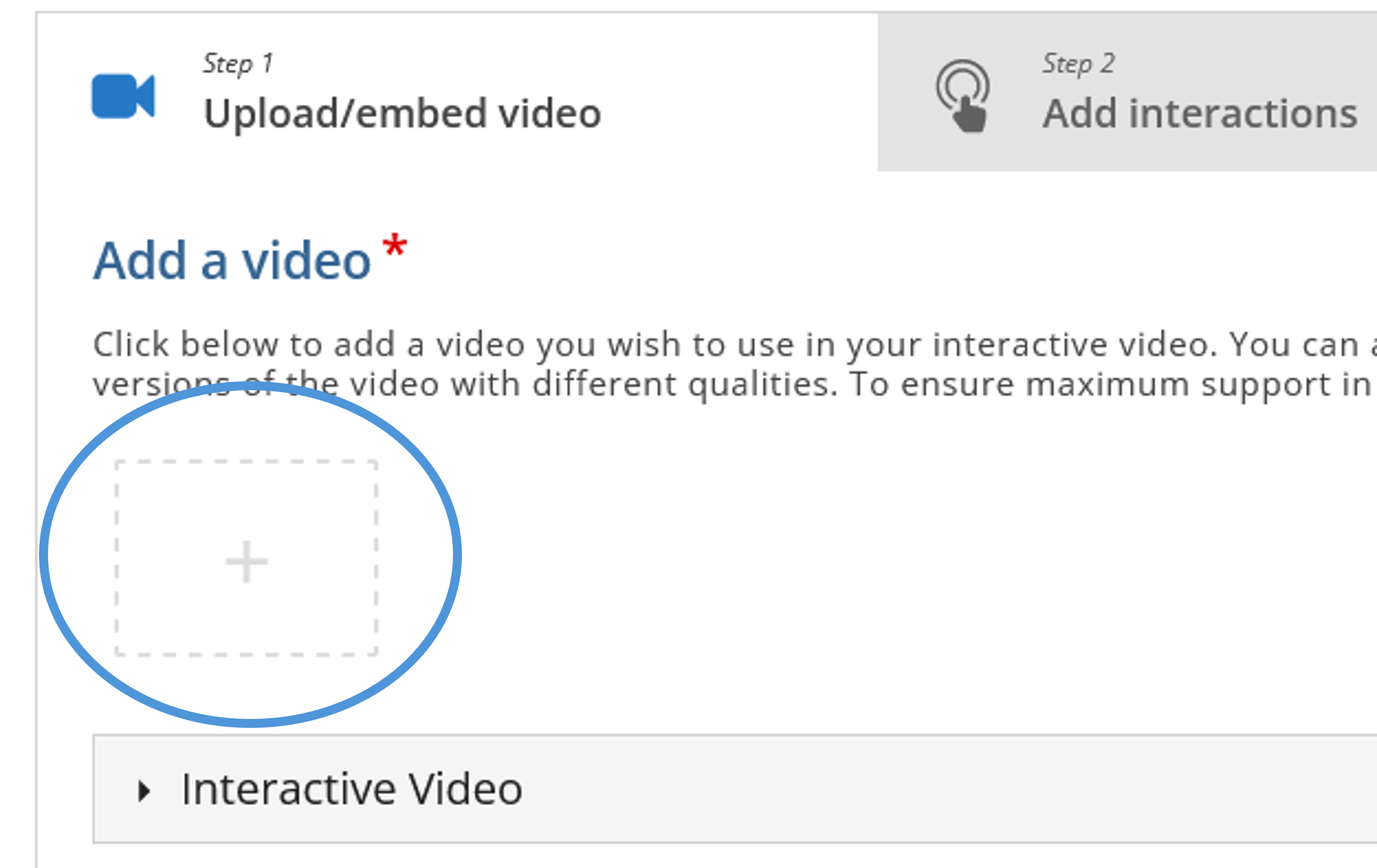
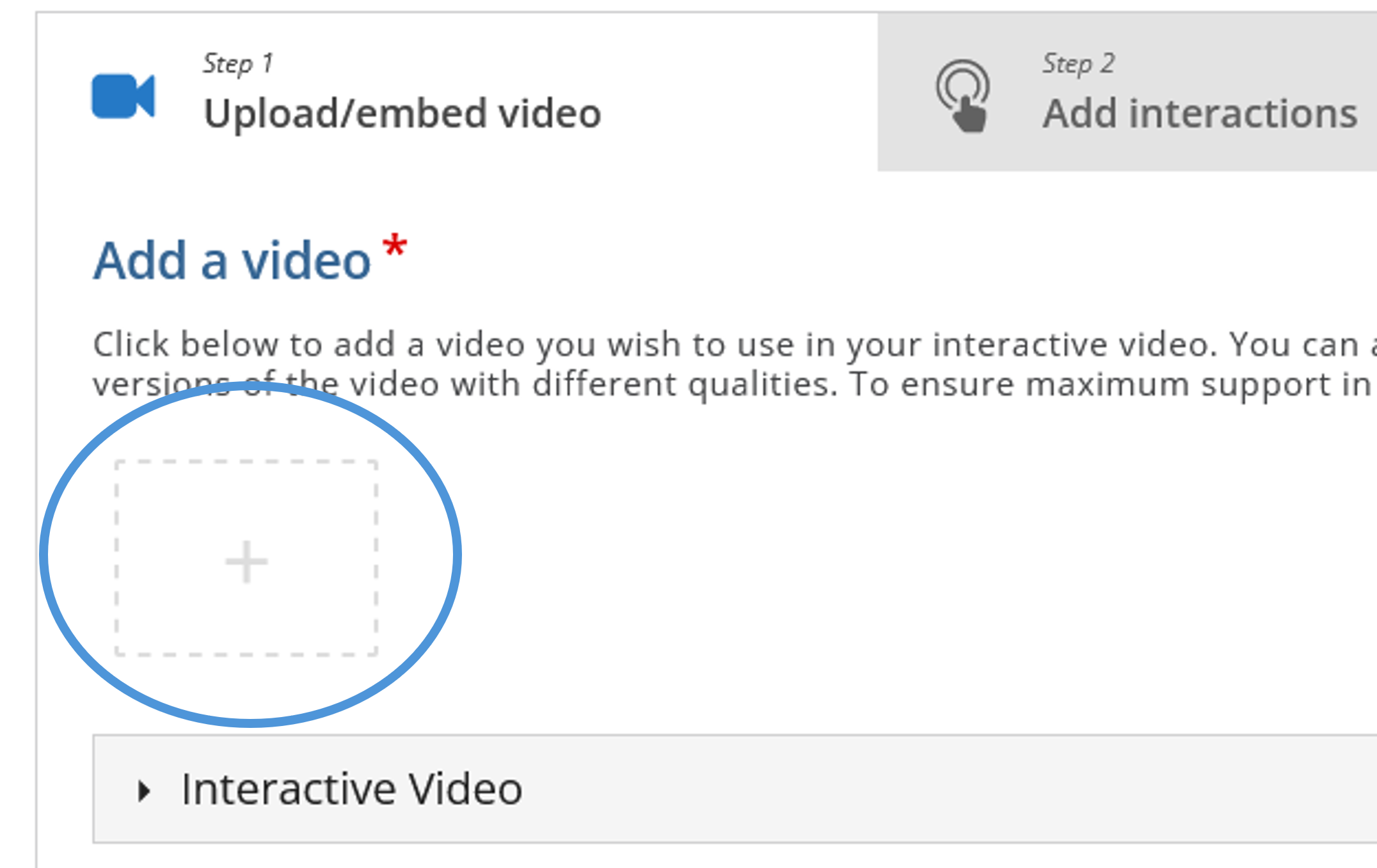
- Click the plus icon to add a video.
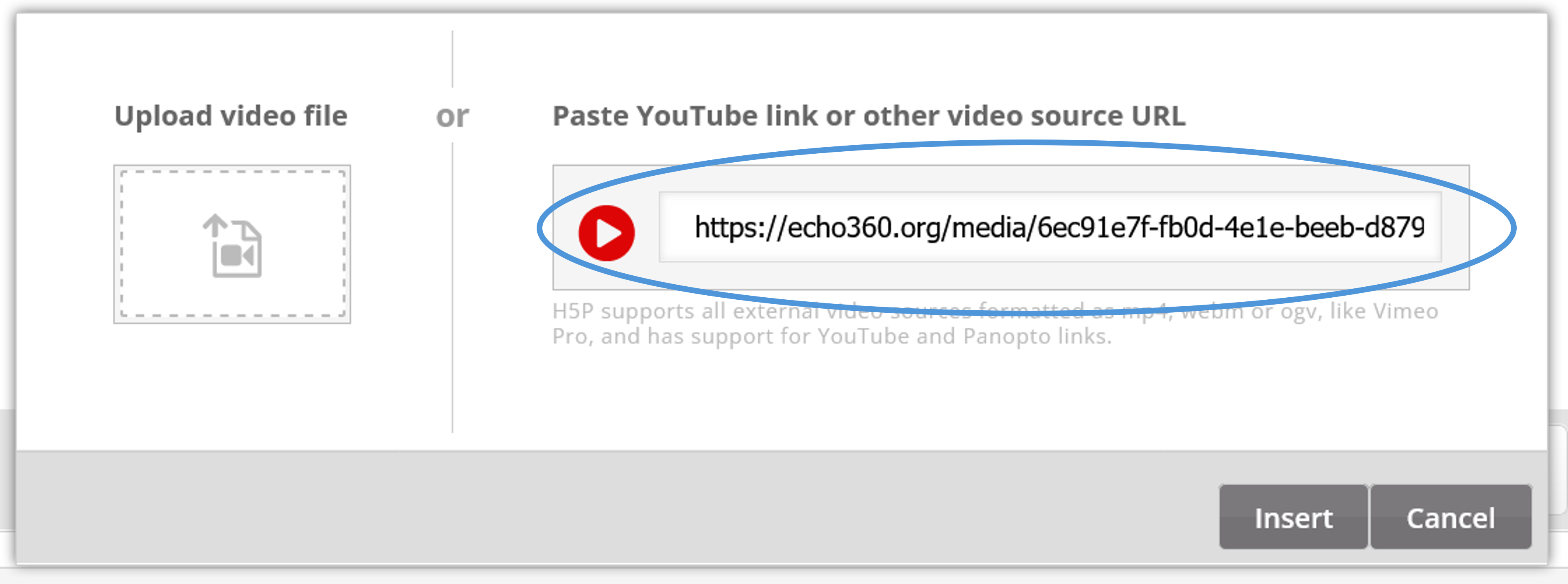
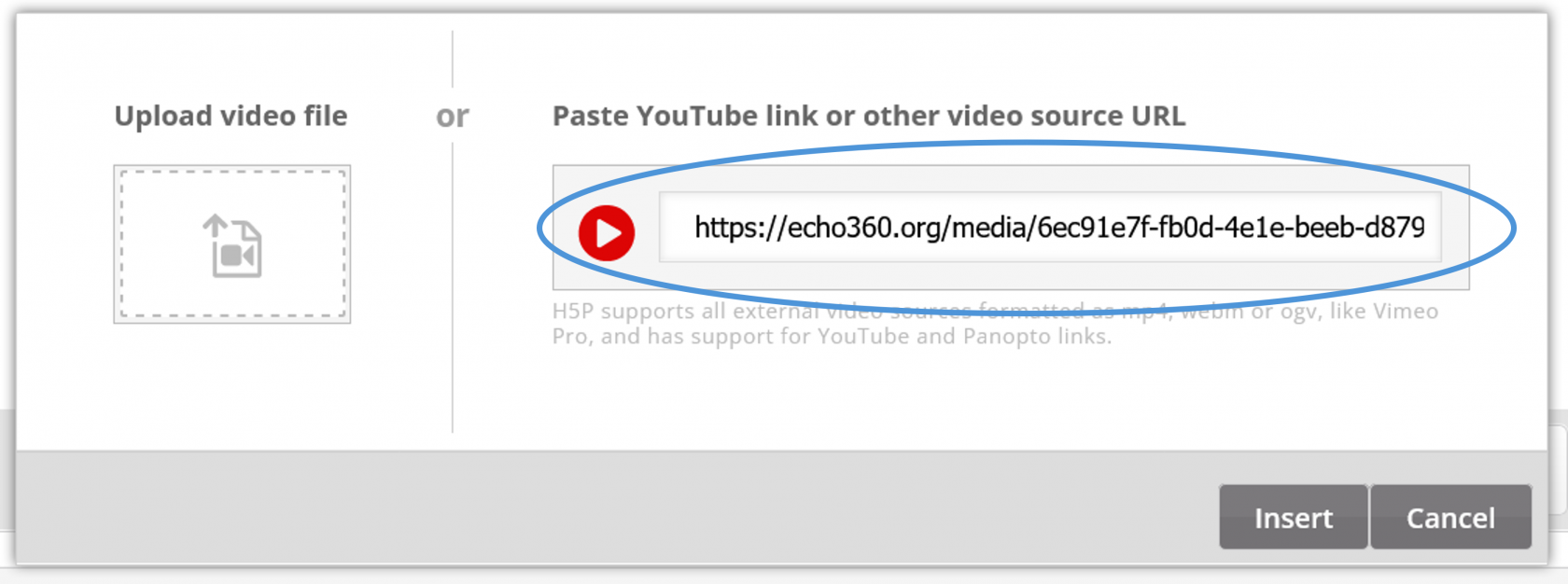
- Paste the link that you copied from Echo360 in the video URL area then click Insert.
- Continue building your Interactive Video!